Import your bank's file, then make the books match
Download your transactions from your bank and import them. Each month, reconcile against the statement and lock what you have checked.
Most banks let you download your transactions as a file. Press Import transactions at the top of an account's list, or drag the file onto the account. Each transaction in the file becomes a row you can check, and nothing is written until you import.
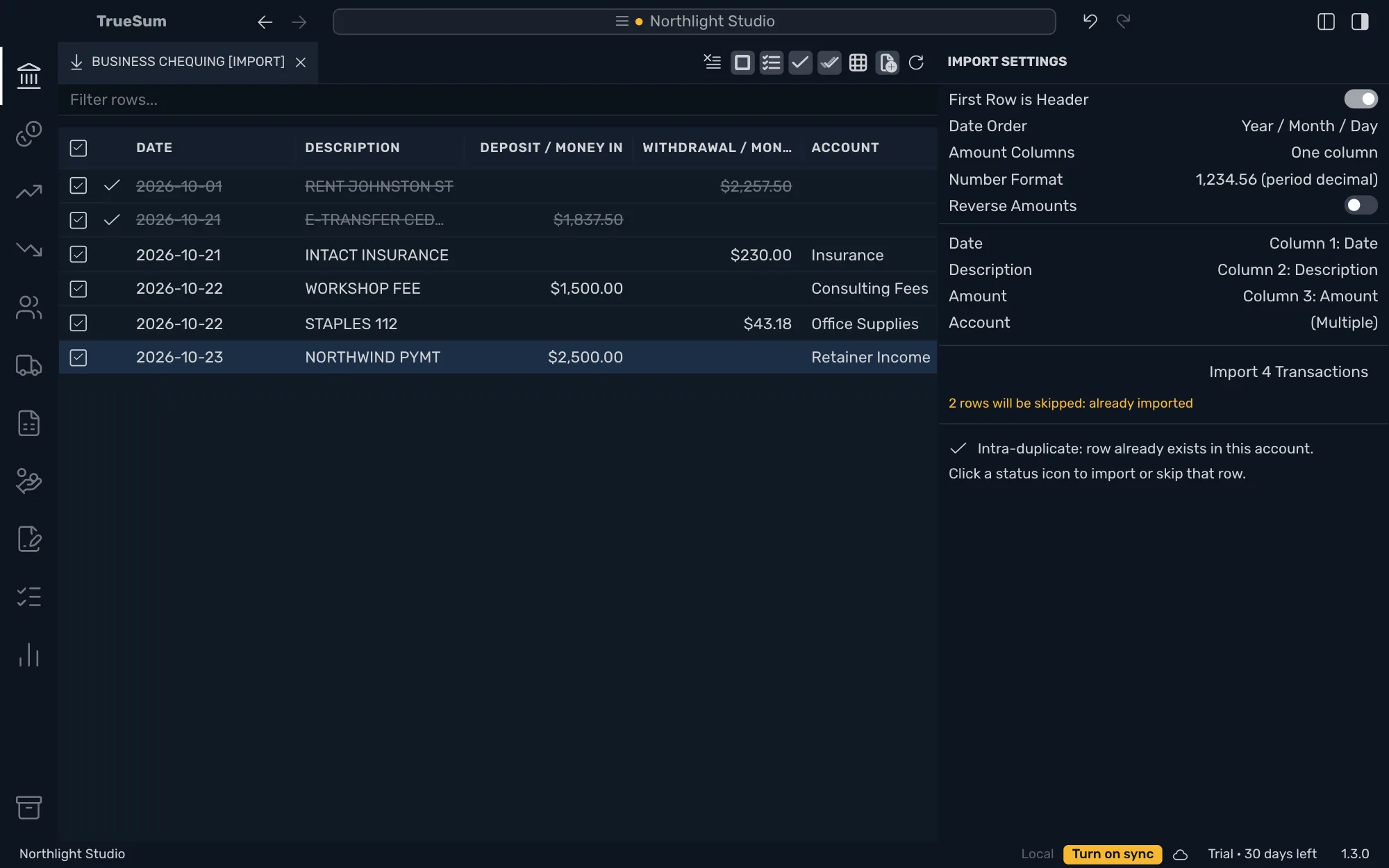
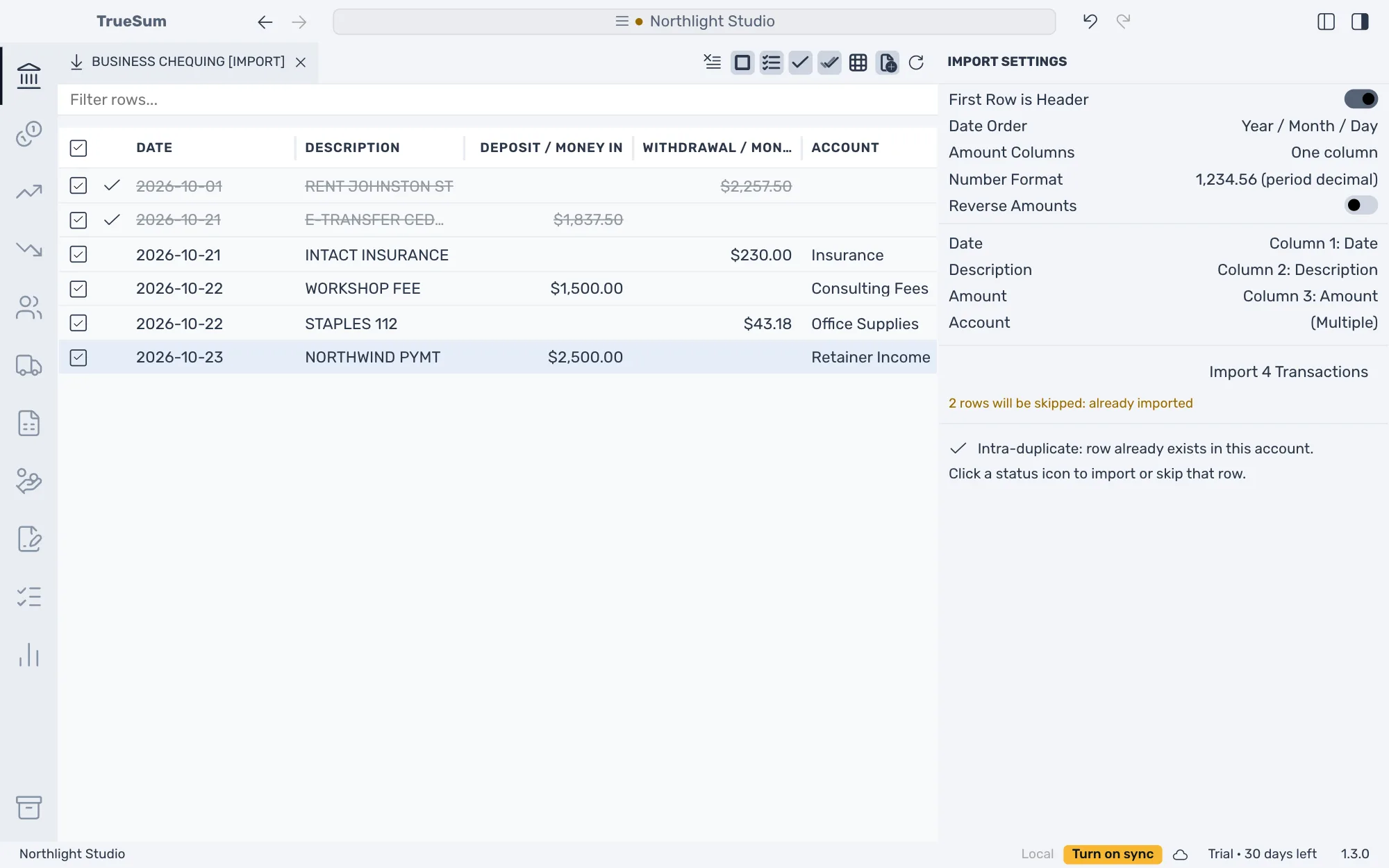
For each row you choose the other account, such as the expense account for a payment or the income account for a deposit. Rows that are already in your books are marked and left out. Press the import button and the rows become ordinary transactions, which Undo can take back in one step.
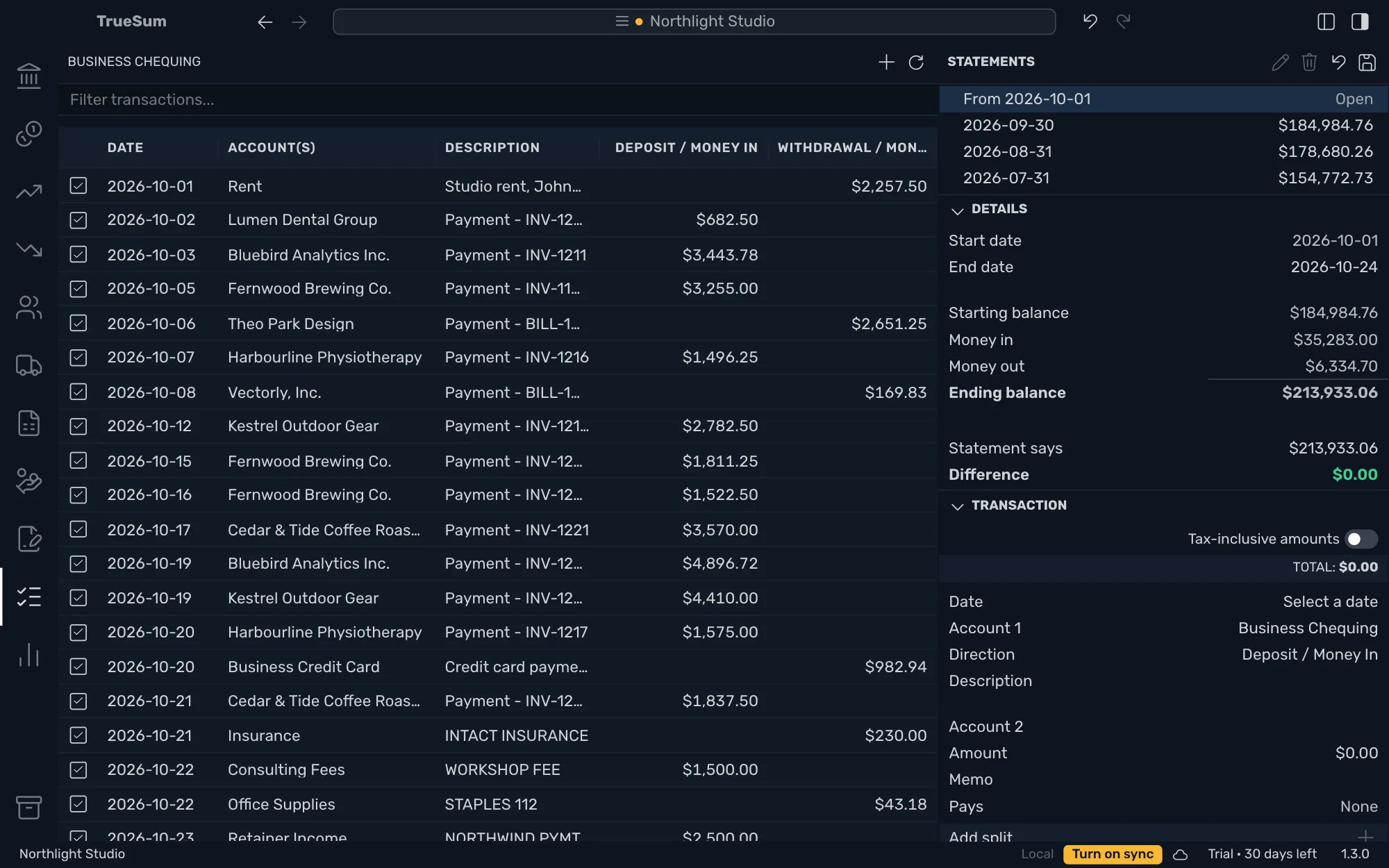
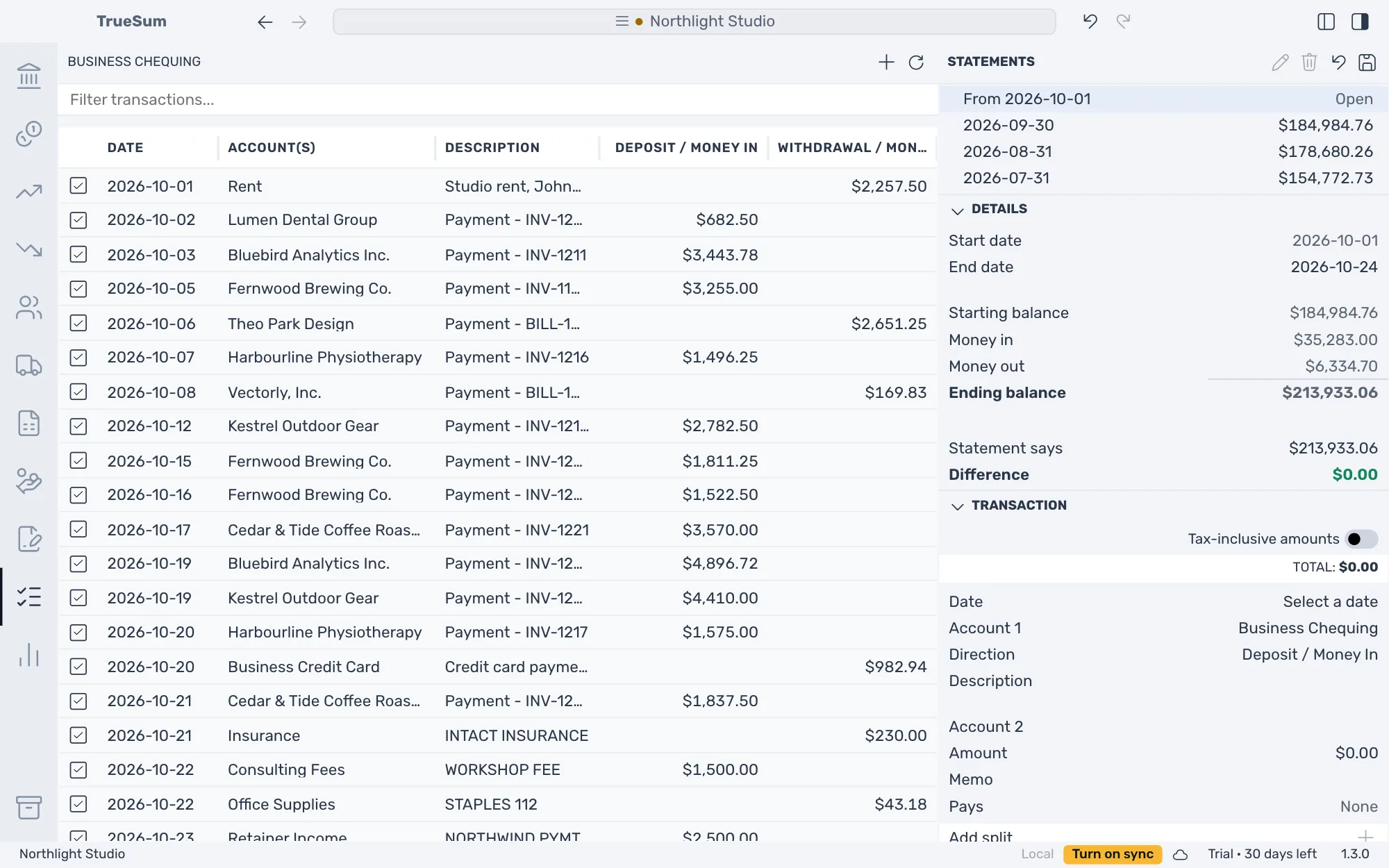
Each month, press the Statements icon, tick the transactions on your bank's statement and type the closing balance it gives, such as $213,933.06. The Difference reads $0.00 when your books agree with the bank. Complete the statement, and its transactions are locked.
Bank accounts and credit cards
Add an account for each one your bank gives you, and one for the cash you keep. Give it its currency and its opening balance, which for a credit card is what you owed. Its list names the columns for the kind of account, such as Deposit / Money In and Withdrawal / Money Out for a bank account.
CSV, OFX, QFX and QIF files
Drag a file onto the account, or press Browse file and choose it. For a CSV file the columns are guessed and your choices are remembered for the next file. Give each row an account, or tick several rows and give them all the same one, and nothing is written until you import.
Duplicates marked and skipped
A row is marked when the account already has a transaction with the same date, the same amount and the same direction. It is dimmed and left out, and a line under the import button says how many rows are skipped. Press the mark to import a row anyway.
An import undone in one step
After an import, a message says how many transactions were imported. They are ordinary transactions you can change. To take the whole import back, choose Undo Import Transactions in the Edit menu.
Reconcile against the statement
Tick the transactions on the statement and type its closing balance. The Details panel shows the starting balance, what came in and went out, and the Difference. Complete the statement when the difference is exactly zero, and its transactions are locked.
Export to CSV
Press the download button at the top of an account's list to save its transactions as a CSV file for a spreadsheet or your accountant. The file has a row for every transaction, with its date, description, other account, debit, credit and balance. The same button exports every account under a heading.
30 days free, no account or credit card required.