Import a bank statement
Bring the transactions in a file from your bank into an account, so you do not type them.
Most banks let you download your transactions as a file, usually from the statements or transactions page of their website. Import it into the account, choose where each transaction belongs, and TrueSum records them. It reads CSV, OFX, QFX and QIF files.
Open the import
- Press the account in the Accounts sidebar.
- Press the Import transactions button (a page with a plus) at the top of the list. You can also drag the file onto the account in the sidebar.
- Drop the file on the screen, or press Browse file... and choose it.
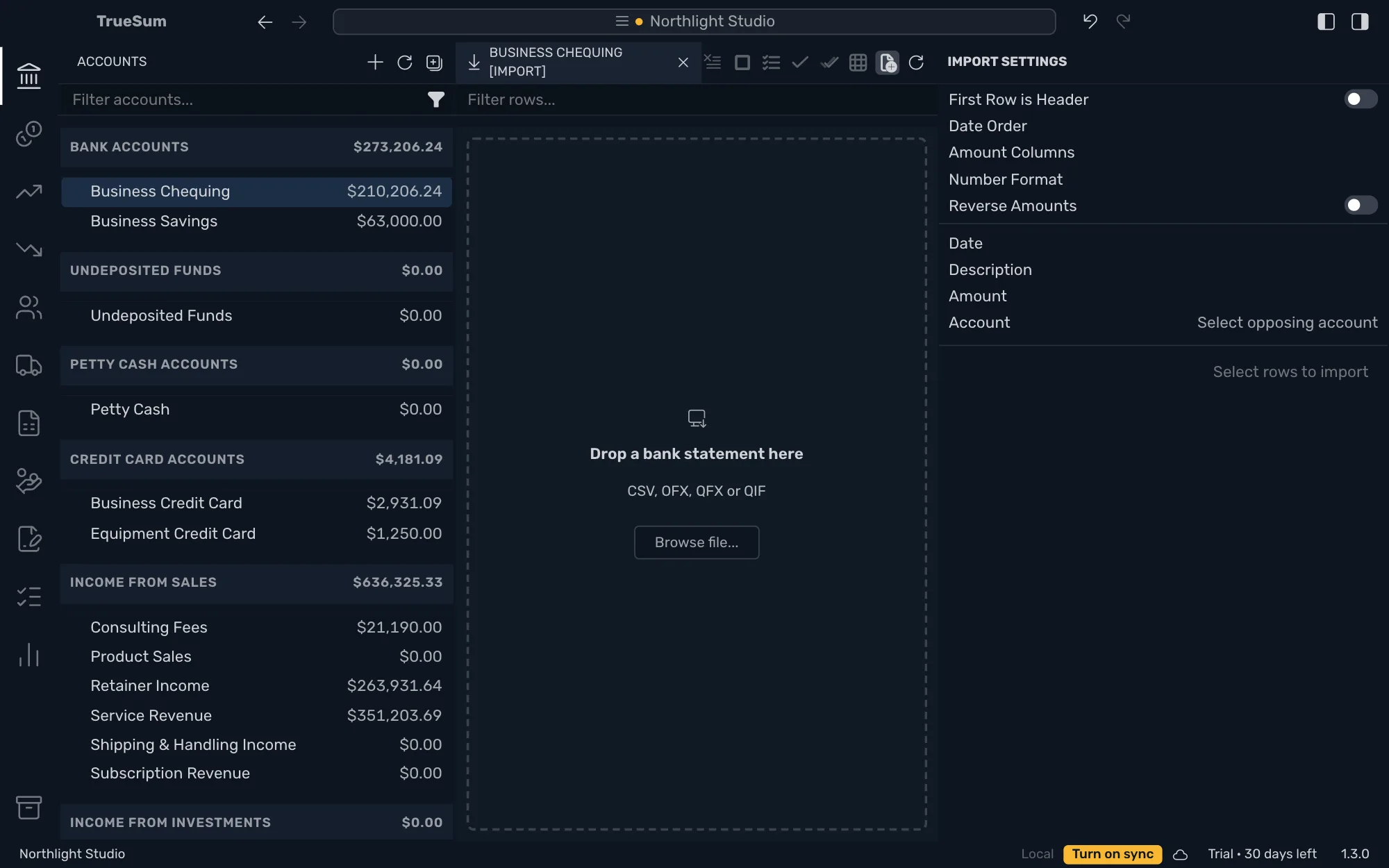
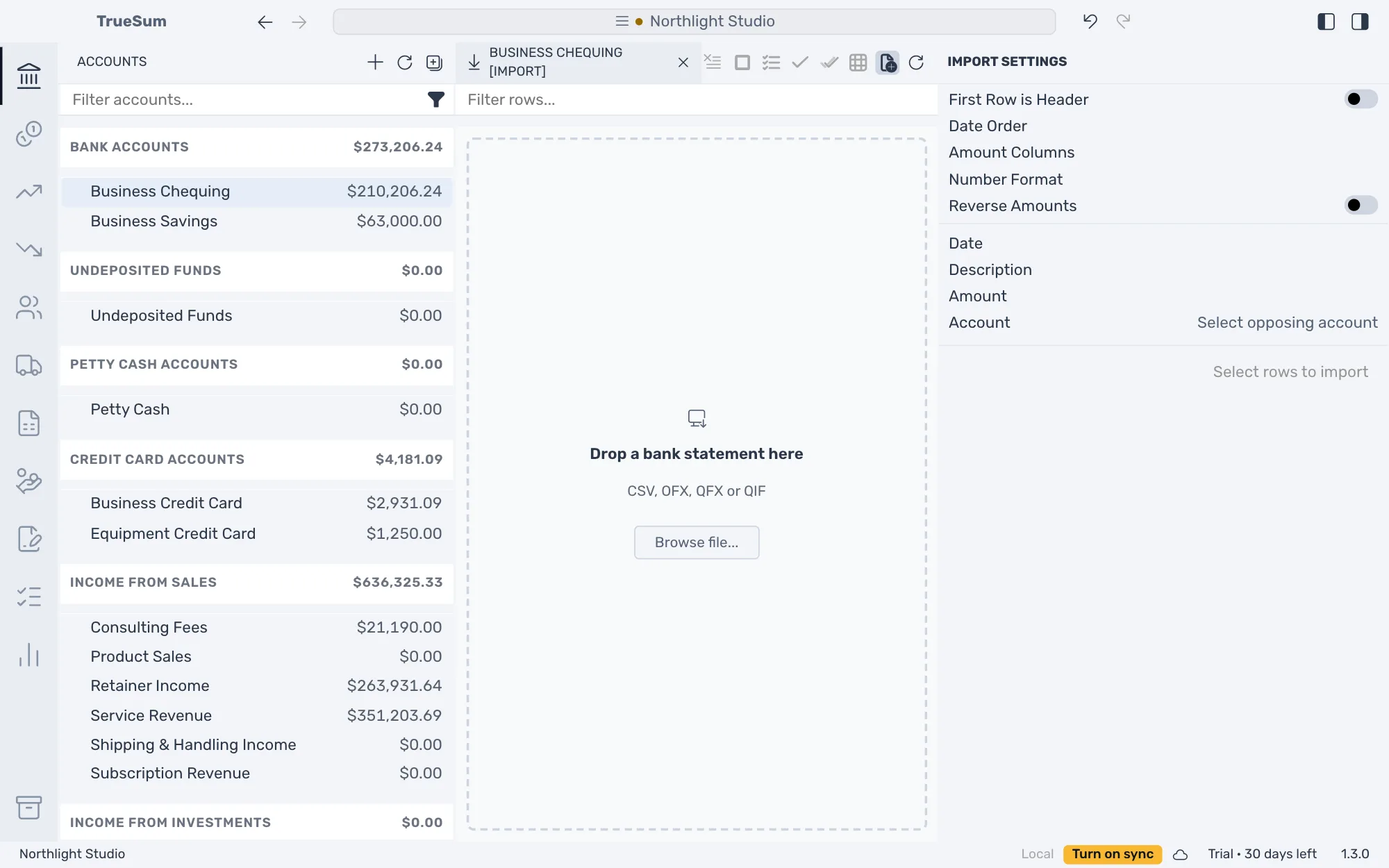
Each transaction in the file is a row, with Import Settings beside the list. Nothing is added to your books until you press Import. Press Clear import to start again, or the x beside the title to leave.
Check the columns
An OFX, QFX or QIF file needs nothing here. For a CSV file, TrueSum guesses, and remembers your choices for the next file that looks the same. Check the Import Settings:
| Setting | What it is |
|---|---|
| First Row is Header | On when the first row names the columns. |
| Date Order | How the file writes dates. When they could be read two ways, TrueSum waits for you to choose. |
| Amount Columns | One column, with money in as positive, or Two columns, one for money in and one for money out. |
| Number Format | How the file writes 1,234.56. |
| Reverse Amounts | On when the file shows money out as positive. For a credit card, a positive amount is a charge. If the rows under it show your payments as money in, turn it on. |
| Date, Description, Amount | The file's column for each. |
A row TrueSum cannot read is skipped, and Import Settings says how many.
Choose where each row goes
Each row needs a second account. That is the expense account for a payment, the income account for a deposit, or the other account for a transfer.
- Press a row, then Account, and choose the account. To give several rows the same account, tick them first.
- Tick the rows to import. The box in the header ticks every row in view.
- Press Import 4 Transactions (the button counts the rows that are ready) and confirm. A row with no account is skipped.
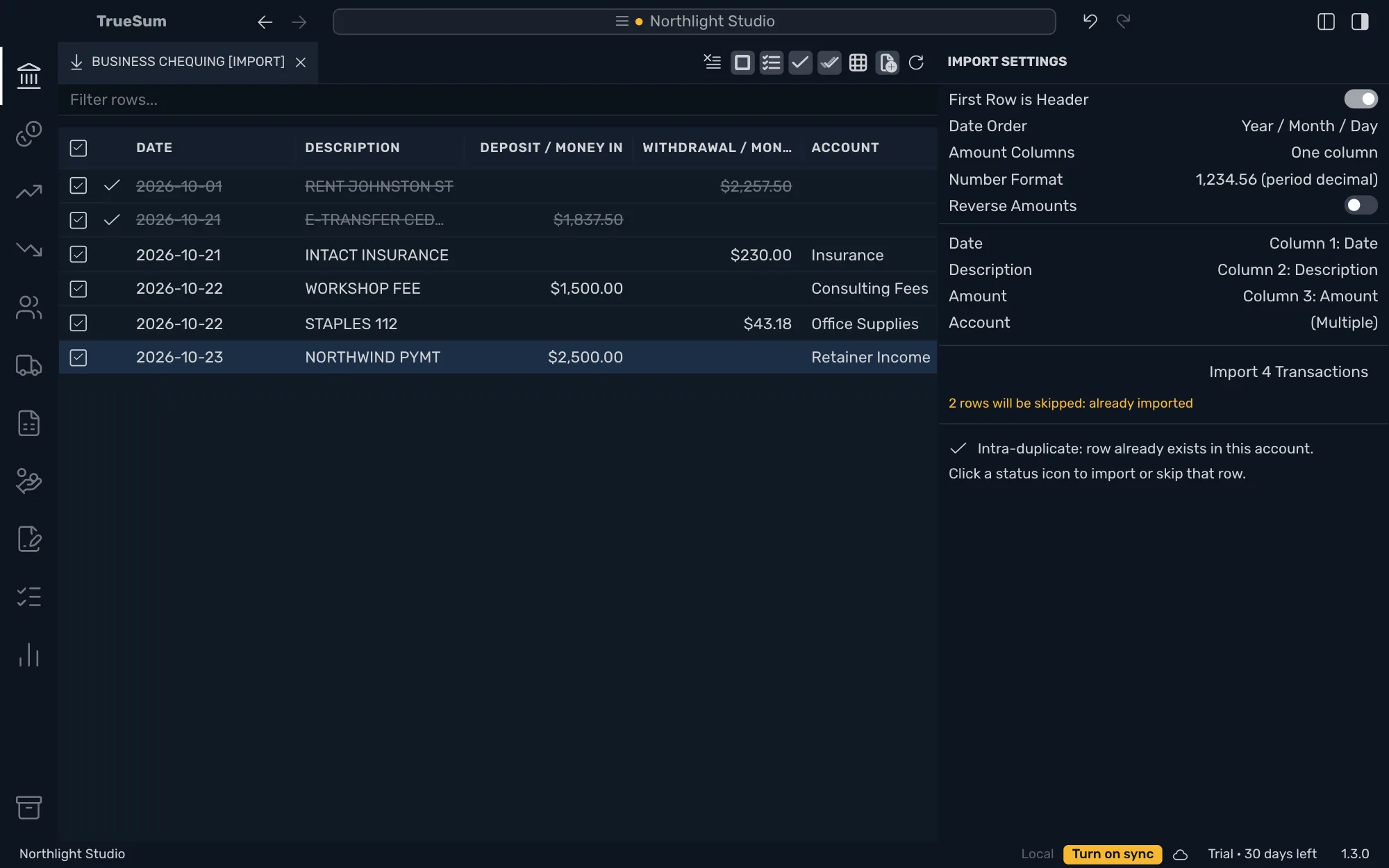
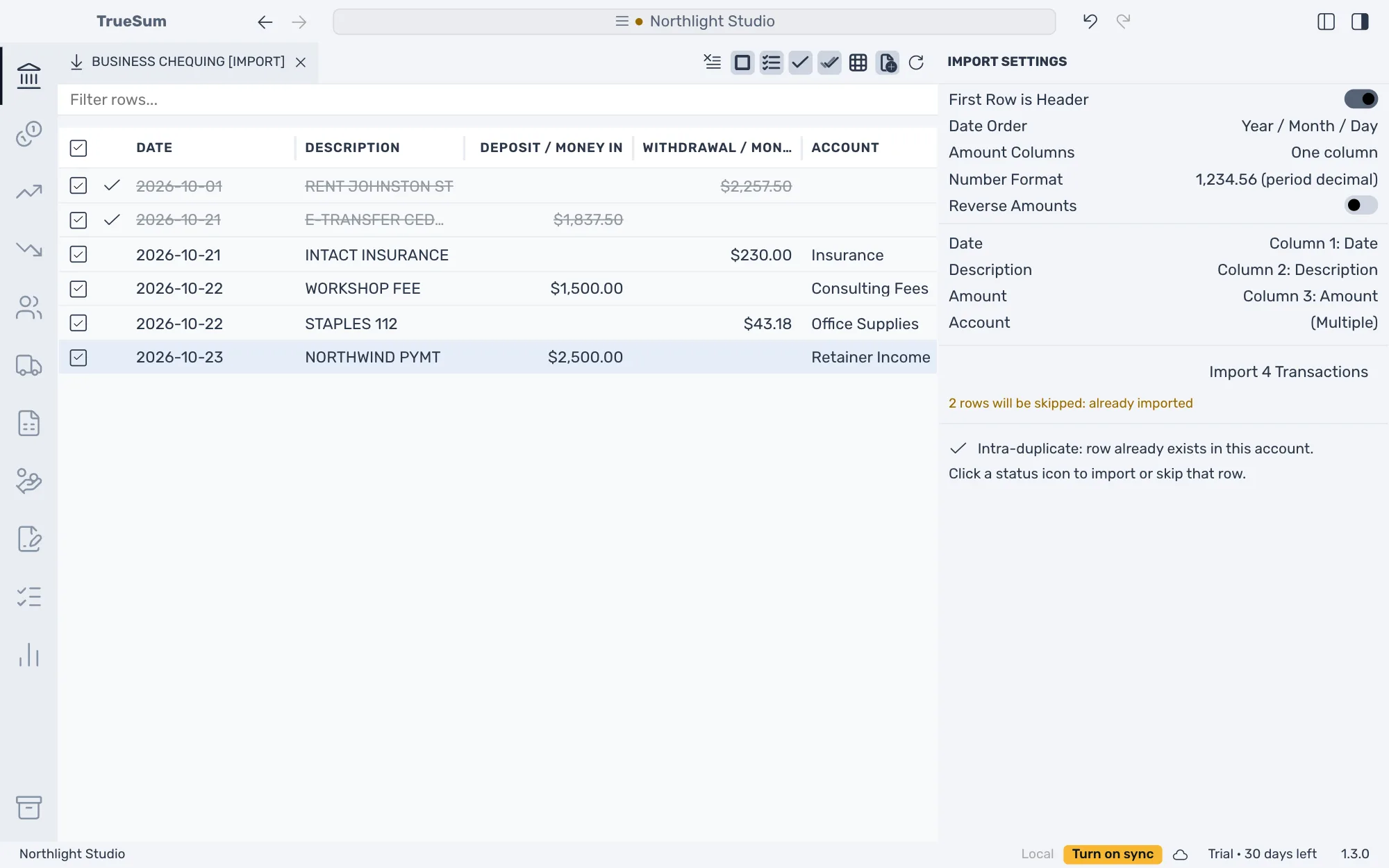
A message says 4 transactions imported. They are ordinary transactions, so you can open one to change it. To take the import back, in the Edit menu, choose Undo Import Transactions (see Undo a change). Rows already in your books are skipped (see Skip duplicate rows).
If the button is dimmed
It reads Cannot import into this account when the account is not in the business's currency, or a statement file is in another currency than the account. TrueSum cannot look up a rate for each row, so enter those transactions by hand.
Next, reconcile the account.