Make TrueSum yours
Choose the colors, the zoom and the spacing.
Choose how TrueSum looks. You can set its colors, how large everything is, and how much room rows and fields take. You can change all three at any time. Settings opens from the business's name in the title bar, so create a business first.
Open App Settings
- Press the business's name in the middle of the title bar.
- In the Settings window, choose App Settings.
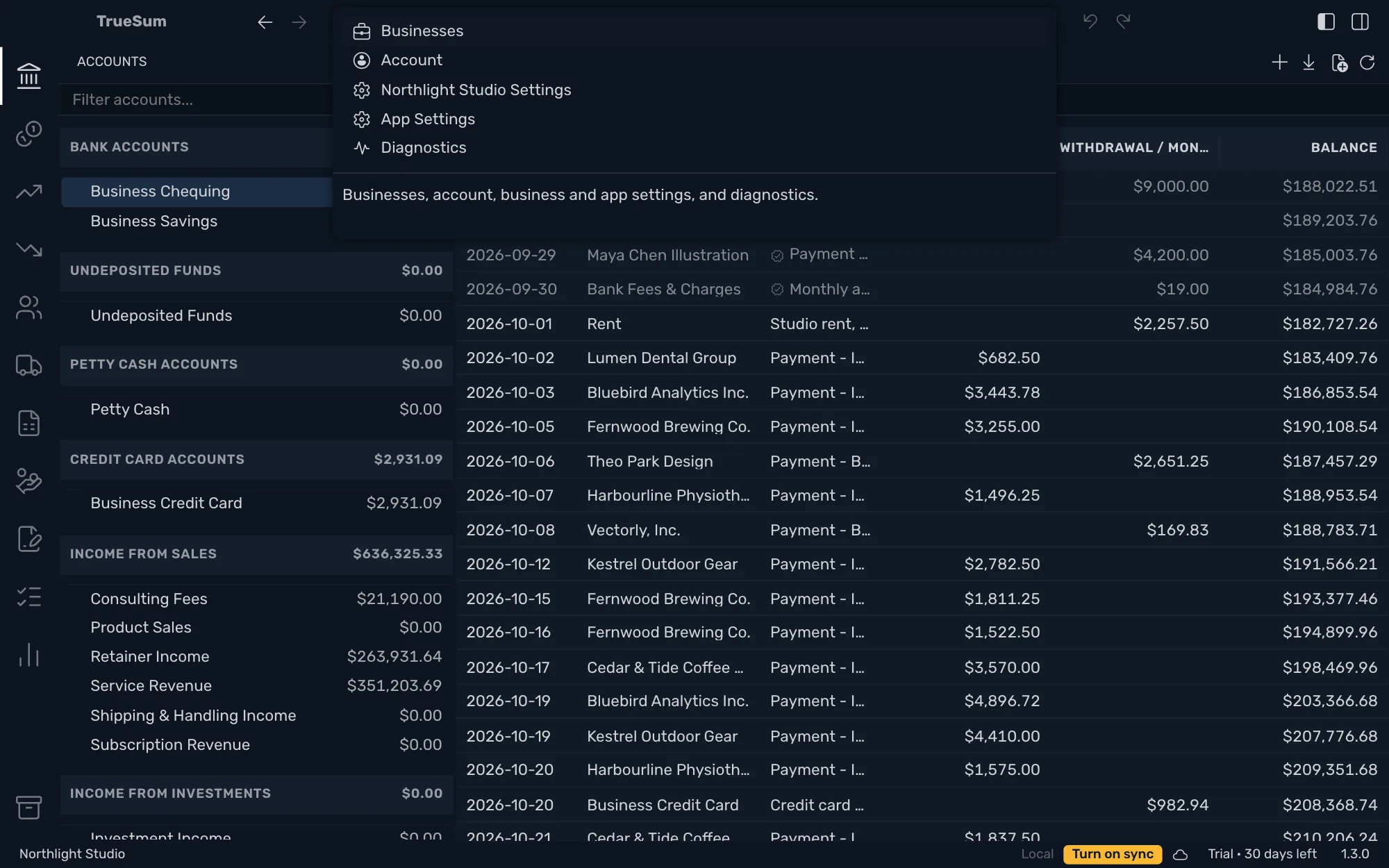
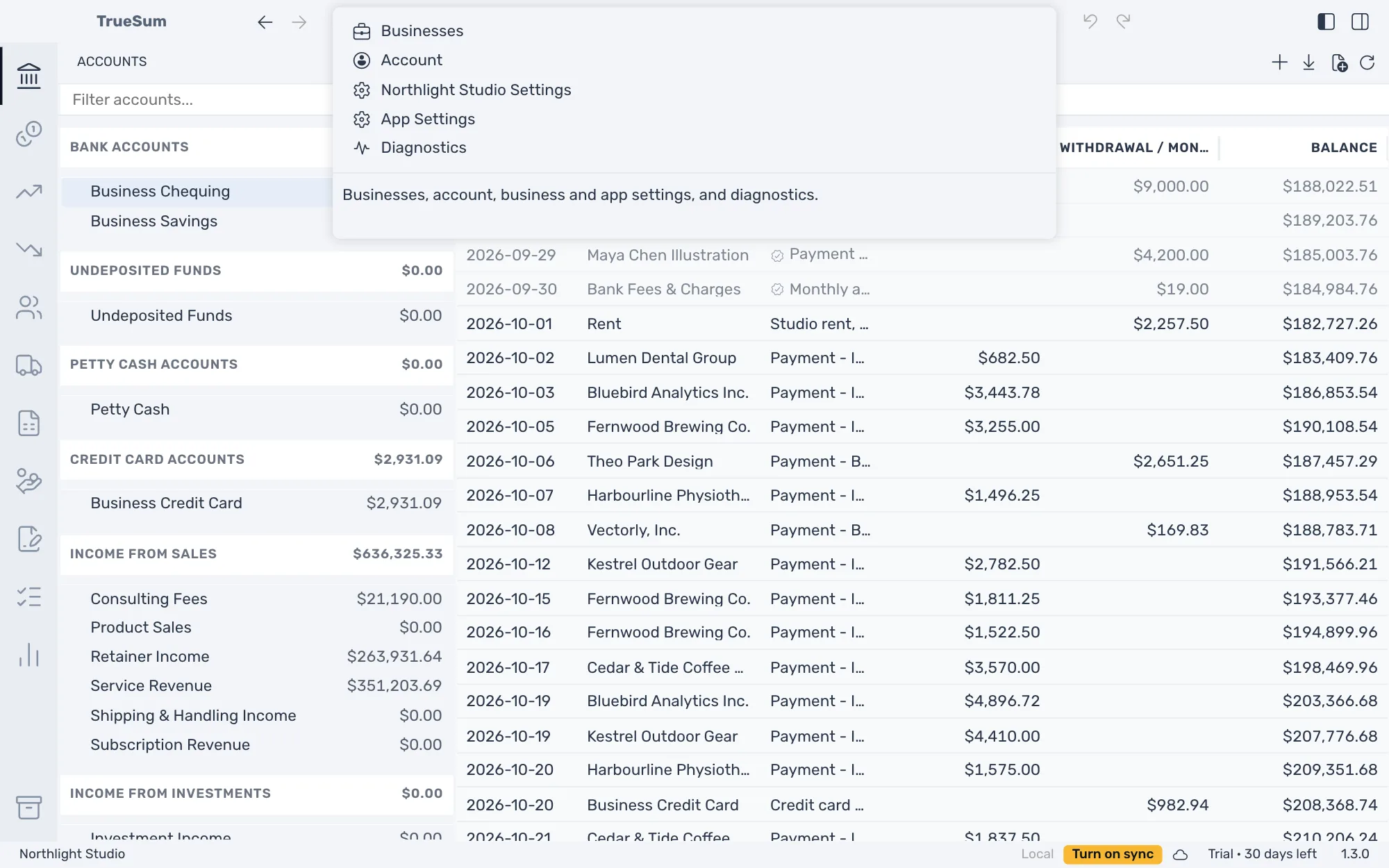
On a Mac you can also, in the TrueSum menu at the top of the screen, choose Settings…, or press Command and the comma key.
App Settings are for the whole app, not for one business. Colors and spacing are in the Appearance section, at the bottom.
Choose the colors
Press Theme and choose one from the list, which scrolls. The change applies at once.
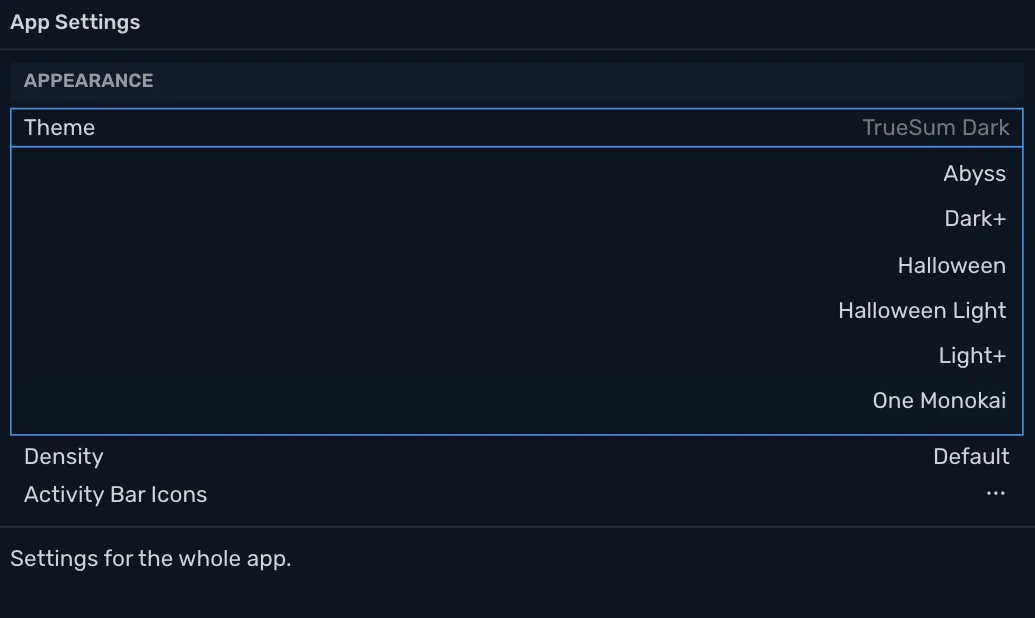
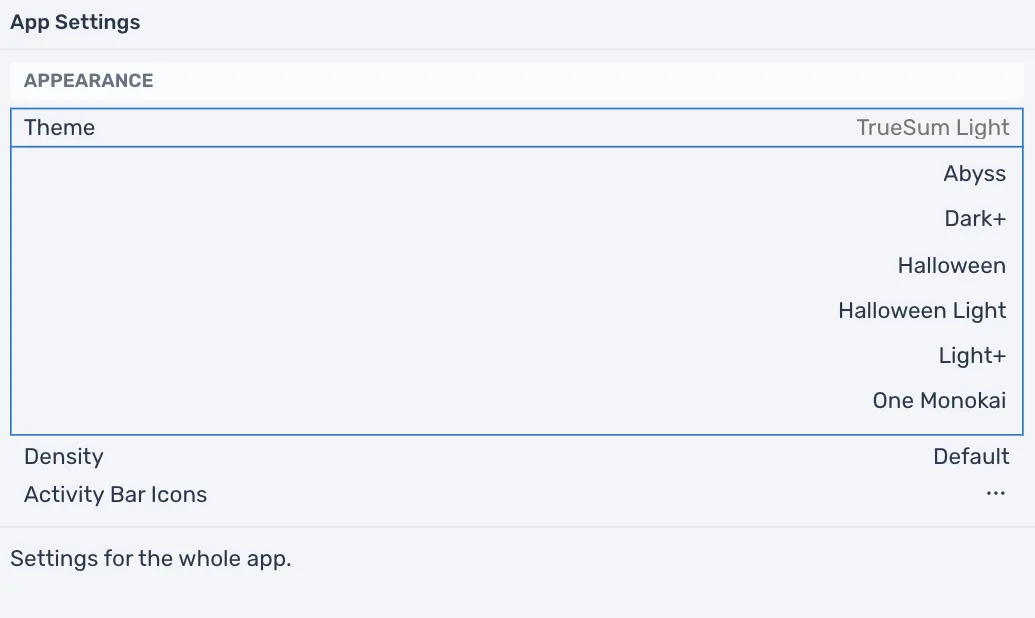
Until you choose, TrueSum follows your device. It uses TrueSum Light in light mode and TrueSum Dark in dark mode.
Here is the same screen in two of the themes, Red and Halloween.
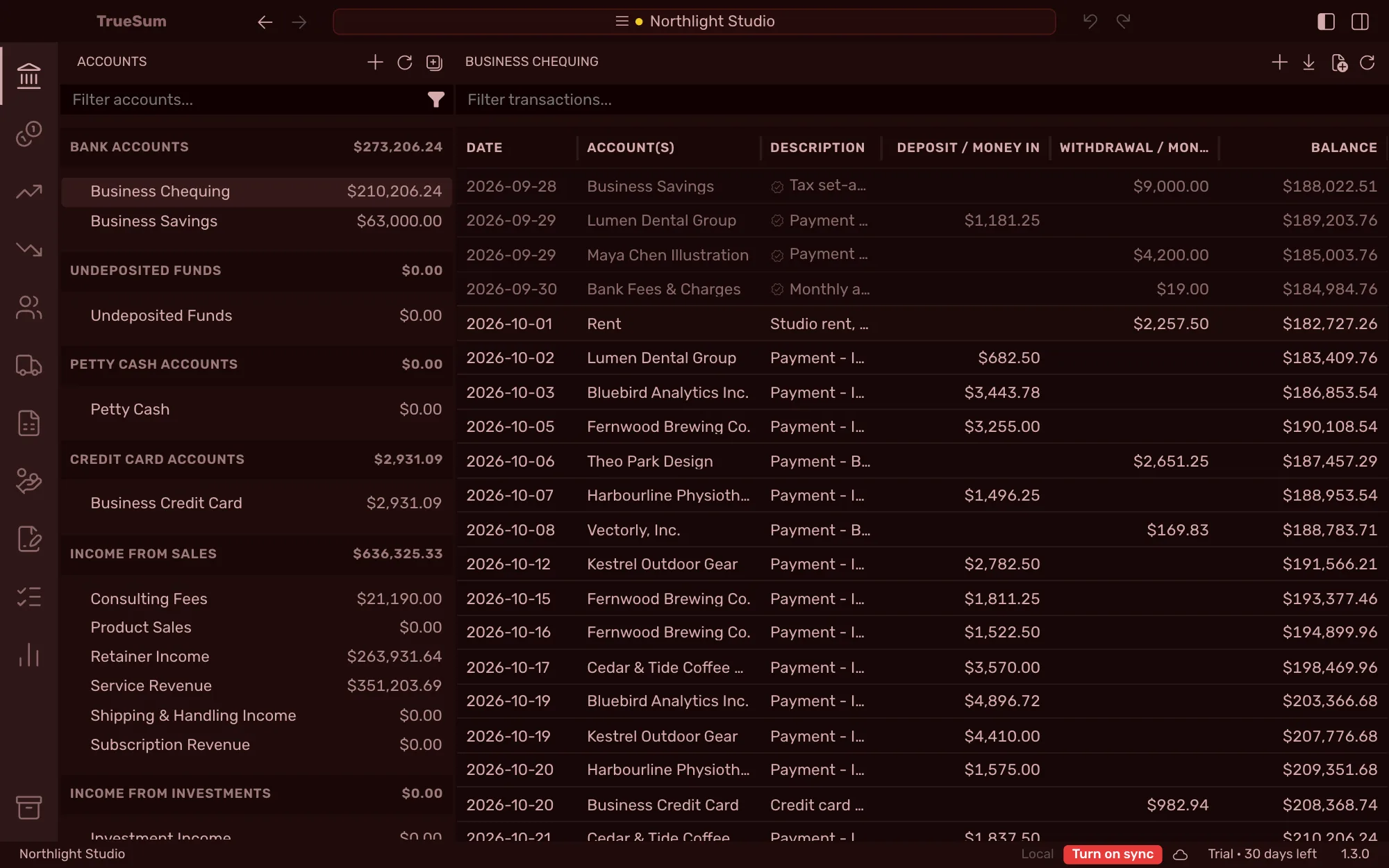
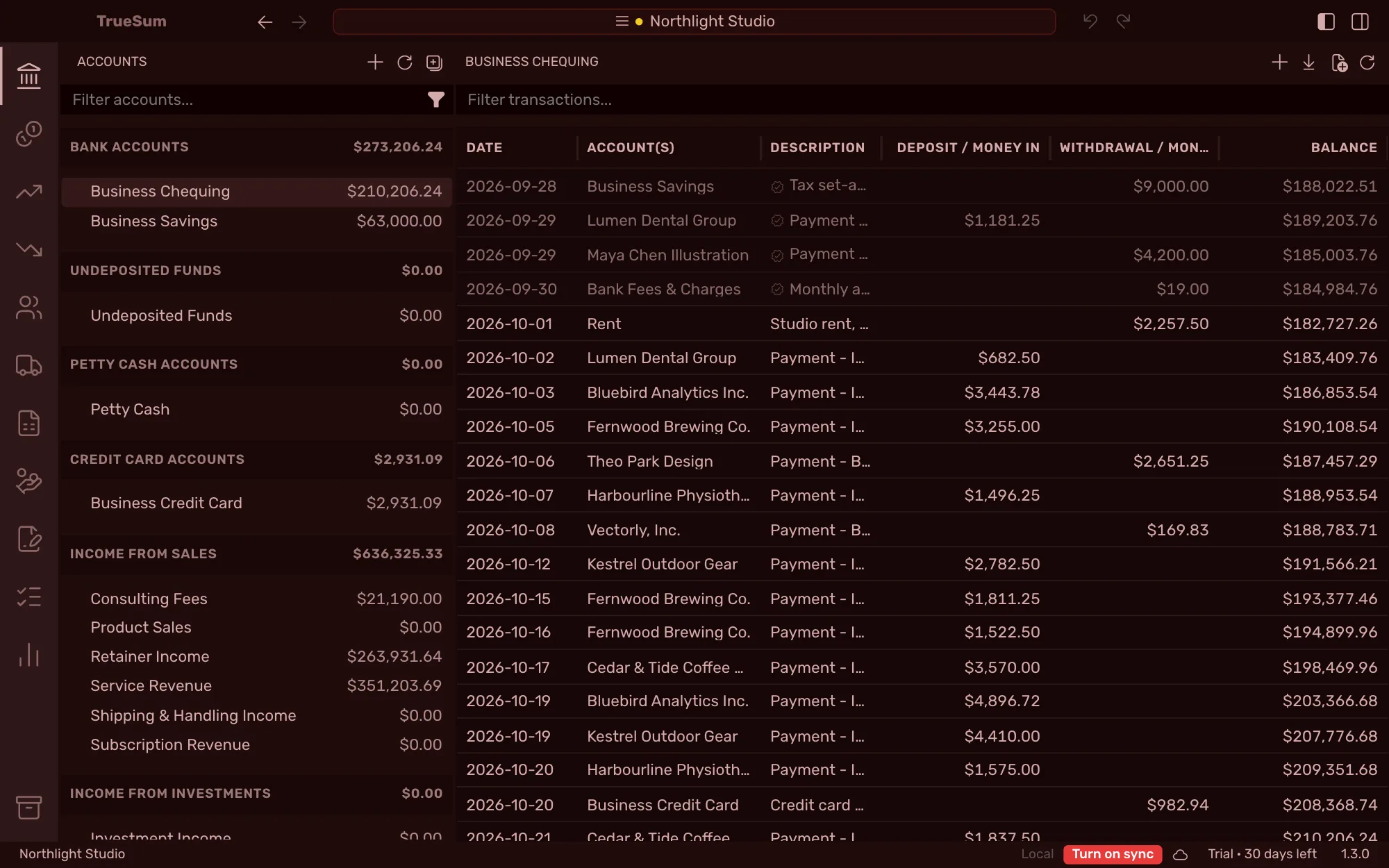
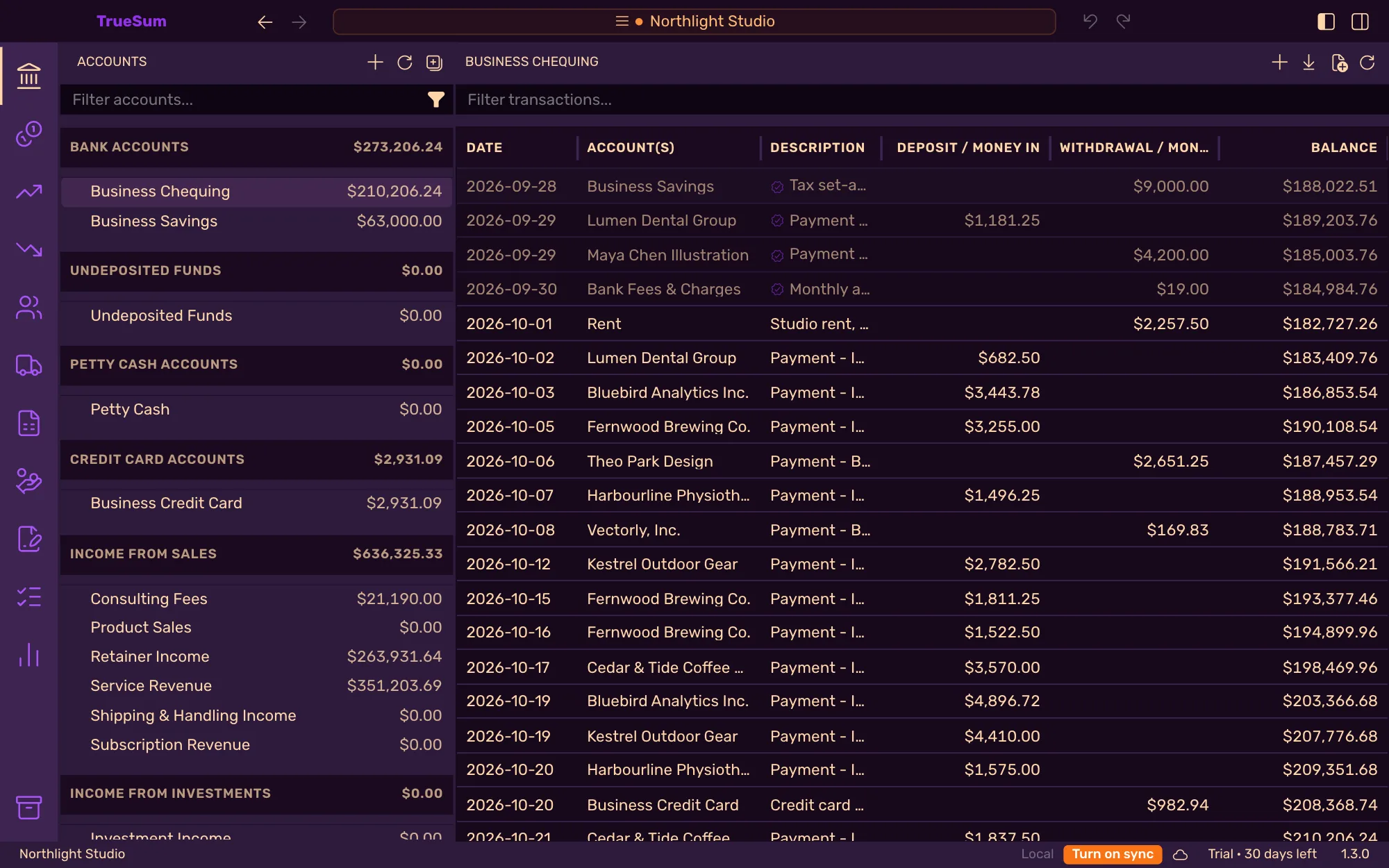
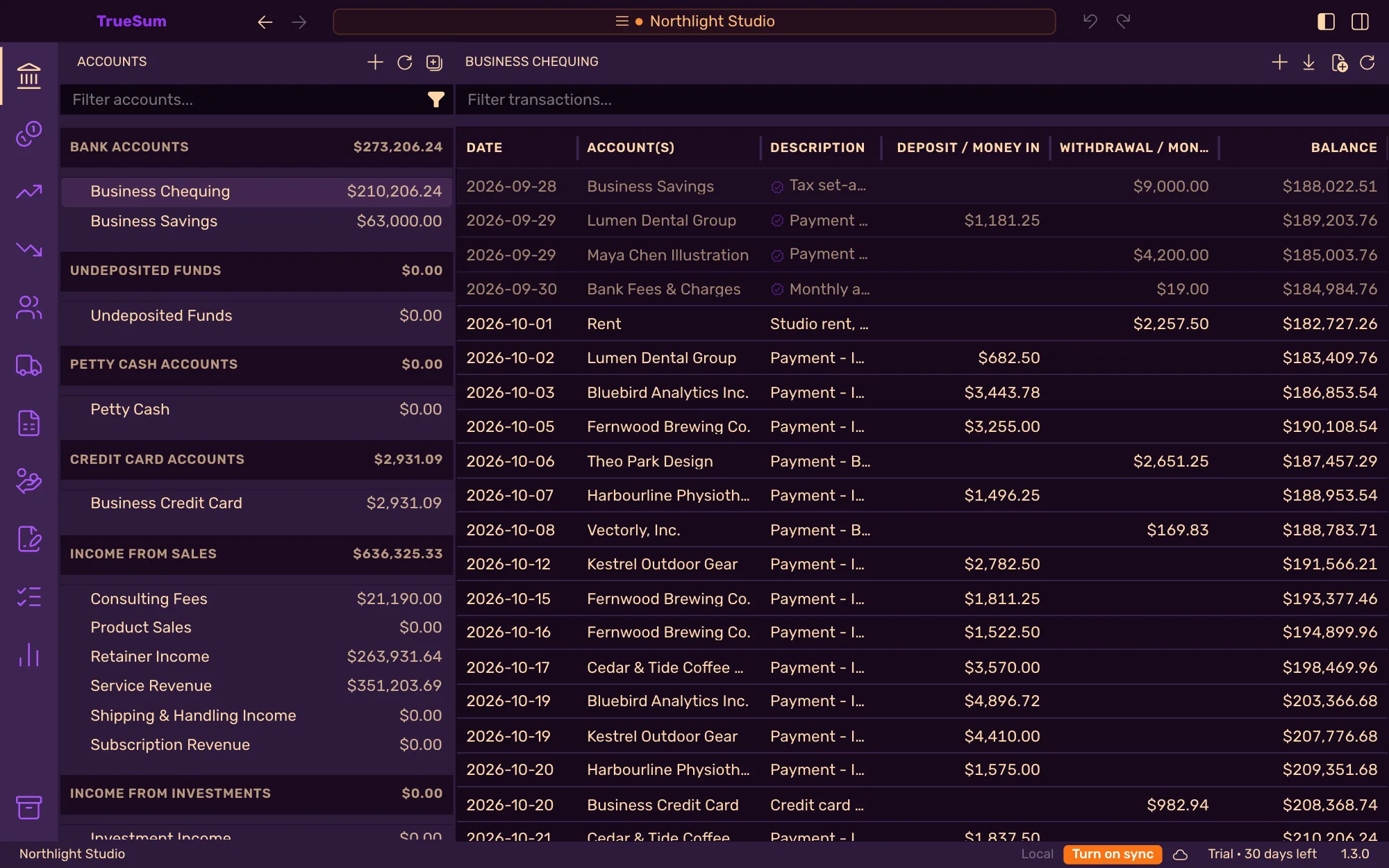
More themes are added from time to time, and soon you will be able to create your own.
Choose the spacing
Press Density and choose one:
| Density | What it does |
|---|---|
| Compact | Fits more on screen. |
| Default | The spacing TrueSum starts with. |
| Comfortable | Gives everything more air. |
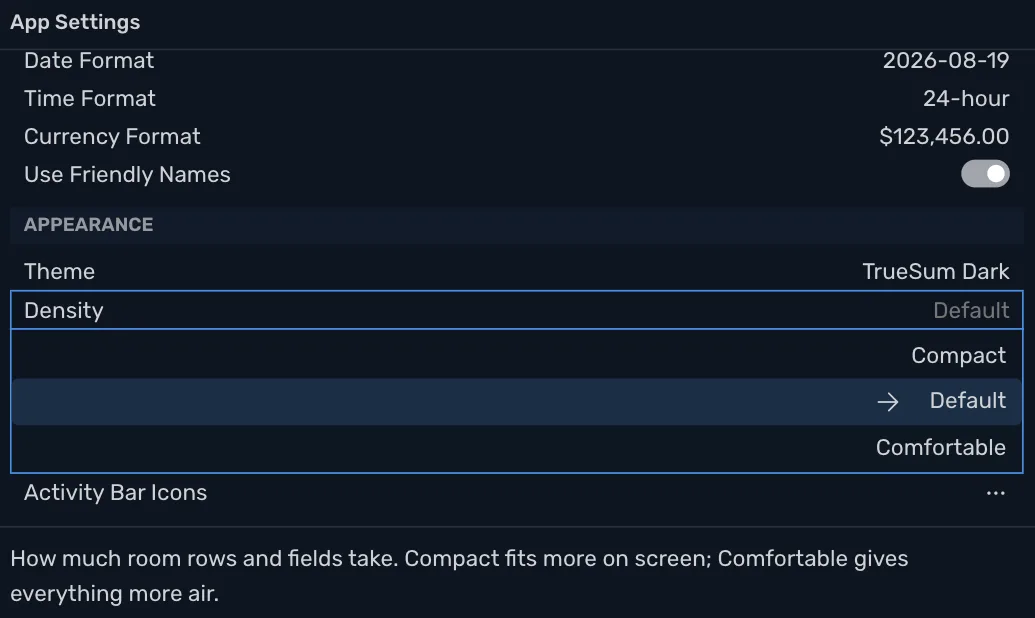
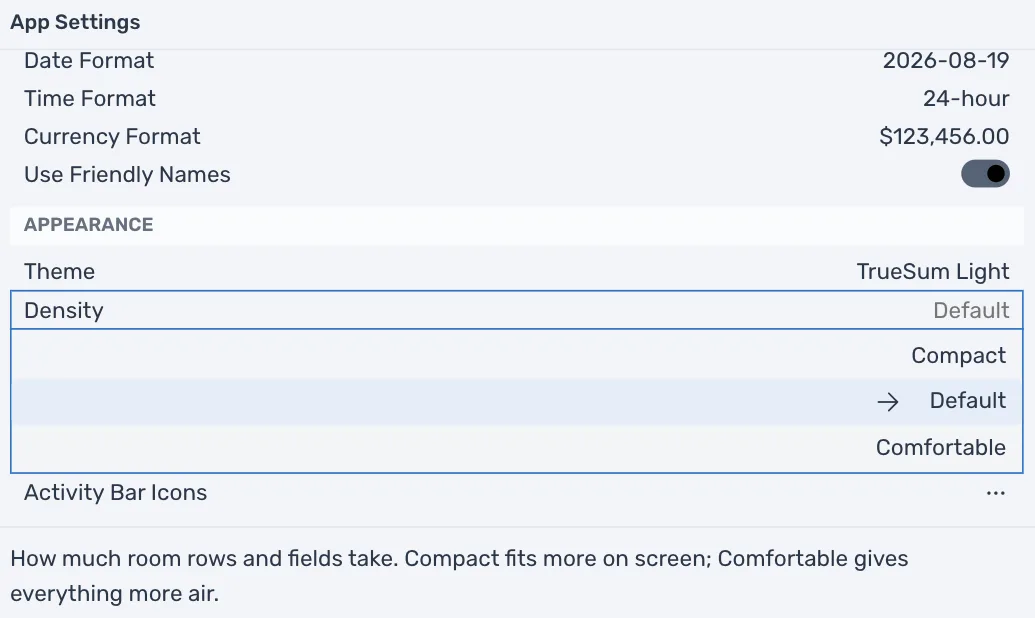
Density changes the room around things. Text stays the same size.
Make everything larger or smaller
There is no separate text size. Zoom makes everything in the window larger or smaller together, including text, icons and space. It is in the View menu.
| To | View menu | Mac | Windows |
|---|---|---|---|
| Make everything larger | Zoom In | Command and the plus key | Ctrl and the plus key |
| Make everything smaller | Zoom Out | Command and the minus key | Ctrl and the minus key |
| Go back to the normal size | Actual Size | Command and 0 | Ctrl and 0 |
From here, find your way around.