Find your way around
The parts of the TrueSum window, the icons on the left, the status bar and the menus.
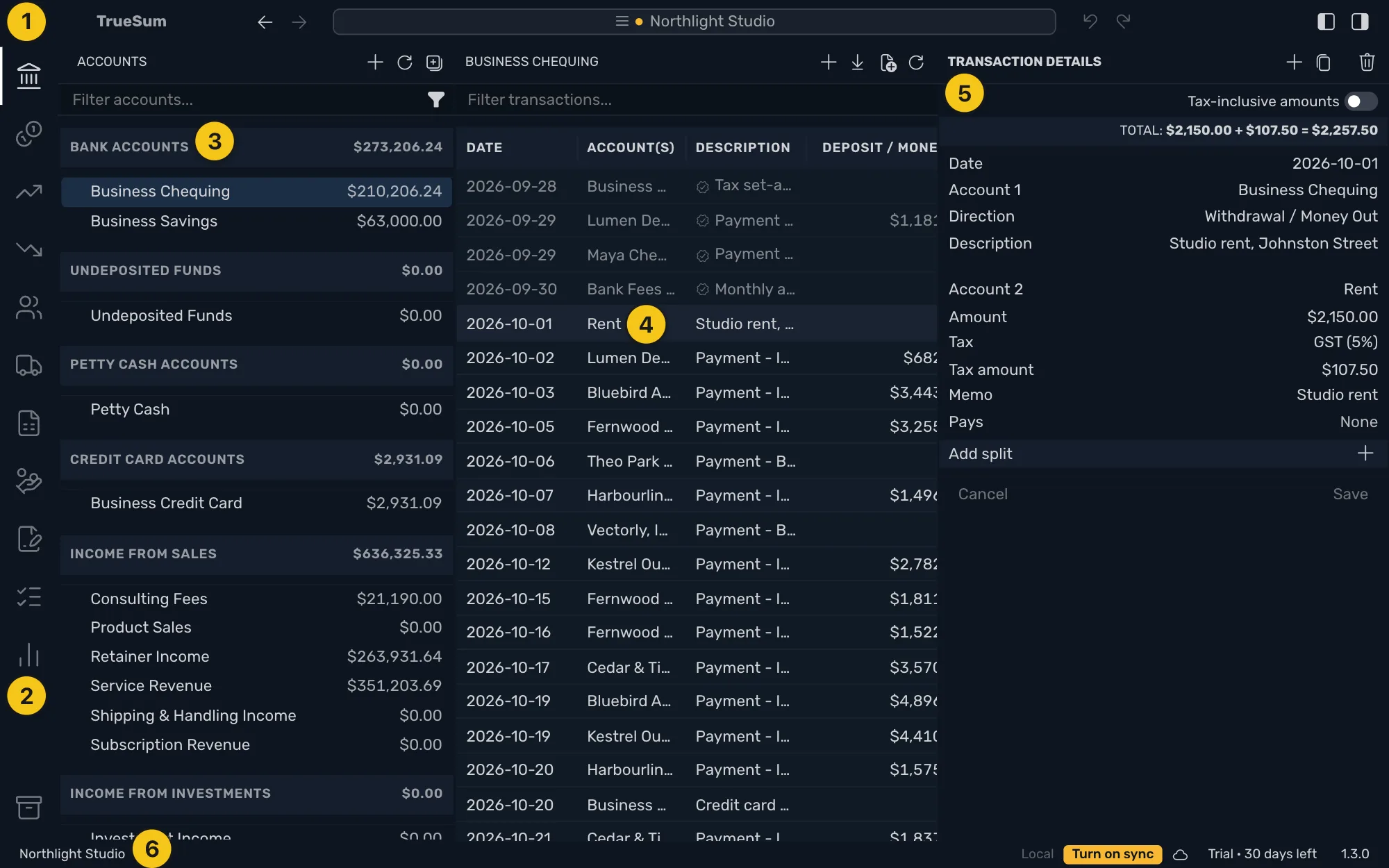
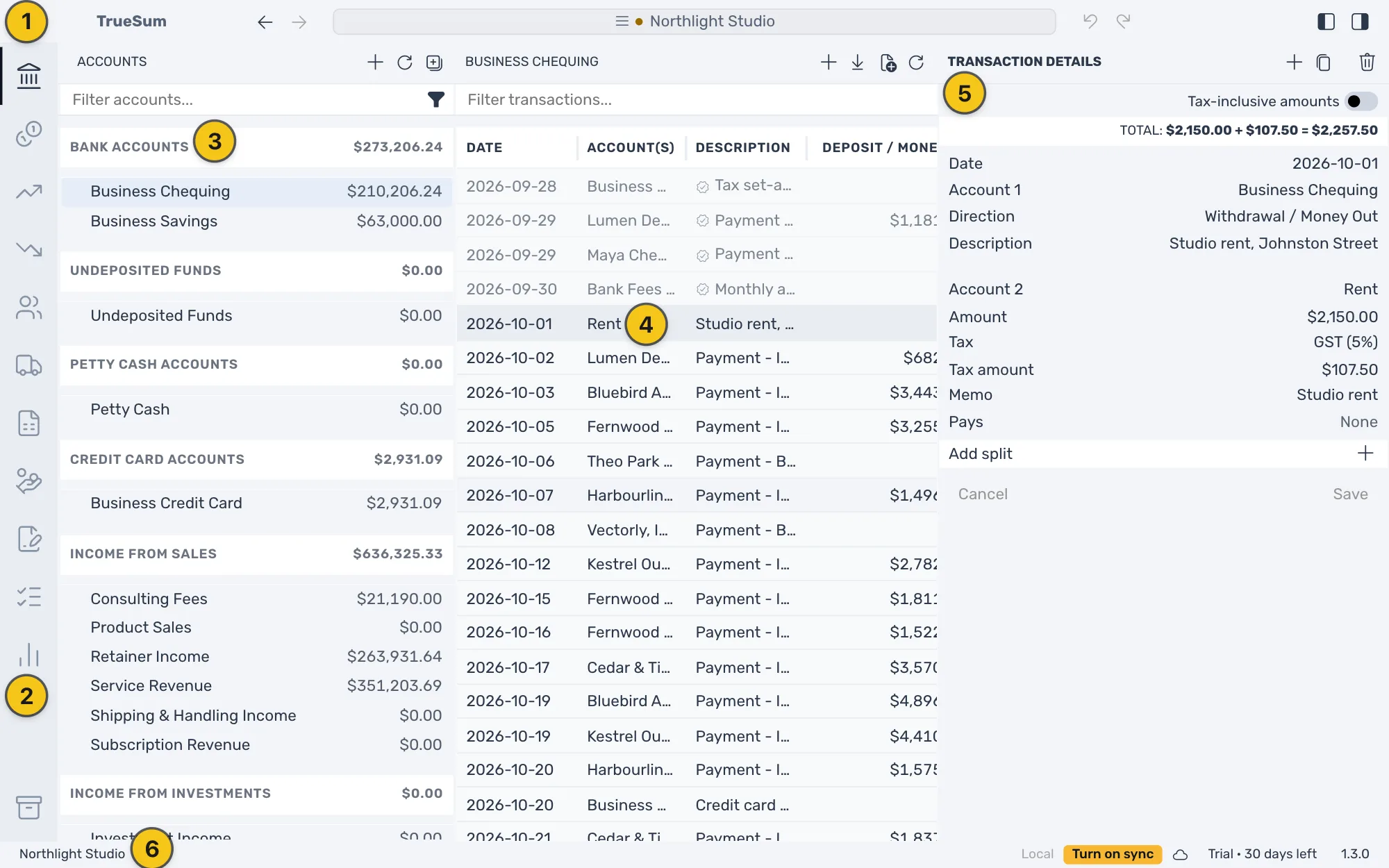
Every screen in TrueSum has the same six parts. The picture shows the sample business with a transaction selected. Its numbers match the table. Every picture in these pages was taken on a Mac, so on Windows the title bar looks a little different.
| No. | Part | What it holds |
|---|---|---|
| 1 | Title bar | At the top. The business's name is in the middle. Press it to open Settings. Go Back and Go Forward are to its left, Undo and Redo to its right. The two buttons at the far right, Toggle Left Sidebar and Toggle Right Sidebar, hide a sidebar and bring it back. |
| 2 | Activity bar | The icons down the left edge. Each one opens a kind of screen. |
| 3 | Left sidebar | The list for the screen you chose. On Accounts it is your accounts with their balances, with a box at the top to filter them. |
| 4 | Main area | What you chose in the sidebar, such as an account's transactions, an invoice list or a report. |
| 5 | Right sidebar | The details of what is selected, and the form to change it. Its heading is Account Details, Transaction Details, New Transaction or Report Details. |
| 6 | Status bar | At the bottom. See below. |
The activity bar
Point at an icon to see its name.
- Accounts lists every account. Equity (your own stake in the business), Income, Expenses, Customers and Vendors list only the accounts of that kind.
- Sales, Bills and Estimates open your invoices, the bills you owe and your estimates.
- Statements is where you check an account against its bank statement (reconcile it).
- Reports opens the reports.
- Backups, at the bottom, opens your backups.
Assets and Liabilities are hidden until you turn them on (see Choose the icons on the left).
The status bar
At the left is the business's name. At the right, from left to right, are the sync state (Local until you turn on sync) with the Turn on sync button, a cloud icon that shows whether TrueSum is online, the trial or license (see Start your trial or enter a license key), your name once you sign in, and the version number.
The menus
On a Mac the menus are at the top of the screen. On Windows the menus are behind the Application Menu button (three lines) at the left of the title bar.
| Menu | What is in it |
|---|---|
| TrueSum (Mac only) | About, Settings…, Hide and Quit. |
| File | Close on a Mac, Quit on Windows. |
| Edit | Undo and Redo, each naming the change it would undo, Cut, Copy, Paste and Select All. |
| View | Refresh, the zoom commands and full screen (see Make TrueSum yours). |
| Window | Minimize and the other window commands. |
| Help | Contact Support, What's New and the rest (see Get help). |