Choose the icons on the left
Show or hide the icons in the activity bar, such as Assets, Liabilities and Statements.
The activity bar, down the left edge of the window, has an icon for each kind of screen. You can hide the ones you do not use and show the ones you do.
Show or hide an icon
- Press the business's name in the title bar and choose App Settings.
- Under Appearance, press Activity Bar Icons.
- Turn an icon's switch on to show it, or off to hide it.
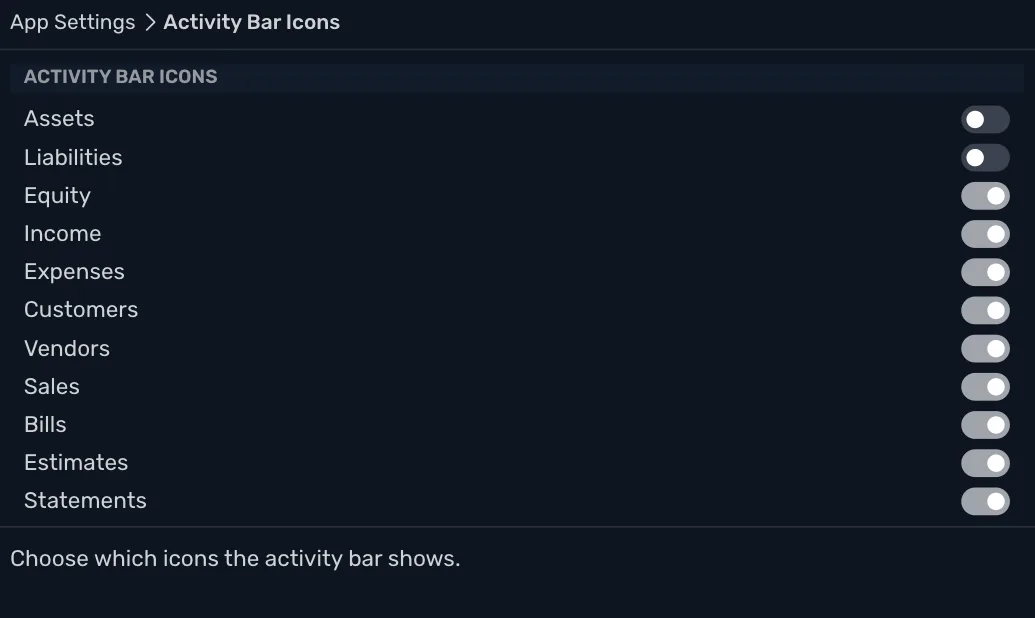
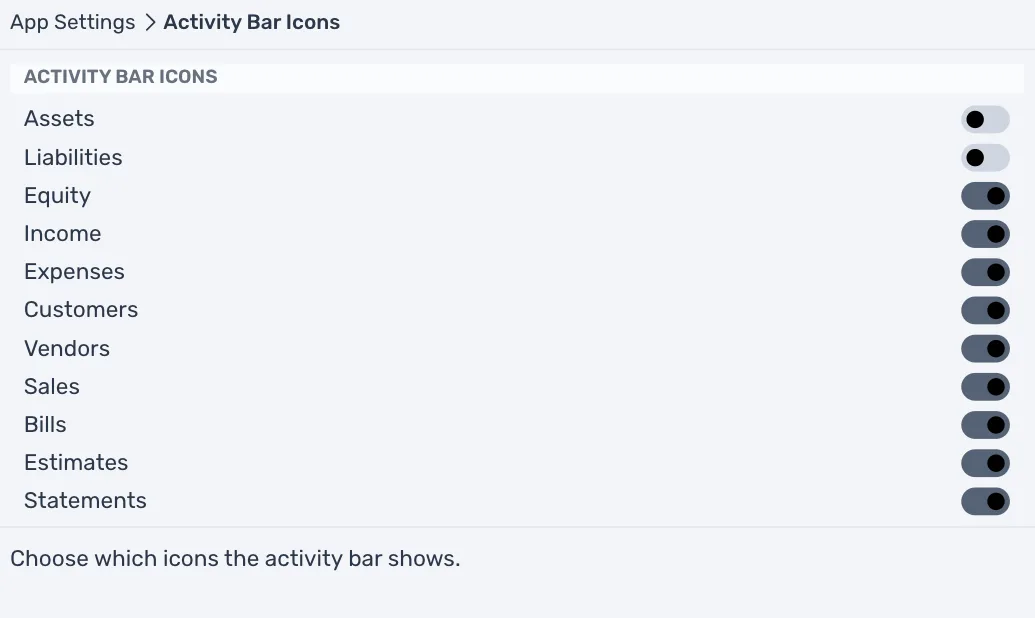
The bar changes at once.
Which icons
| Icon | Shown to start with | What it opens |
|---|---|---|
| Assets, Liabilities | No | Only your accounts of that kind. |
| Equity, Income, Expenses | Yes | Only your accounts of that kind. |
| Customers, Vendors | Yes | Your customer and vendor accounts. |
| Sales, Bills, Estimates | Yes | Your invoices, bills and estimates. |
| Statements | Yes | Reconciling an account with its bank statement. |
Accounts, Reports and Backups have no switch. They always show, so every business keeps a way to its accounts, its reports and its backups.
Good to know
- The order is fixed. TrueSum keeps the icons in the order the window lists them.
- Hiding an icon only takes away its shortcut. Accounts still lists every account, and your books are not touched.
- The choice is an App Setting. It is the same in every business on this device (see App Settings).