More than one business
Add, open and delete businesses in the Businesses window, and what each business keeps for itself.
One copy of TrueSum can hold as many businesses as you need, such as your own and a client's. Each is a separate set of books.
Open the Businesses window
- Press the business's name in the title bar.
- In the Settings window, choose Businesses.
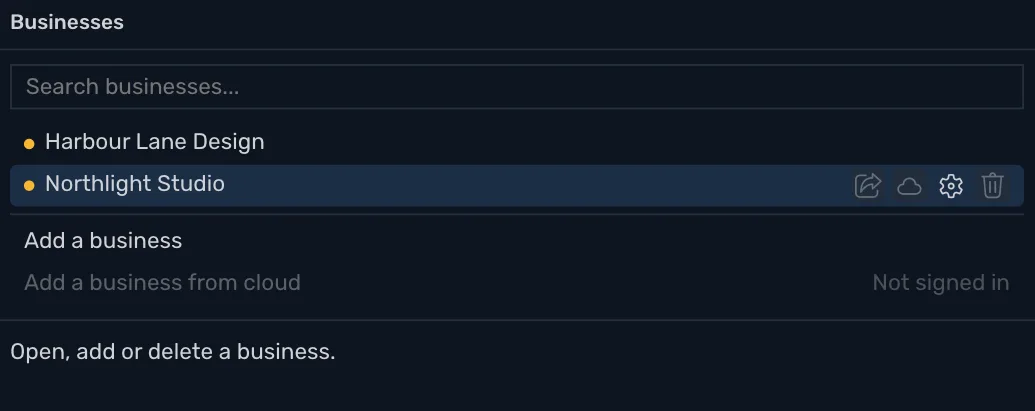
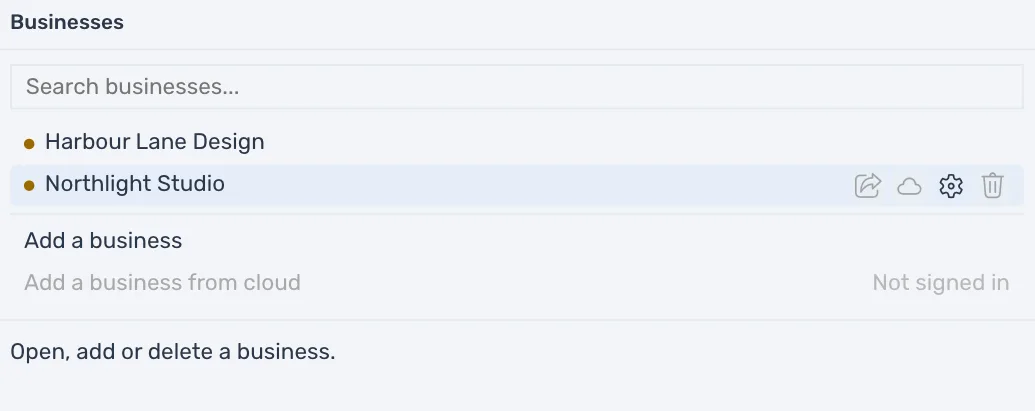
The list shows every business on this device. The one you are in is highlighted, and its name is in the title bar and the status bar. The dot before a name is green when the business syncs and yellow when sync is off. Type in the box at the top to find a business by name. Point at a row, and the line at the bottom of the window says whether the business syncs.
Open another business
Press its row. TrueSum closes the business you are in and opens that one. It makes a backup of the one you leave, unless that business syncs (see Create a backup).
Add a business
Press Add a business under the list, and fill in the form (see Create your first business). Country and Currency start as your Default Country and Default Currency in App Settings. The new business opens with its Business Settings over it.
To bring down a business you synced from another device, press Add a business from cloud instead (see Use TrueSum on another device).
What is on a row
Point at a row to see its buttons. They are Share, a cloud that turns sync on or stops it, Business settings and Delete business. The open business shows its buttons all the time. Sync and sharing are in Turn on sync, Stop sync and Share a business.
Delete a business
Deleting a business removes its books from this device and cannot be undone. A business that syncs keeps its copy in the cloud. A business that does not sync has no cloud copy.
Press Delete business, then confirm. TrueSum asks Delete "Harbour Lane Design"? This cannot be undone. and removes the business from this device, books and all.
You cannot delete the business you are in. Its button says "Open another business to delete this one". After you delete a business that syncs, you can add it back with Add a business from cloud.
What each business keeps
Nothing moves between businesses. Accounts, customers, vendors, transactions, tax rates and invoice settings belong to one business. A new business starts with the accounts and taxes for its country and type, not a copy of another.
- Business Settings are each business's own.
- App Settings are shared. The theme, formats and icons you choose stay as they are when you change business.
TrueSum keeps each business as its own file and opens it from the Businesses window, so you never need the folder. To use a business on another device, turn on sync.
If a business cannot be opened, the window lists it under the businesses with the reason. Restore it from a backup (see Open or restore a backup).
If you want to find the files, they are in the businesses folder inside TrueSum's data folder. On a Mac it is ~/Library/Application Support/TrueSum/businesses, and on Windows it is %APPDATA%\TrueSum\businesses. Leave the files where they are.