Use TrueSum on another device
Sign in on a second device and bring a synced business down to it.
A business that syncs is in the cloud, so any device you sign in on can have it. Turn on sync for the business first (see Turn on sync).
On the new device
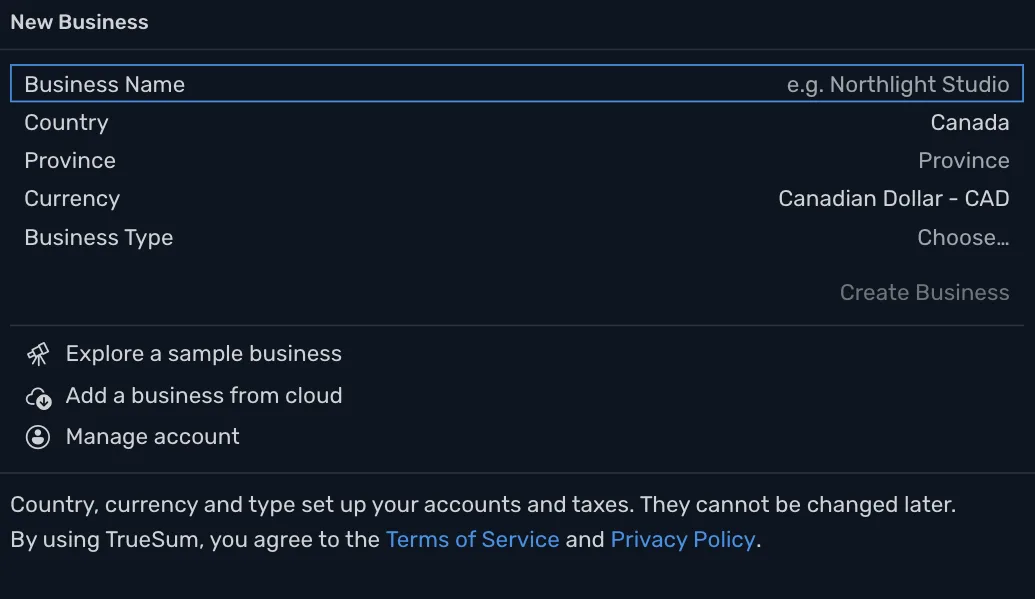
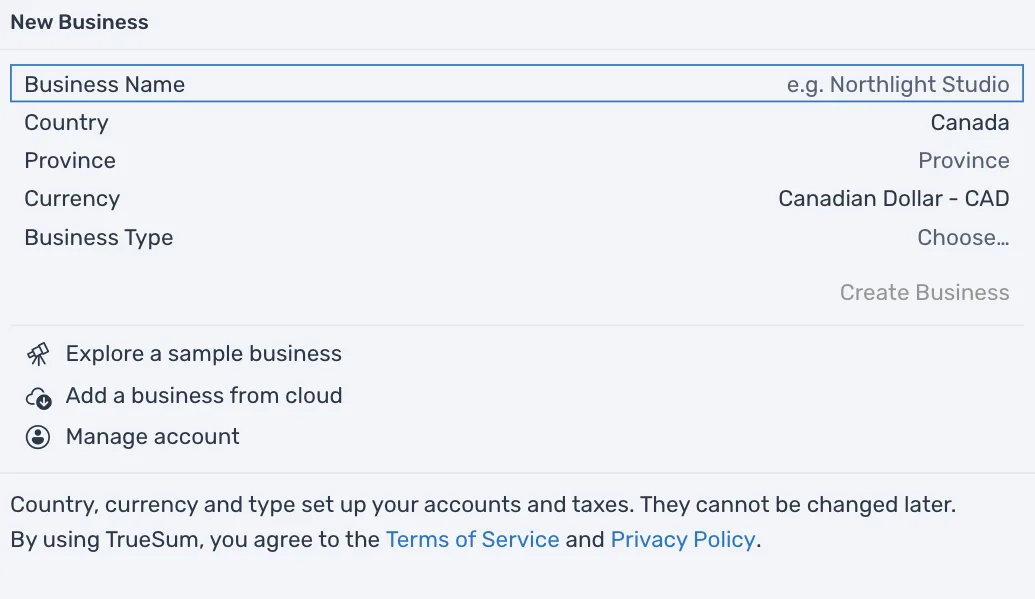
Do not press Create Business on the new device. It makes a new, empty business. Press Add a business from cloud instead.
- Install TrueSum and open it. It opens on the New Business form.
- Press Sign In and sign in to the same account in your browser.
- Press Add a business from cloud.
Once you are signed in, Add a business from cloud and Manage account take the place of Sign In under the form.
The window lists every business in your cloud. Press the one you want. TrueSum downloads it, shows "Downloading Northlight Studio. It opens when the download finishes." and opens it. A large business takes longer.


On a device that already has businesses
Press the business's name in the title bar, choose Businesses, and press Add a business from cloud under the list. A business already on this device is dimmed, and says "Already on this device." Until a business syncs, the list is empty or says "You have no businesses in the cloud yet."
After that
Both devices keep the business up to date. When you save a change on one, it shows on the other as long as both are online. To see a change at once, choose Refresh in the View menu of the device that should show it (Command and R on a Mac, Ctrl and R on Windows). You can use both at the same time. If both change the same transaction, see When two devices change the same thing.
- Up to five devices can sync with one account. On a sixth, the status bar says Sync paused. Remove a device you no longer use on the Devices page of your account.
- Keep TrueSum up to date on every device. When another device is on a newer version, this one says Update required until you press Update in its title bar.
- Adding a business from the cloud needs the internet, and does not work in Privacy Mode.