Open or restore a backup
Look at your books as they were, or replace them with a backup.
Opening a backup is safe, because it shows your books as they were and changes nothing. Restoring one replaces your books. Both start in Backups, at the bottom of the activity bar. See Create a backup first if the list is empty.
Open a backup to look at
- Press Backups, then a backup in the list.
- Press Open Backup (read-only).
TrueSum goes to the accounts, showing the business as it was when the backup was made. The business's name in the title bar says so. It reads Northlight Studio (Backup: 2026-10-24 03:43). Look at accounts, transactions and reports as usual. Nothing can be changed.
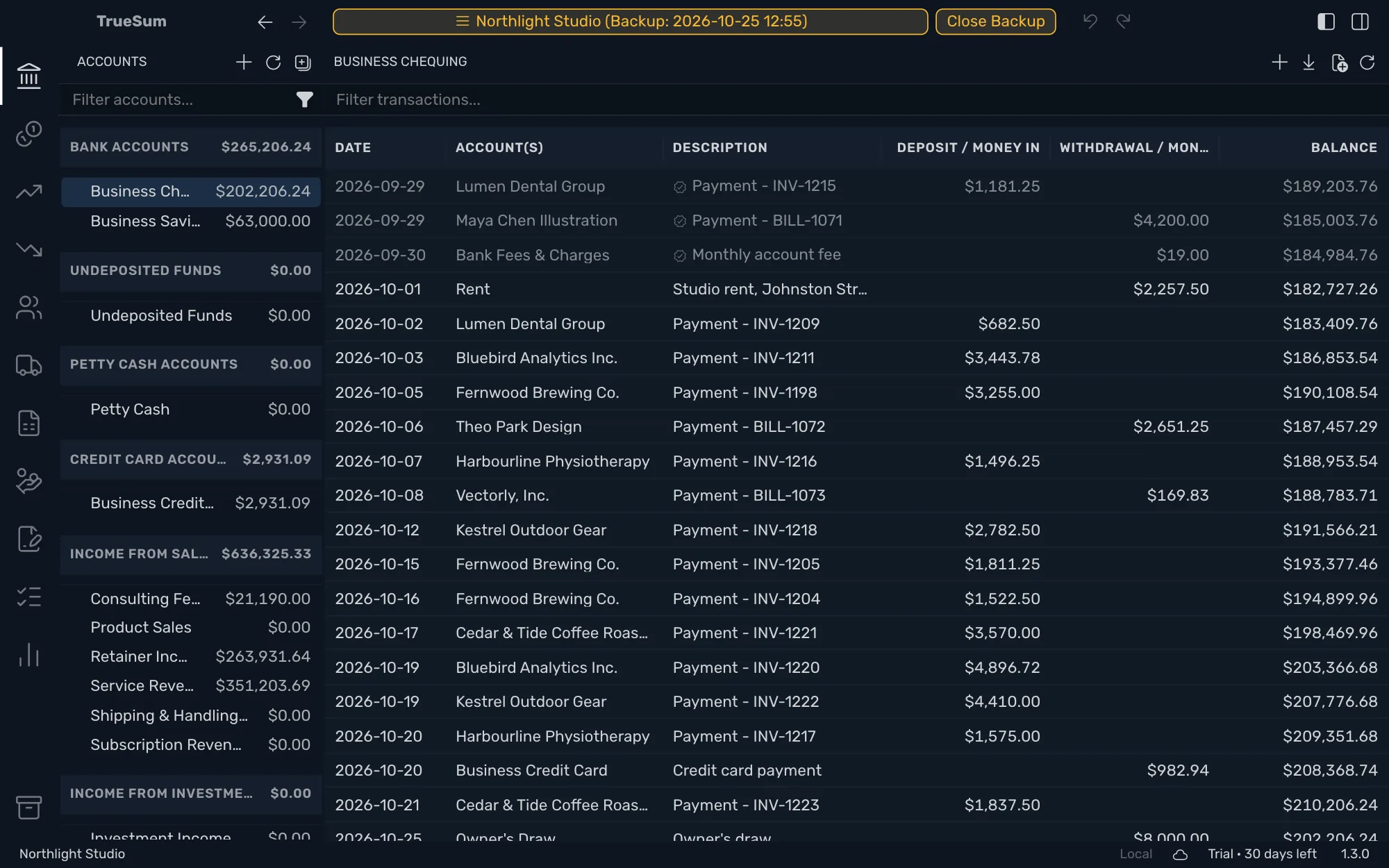
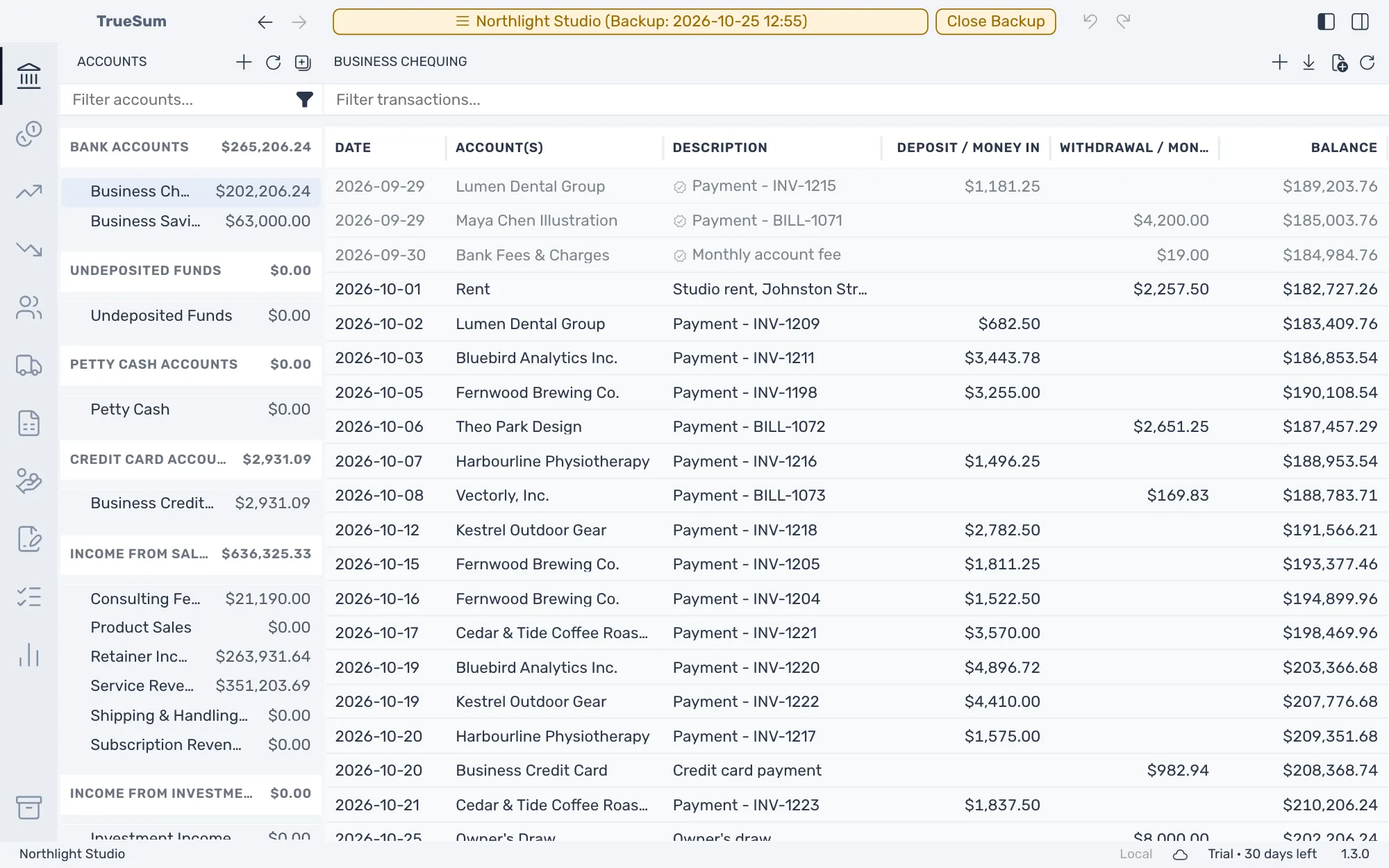
Press Close Backup in the title bar to go back to your business. While a backup is open you cannot make or restore one, and you cannot turn sync on or stop it.
Restore a backup
Restoring puts the backup's books in place of today's.
Everything entered since the backup was made is gone, and nothing can undo it. To keep today's books too, create a backup first.
- Press the backup, then Restore Backup.
- TrueSum asks to confirm and says "This replaces your current books and cannot be undone." Press OK.
The accounts open again with the restored books. Restore Backup is dimmed while a backup is open. After the trial ends it is dimmed too, and the list says "Trial ended. Buy a license or subscribe to restore a backup."
Restore a business that syncs
A synced business cannot be restored while it syncs. A note above the backups says so. When you press Restore Backup, TrueSum asks "Restore this backup?" and explains that the business is made local on this device first, which stops sync here. Press Stop sync and restore to go on, or Cancel.
TrueSum then sends your latest changes to the cloud, stops sync on this device and restores the backup. The window says "Finishing the upload, then restoring." Press Restore now to skip the upload. Changes not yet sent are lost.
Your copy in the cloud is kept. To sync the business again, turn sync on. TrueSum asks which copy to keep (see Stop sync).