Create a backup
TrueSum backs up a business when you leave it, and you can make a backup any time.
A backup is a copy of a business, saved on this device. You can look at your books as they were, or go back to them (see Open or restore a backup). Your backups are in Backups, the icon at the bottom of the activity bar.
When TrueSum makes one
TrueSum makes a backup of a business each time you close TrueSum or open another business. It does this without asking.
A business that syncs gets no automatic backup on this device. Its cloud copy is the second copy. Make one yourself if you want one here.
Make a backup yourself
- Press Backups in the activity bar.
- Press Create Backup, the first button above the list.
- TrueSum asks you to confirm. Press OK.
The backup is in the list, under Today, with its date, its time and its size.
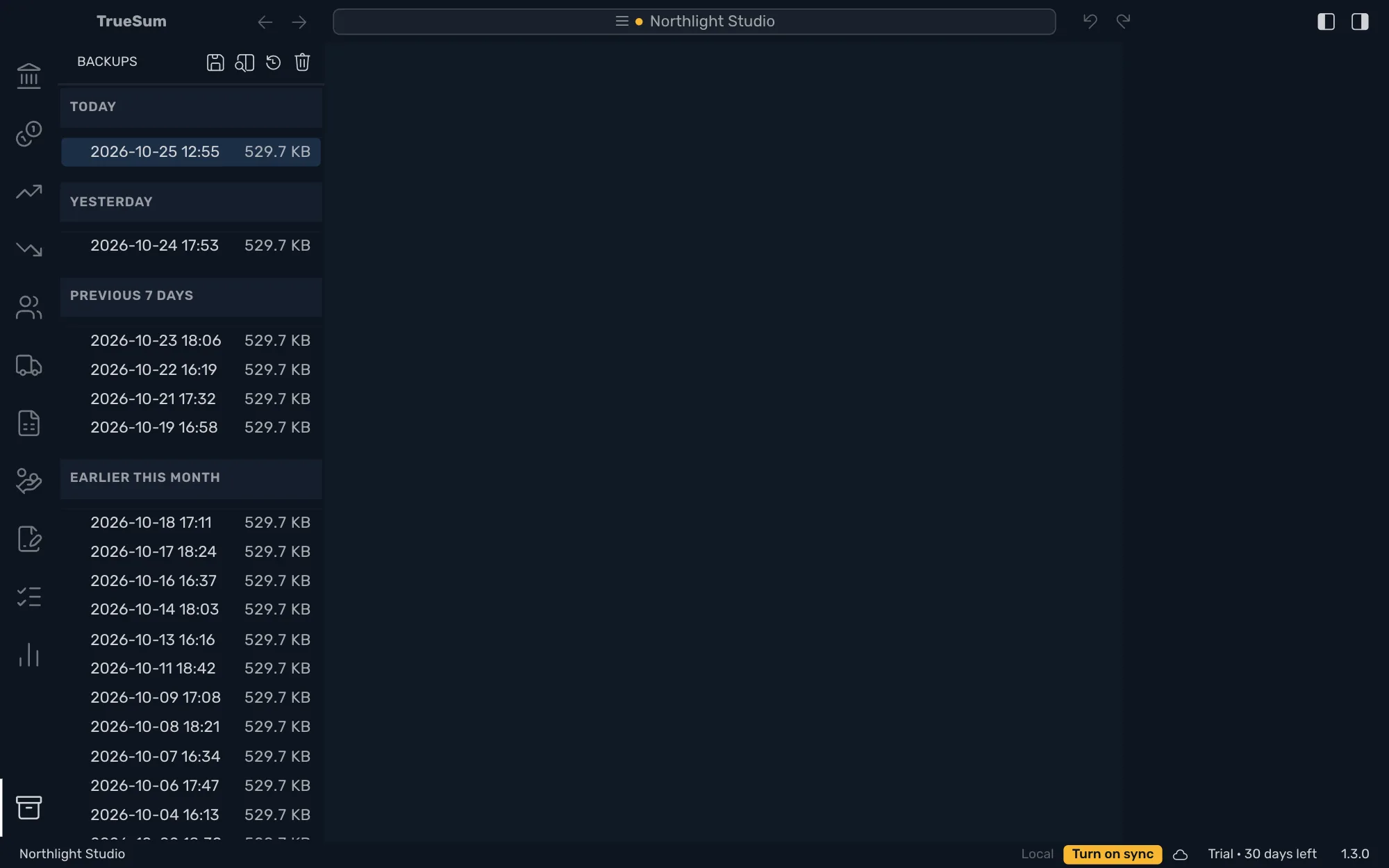
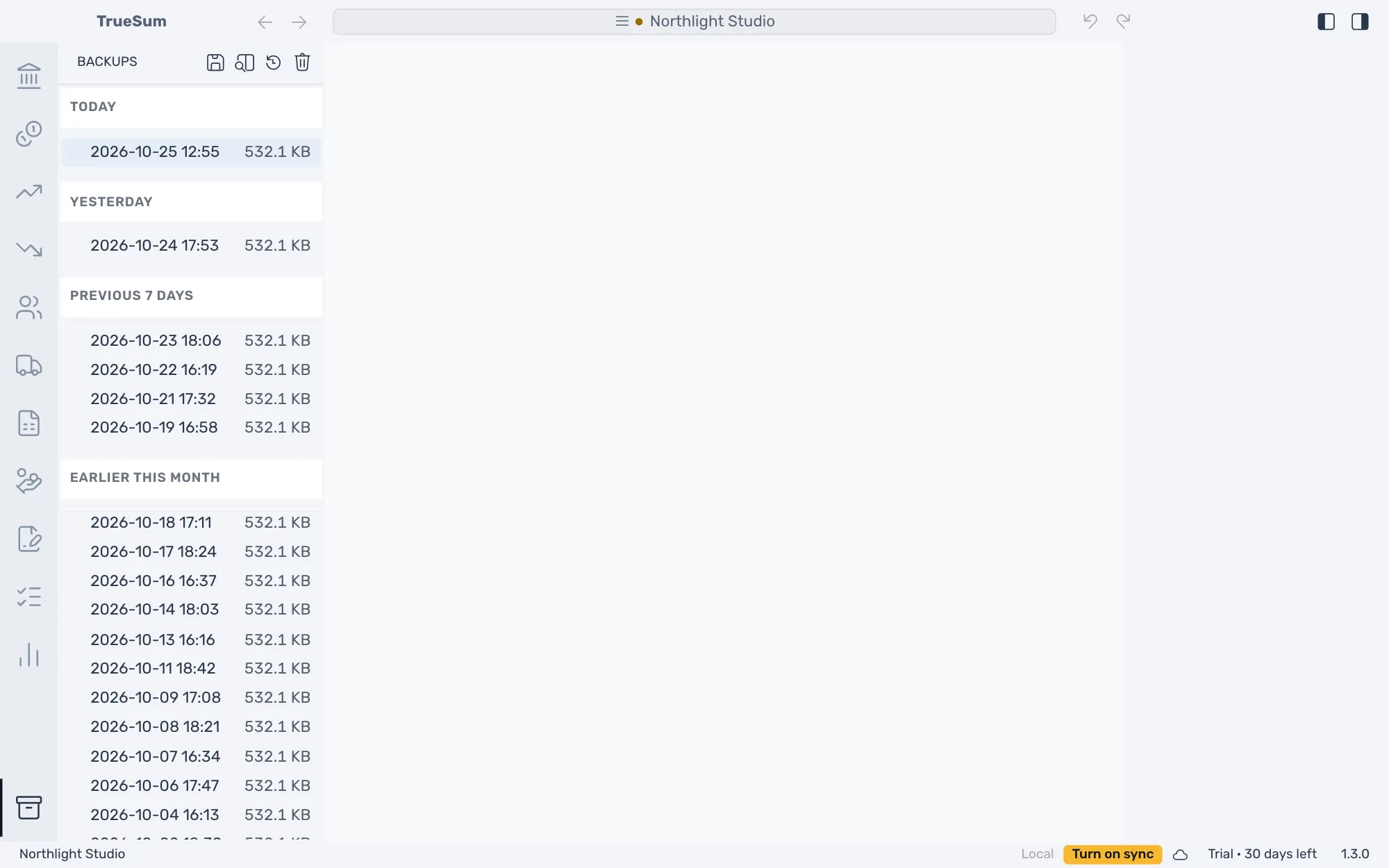
Point at a button to see its name:
| Button | What it does |
|---|---|
| Create Backup | Makes a backup of the open business. |
| Open Backup (read-only) | Opens the selected backup to look at. |
| Restore Backup | Replaces your books with the selected backup. |
| Delete Backup | Deletes the selected backup. |
You can make a backup after the trial ends too. Backups are grouped by when they were made. The groups are Today, Yesterday, Previous 7 Days, Earlier This Month and Older.
Where backups are kept
Backups stay on this device. They are not sent to the cloud, and TrueSum never deletes one on its own. TrueSum can open a backup only from this list, so you never need the folder.
To use your books on another device, turn on sync. To let someone else look at them, share the business.
If you want to find the files, there is a folder for each business inside TrueSum's data folder. On a Mac it is ~/Library/Application Support/TrueSum/backups, and on Windows it is %APPDATA%\TrueSum\backups. Leave the files where they are.
Delete a backup
Press the backup, then Delete Backup, and confirm. This cannot be undone. Your books are not touched.