Save a report as PDF or CSV
Save a report as a PDF to print or send, or as a CSV to open in a spreadsheet.
Save a report to send it to your accountant, print it, or work on its figures in a spreadsheet. A PDF looks like the report. A CSV holds the same figures in a file a spreadsheet opens.
Save a report
- Open the report and set its period, basis and the other settings. The file is the report as it is on screen. See Run a report.
- Press Download as PDF or Download as CSV, the last two buttons above the report.
- Your device asks where to save the file. Choose a folder and a name.
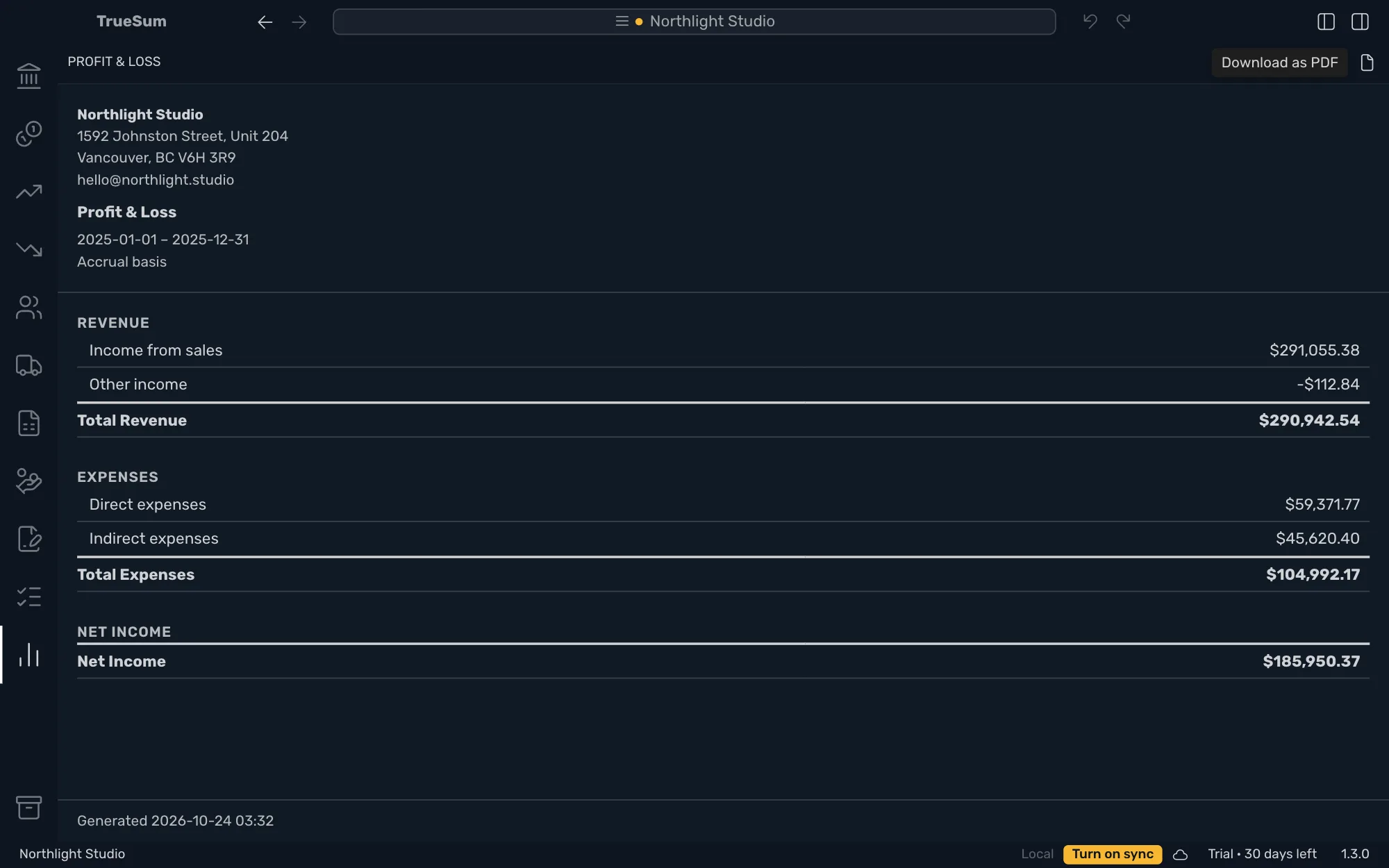
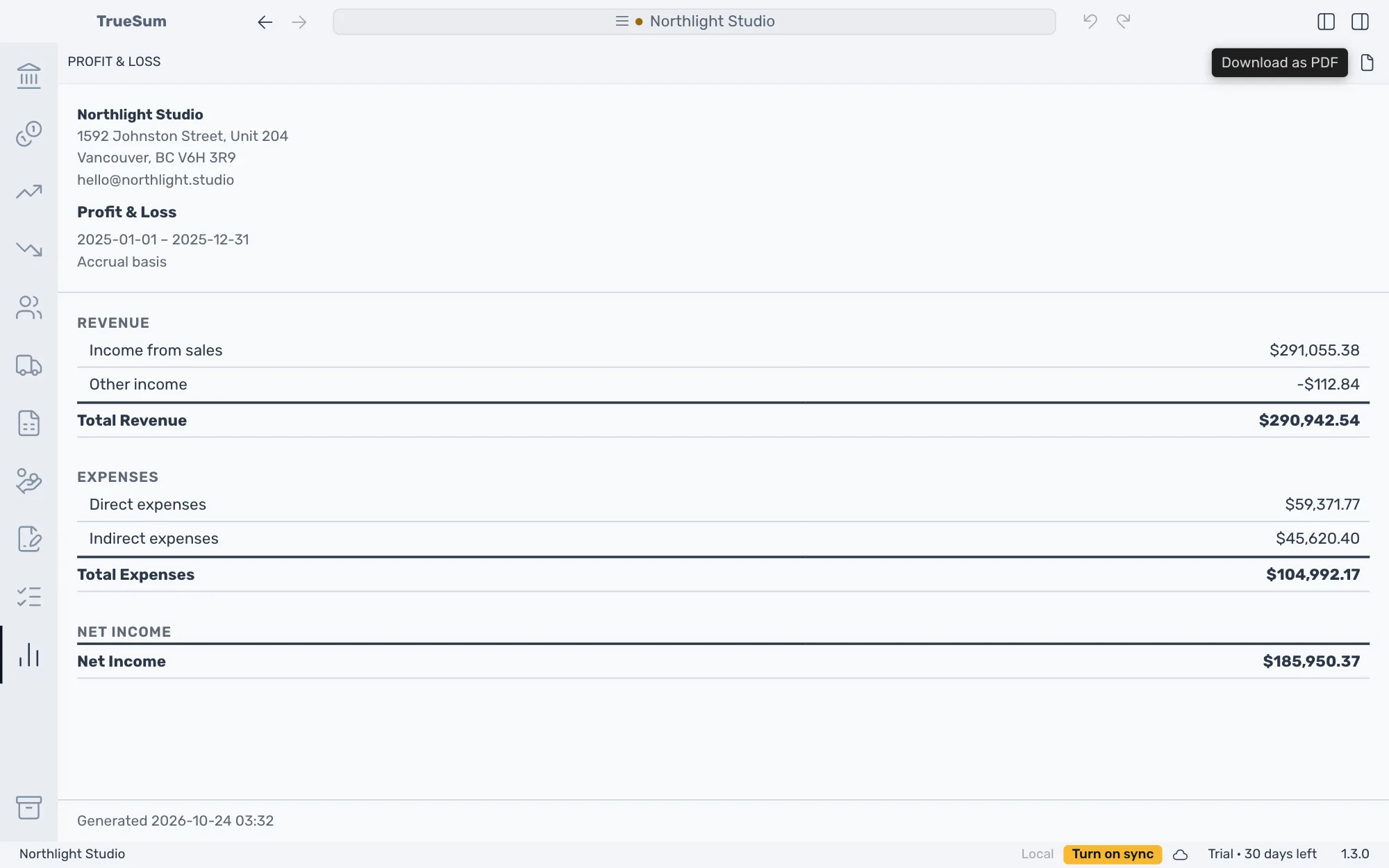
Both buttons are dimmed until the report has loaded, and while it shows an error.
Choose the file name
TrueSum suggests a name made of the business, the report and the date and time of the save. Change it in the dialog if you like.
What is in the file
Both files hold the report you see. They include its period or date, its basis, and the figures with your settings applied. Turn Show individual accounts off first and the file has one row for each group. Show decimals, Negative: parentheses and Hide zero rows apply too, so a file saved with Show decimals off has rounded amounts.
| CSV | ||
|---|---|---|
| Top | The business's logo, name and address, then the report's name, period and basis | The business's name, then the report's name, period and basis |
| Pages | Letter size. A wide report is landscape | One table, with a blank line and a heading between the sections |
| Amounts | As on screen | As on screen, with the currency sign |
| Foot | The date and time it was made | None |
A CSV writes the General Ledger's dates as year, month and day, such as 2025-03-01, whatever your Date Format is. To save a list of transactions instead of a report, see Export transactions.