Run a report
Open a report, choose its period and basis, and see what the buttons above it do.
A report adds up your transactions for a period or a date, from your books as they stand when you open it. This page covers what every report shares.
Open a report
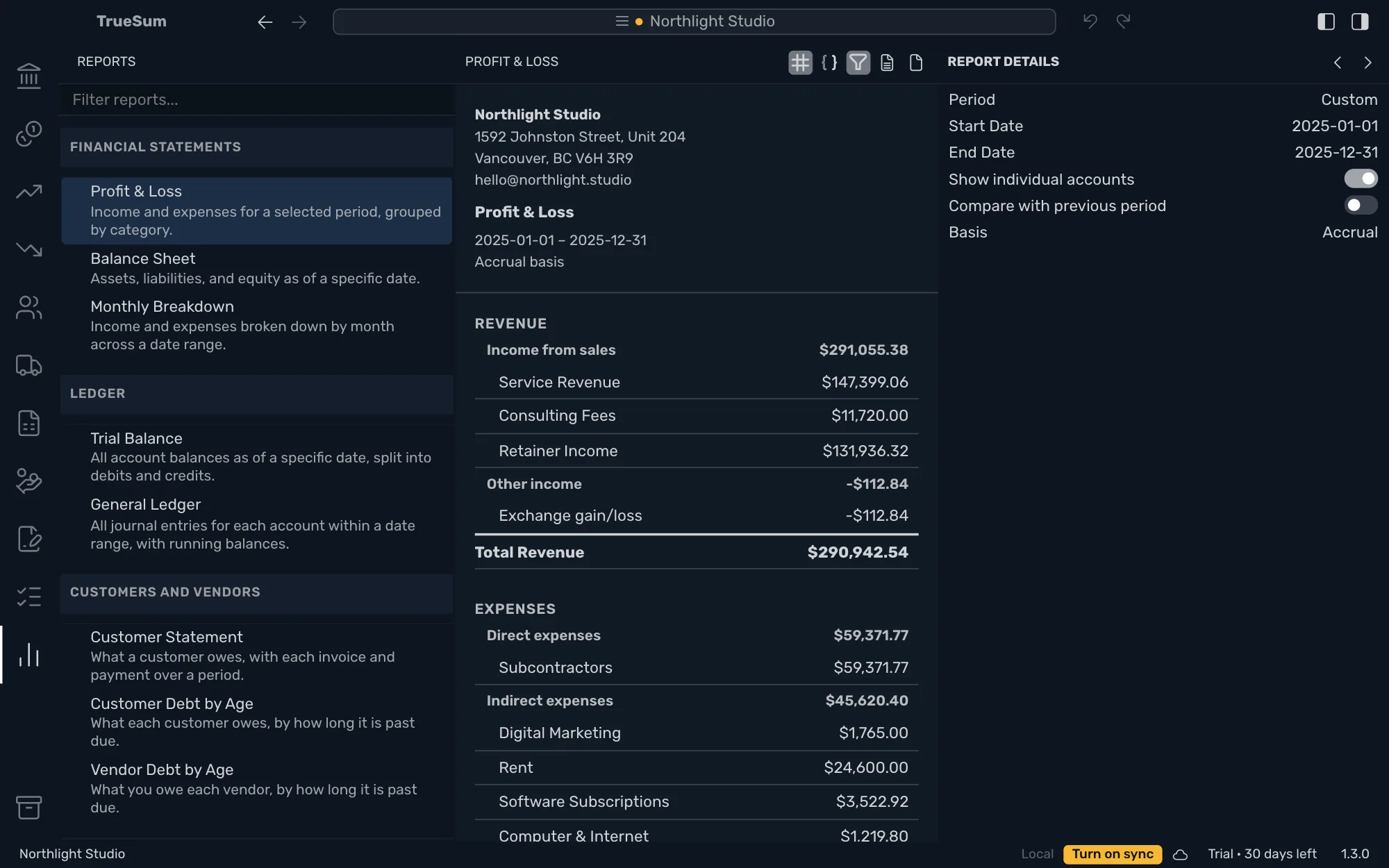
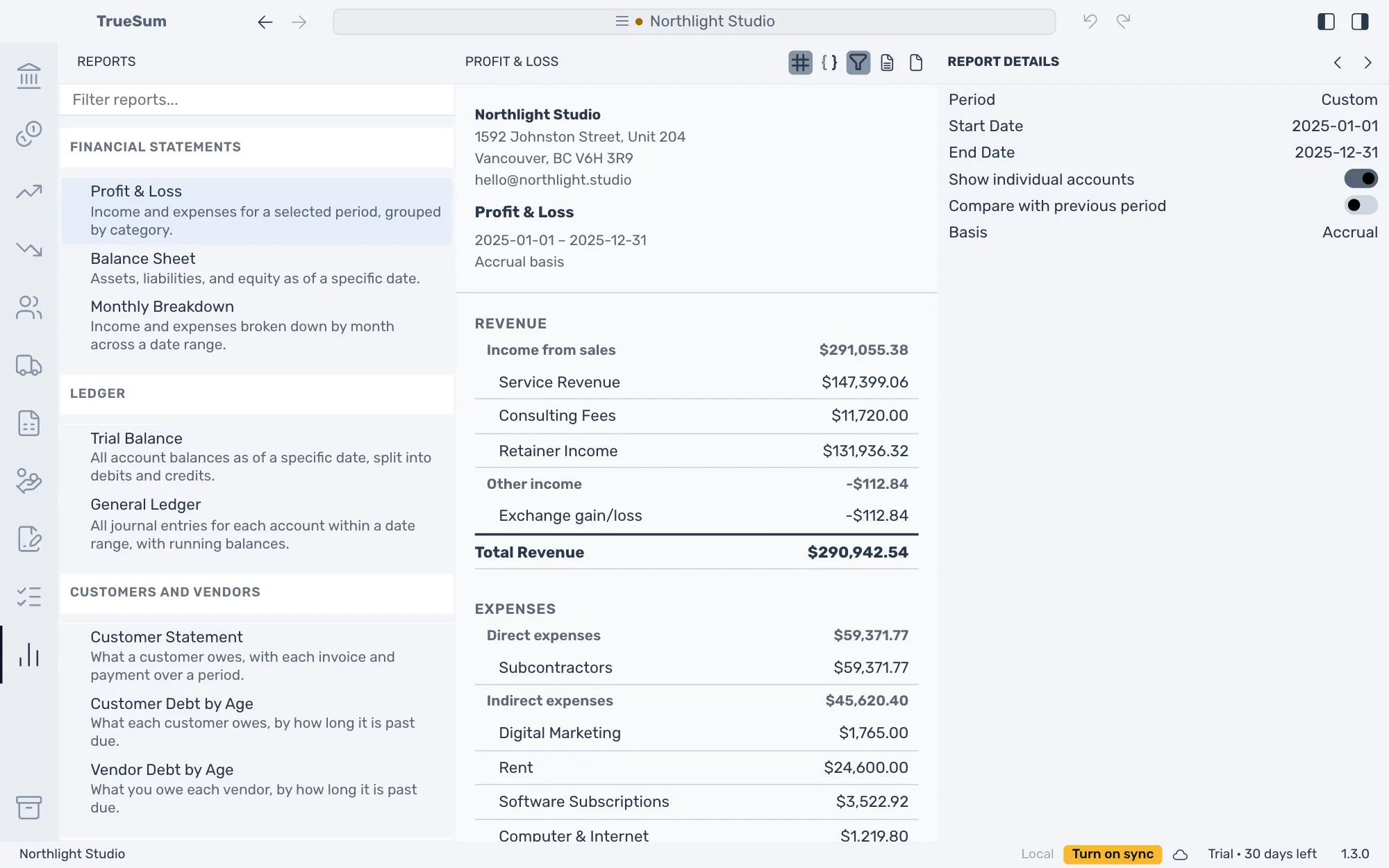
Press the Reports icon in the activity bar. The Reports sidebar lists the reports in groups. Type in Filter reports... to narrow the list.
- Financial Statements: Profit & Loss, Balance Sheet and Monthly Breakdown.
- Ledger: Trial Balance and General Ledger.
- Customers and Vendors: Customer Statement and Customer Debt by Age (See who owes you), Vendor Debt by Age (See what you owe).
- Tax: Tax Summary (See how much tax you owe).
Choose what it covers
The settings are in Report Details, in the right sidebar.
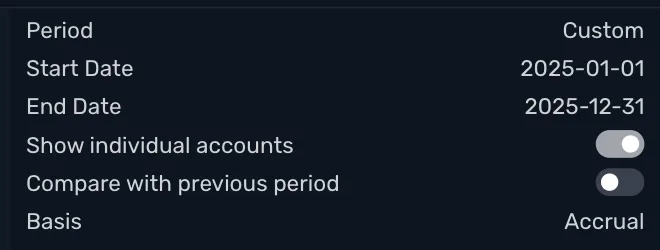
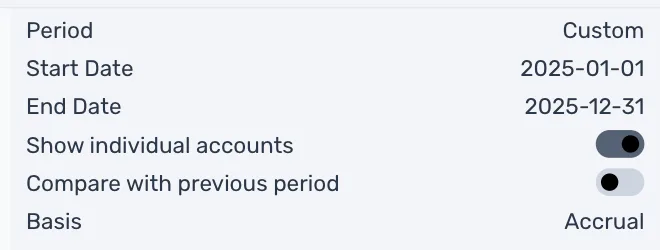
- Period has a Start Date and an End Date. Choose a preset, or change a date and Period becomes Custom. The Balance Sheet and the Trial Balance have one As Of Date instead.
- Previous period and Next period, the arrows at the top of Report Details, move the period back or forward by its own length. A month moves to the month before, and a year to the year before.
- Show individual accounts off shows one row for each group of accounts. The General Ledger has Show individual entries.
- Compare with previous period adds the period before it, and a Change column. For an As Of Date, it adds the same date a year earlier.
- Basis: Accrual counts income and expenses on the date of the invoice or bill. Cash counts them when the money is paid. The report says which one it used under its title. If you do not send invoices or enter bills, the two give the same figures.
The buttons above the report
| Button | What it does |
|---|---|
| Show decimals (the # button) | Shows cents. Off, amounts show without them. |
| Negative: parentheses (the button with brackets) | Writes a negative amount as ($112.84) instead of -$112.84. |
| Hide zero rows (the funnel) | Leaves out rows that are all zero. The Customer Statement shows every line, so it ignores this one. |
| Download as CSV (a page with lines) | Saves the report for a spreadsheet. |
| Download as PDF (a blank page) | Saves the report to print or send. |
A button that is on is highlighted. Show decimals and Hide zero rows start on. The first three apply to every report in the business, and to the files you save. See Save a report as PDF or CSV.
Dates and amounts follow your Date Format and Currency Format in App Settings. With Use Friendly Names turned off there, the debt reports are called Accounts Receivable Aging and Accounts Payable Aging.