See who owes you
Each customer's balance, every invoice with its status, and the Customer Debt by Age and Customer Statement reports.
Three places answer who owes you and how much. They are the customers' balances, the Sales list, and two reports.
Customers' balances
Press the Customers icon. Each customer's balance is beside their name, in their own currency, and the total is on the Customers heading.
The Sales list
Press the Sales icon. Every invoice is listed, newest first. The right sidebar is hidden in the picture, so every column shows.
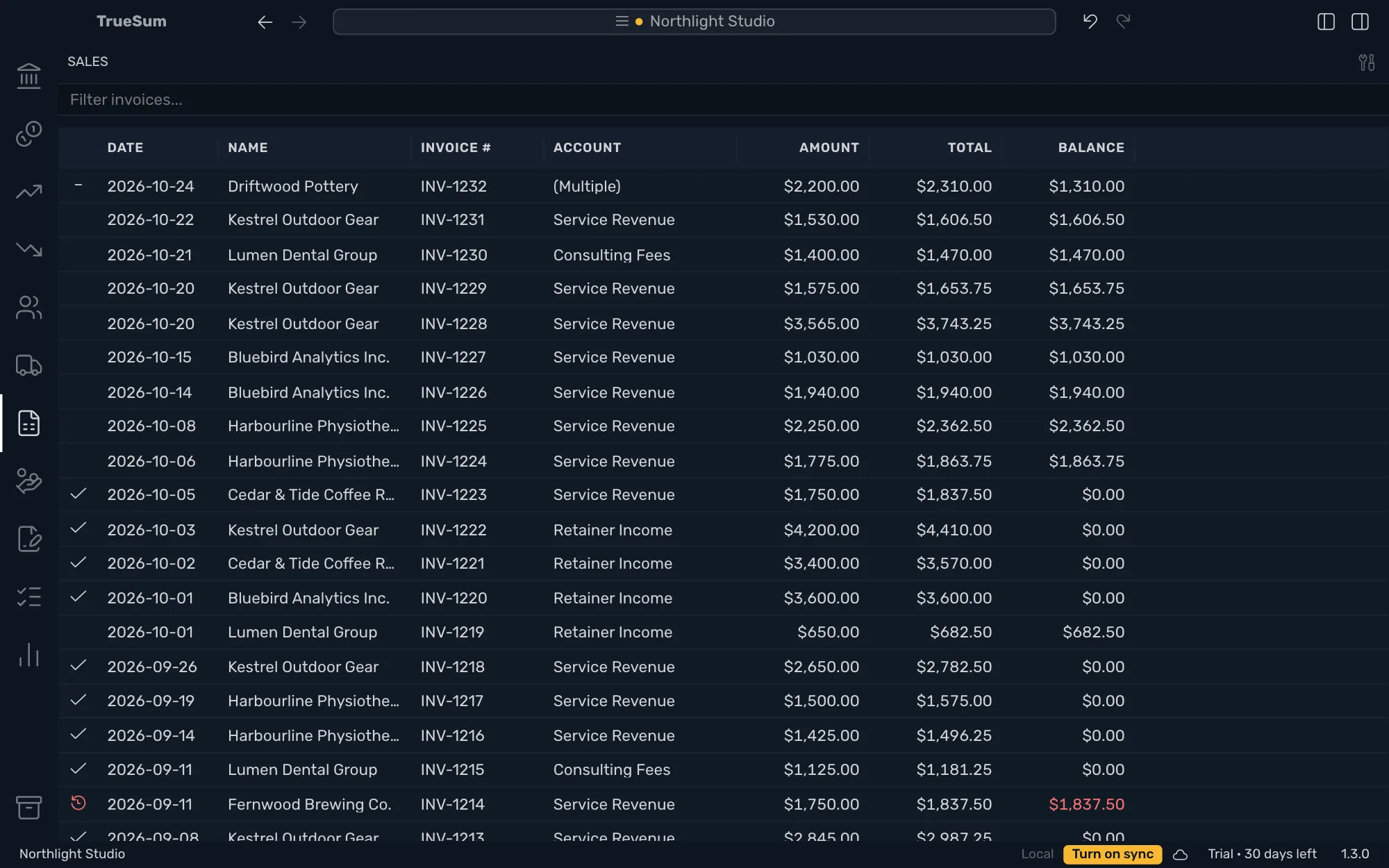
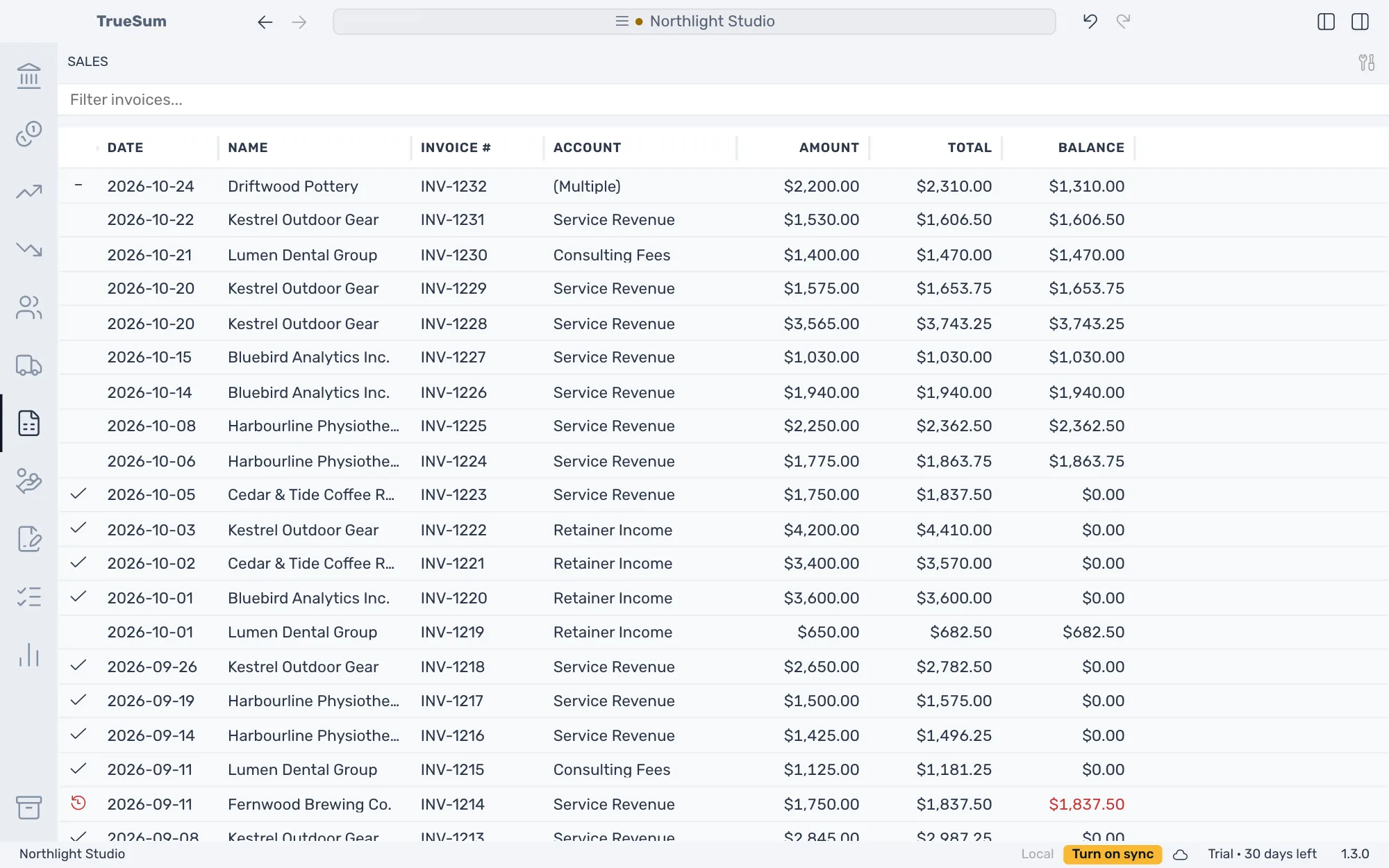
The first column is the status:
| Mark | Means |
|---|---|
| A check | Paid in full. |
| A dash | Partly paid. |
| A red clock | Overdue. The invoice is not paid in full, and it is past its due date. Point at it for the date. The Balance is red too. |
| Nothing | Unpaid, and not due yet. |
Amount is before tax, Total is with tax and Balance is what is still owed. Account says (Multiple) when the lines are on several accounts. A warning sign by an invoice number means another invoice has the same number.
Type in Filter invoices... to find an invoice by number, customer, account, date or amount. Press an invoice to open it. The due date comes from Default Payment Terms (days) (see Customize your invoices).
Reports
Press the Reports icon, then a report under Customers and Vendors (see Run a report).
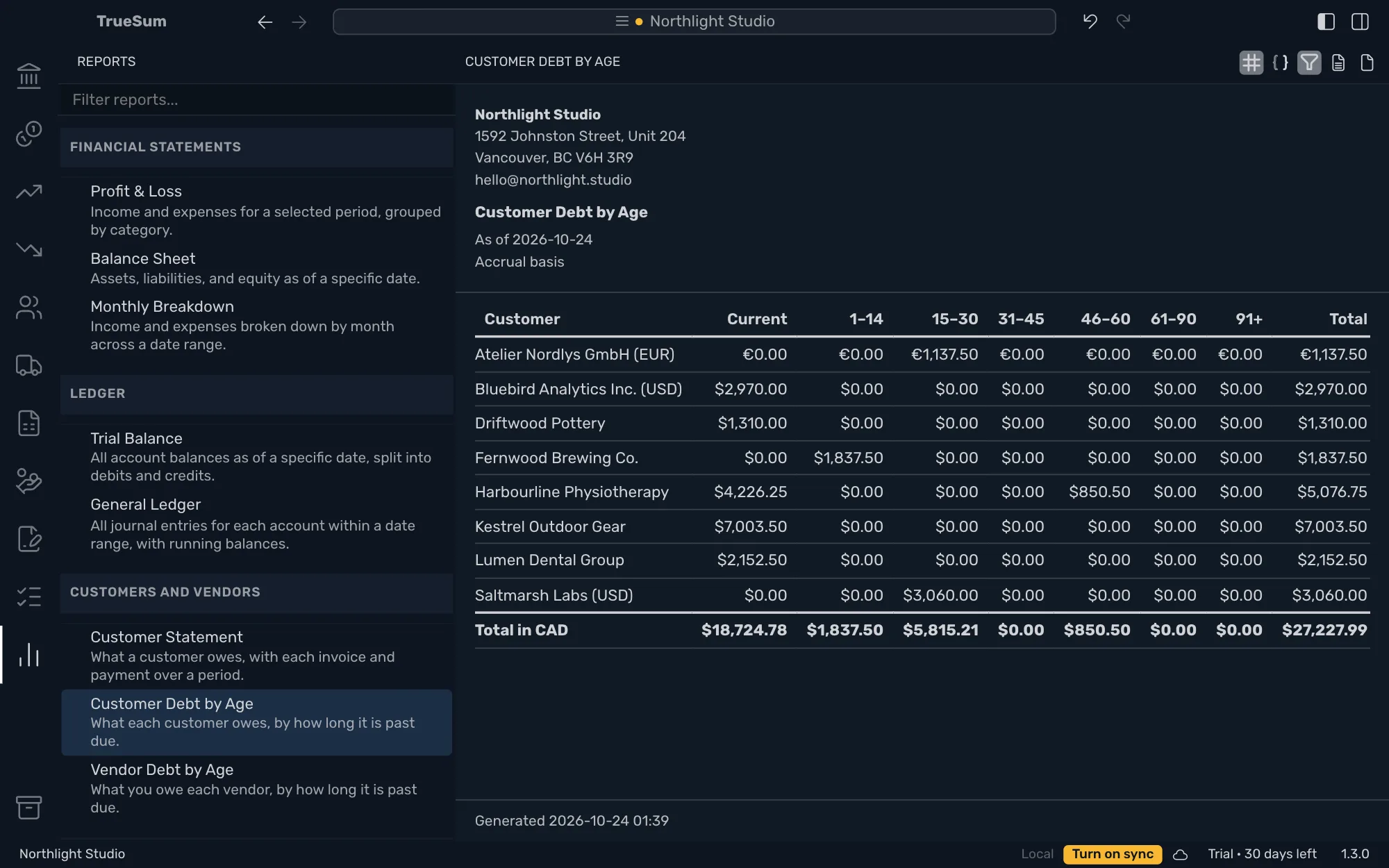
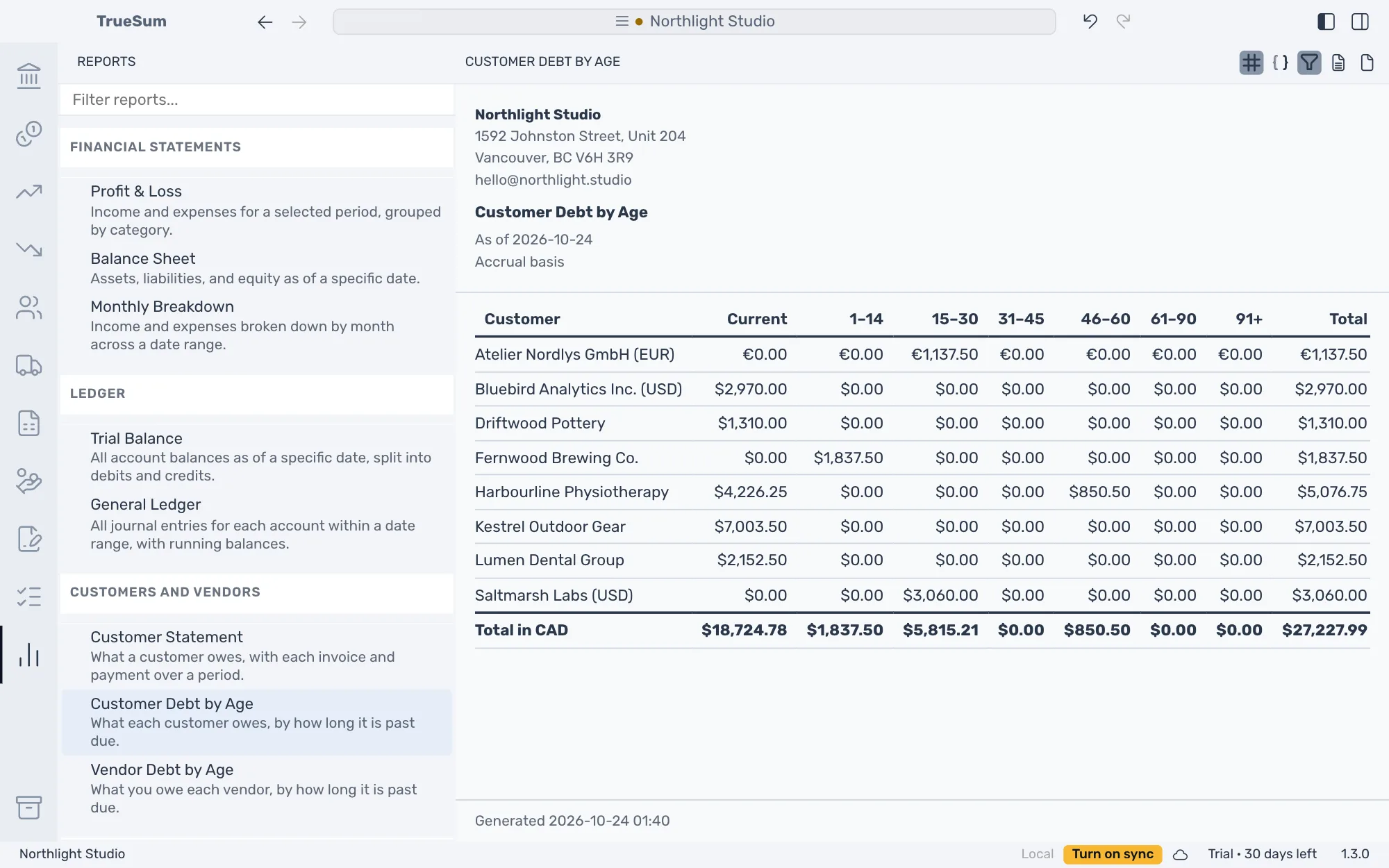
Customer Debt by Age shows each customer's balance split by how long it is past due, as of a date. The groups run from Current (not yet due) to the oldest debt. Turn on Show individual entries to list the invoices under each customer. With Use Friendly Names turned off in App Settings, it is called Accounts Receivable Aging.
Customer Statement is for one customer. Choose a Customer and a Period in the report's settings. It lists each invoice and payment with a running balance, and the Amount Due.