Create an invoice
Enter what you sold to a customer line by line, and TrueSum numbers the invoice and adds the tax.
An invoice is a sale on a customer's account. Saving it adds the total to what the customer owes you, and the income to your books. It counts as unpaid until you record a payment against it.
Create the invoice
- Press the Customers icon on the left, then the customer in the sidebar.
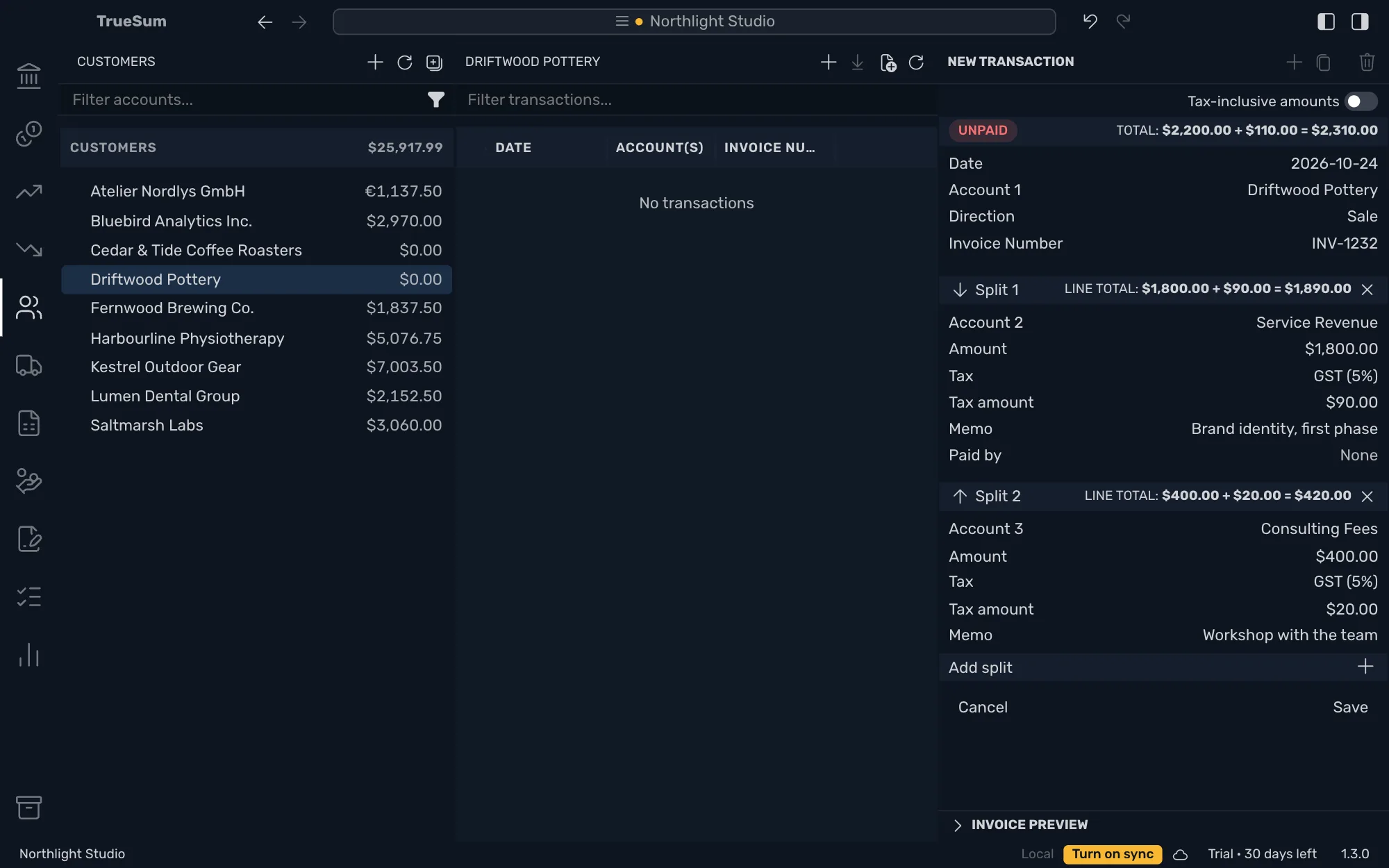
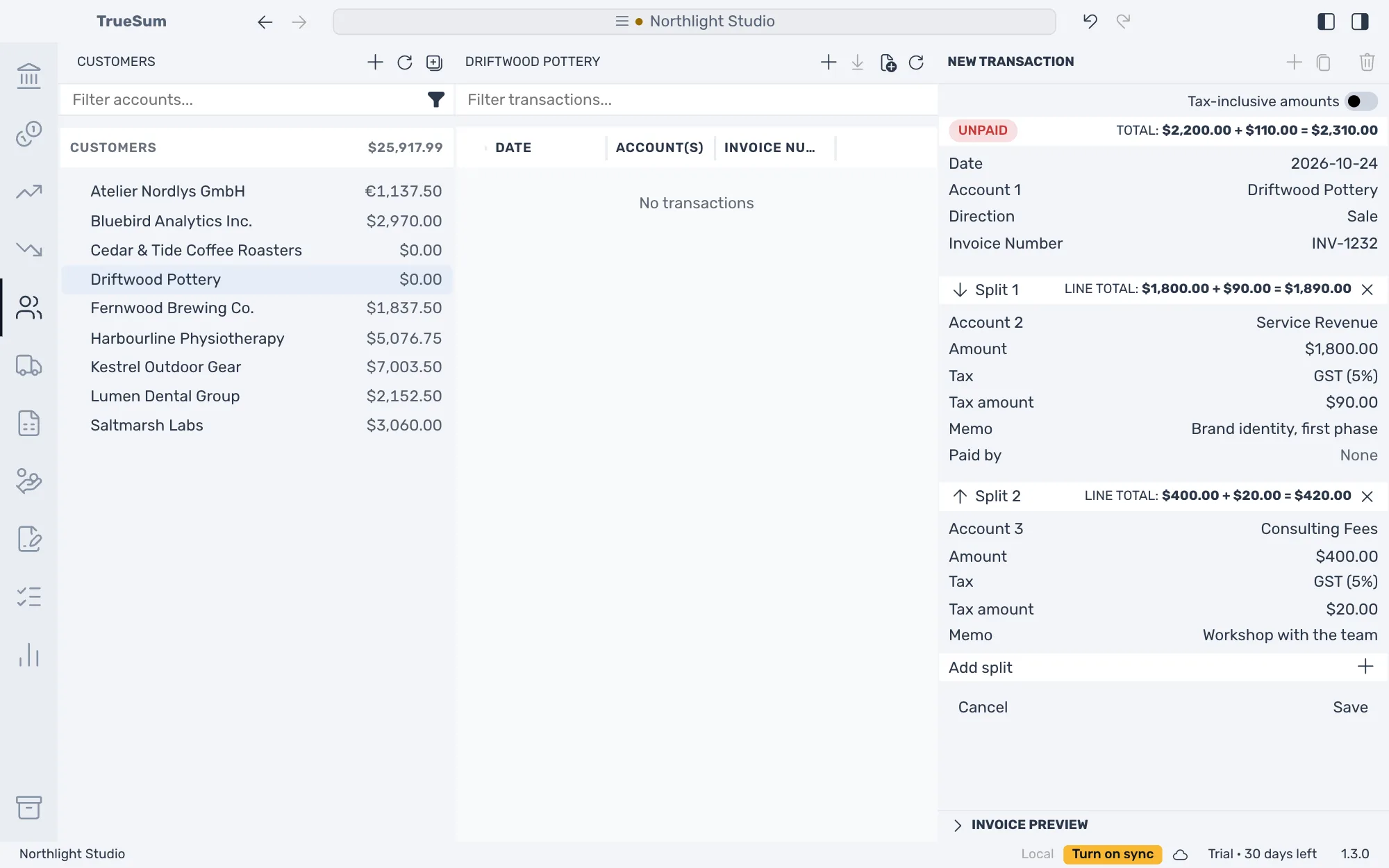
- Press the + at the top of their list, Add new transaction. New Transaction opens in the right sidebar with Account 1 as the customer, Direction on Sale and Invoice Number filled in with the next number, such as INV-1232.
- Press Date, then Today or the day of the sale.
- Press Account 2 and choose the income account for what you sold, such as Service Revenue.
- Press Amount and type the price, before tax.
- If the business charges sales tax, press Tax and choose the rate, such as GST (5%).
- To bill another line, press + at Add split and fill in Account 3, its Amount and Tax.
- Press Save.
What to know about the fields
- Invoice Number is a text field. Keep the next number, or type your own. TrueSum never refuses a number, and marks one used twice with a warning in the Sales list.
- Each split is a line on the invoice, named after its Account. Choose accounts whose names read well to your customer, because the account's name is what the customer sees as the line. There is no separate line description on an invoice. Memo is for you and is not printed.
- To type prices that already include tax, turn on Tax-inclusive amounts above the total first (see Tax on a sale or a purchase).
- The due date is the invoice date plus Default Payment Terms (days) in Business Settings. The form does not show it. Customize your invoices says where it is set.
Split a transaction explains splits in full.
After you save
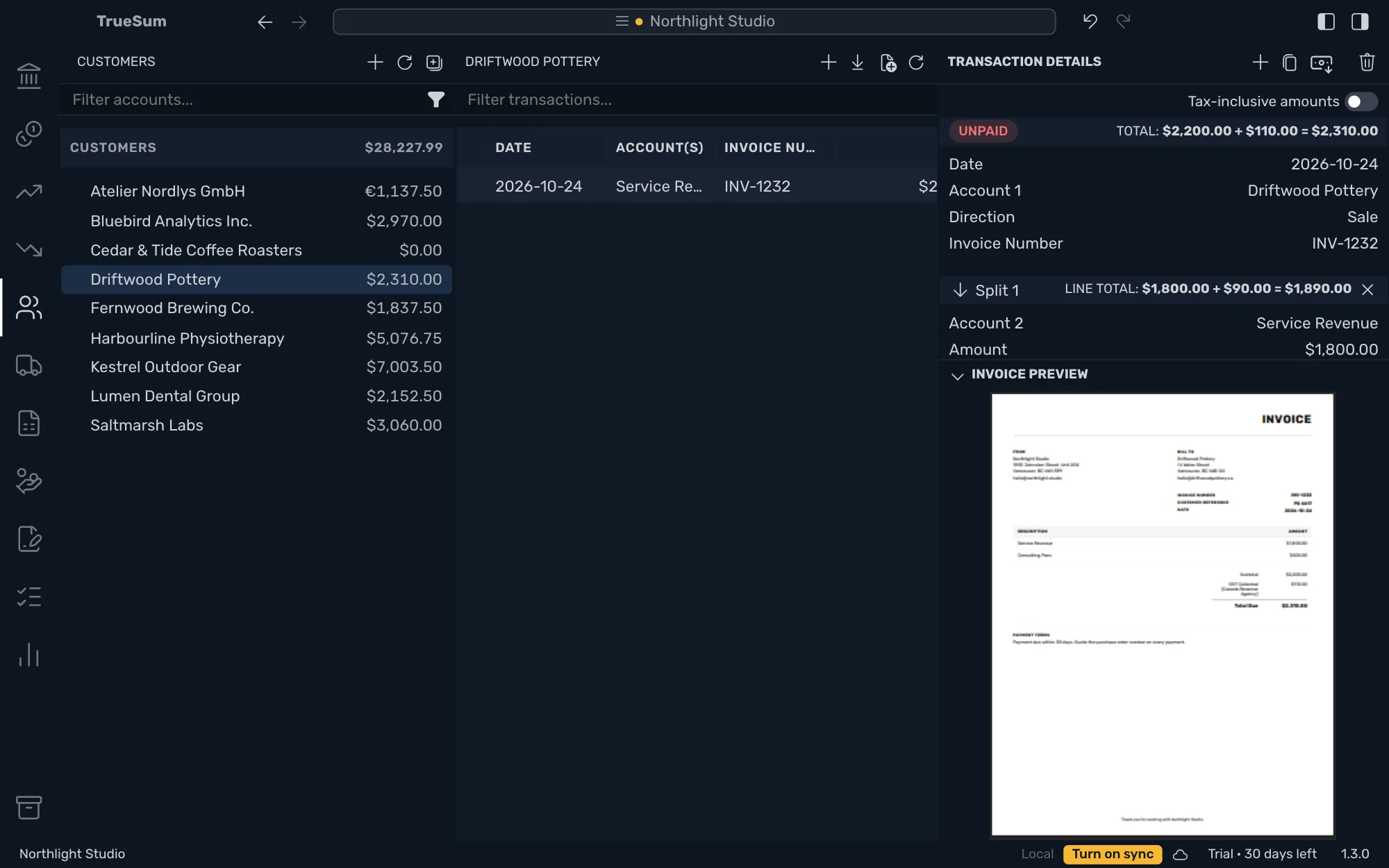
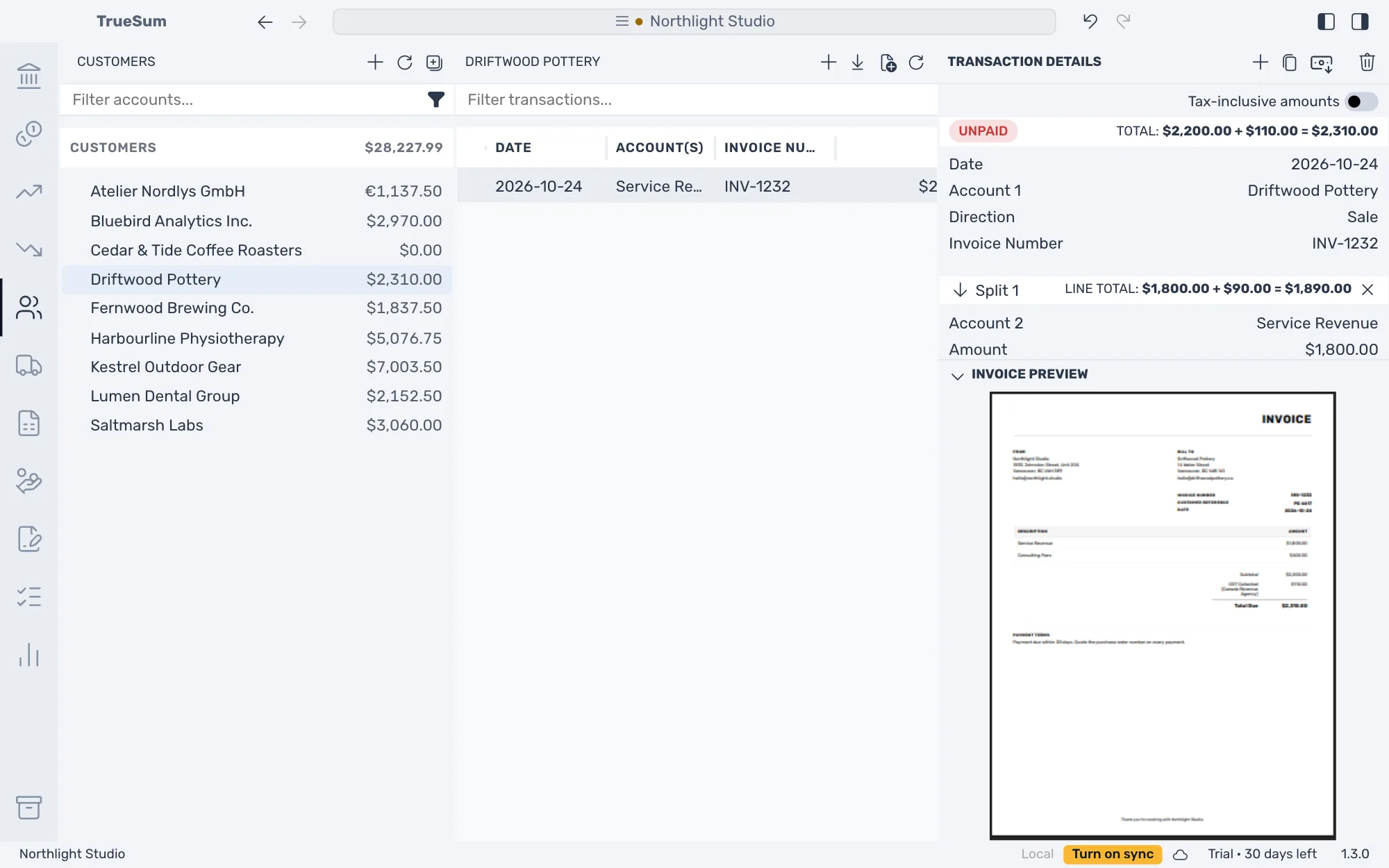
The invoice shows Unpaid and its total. The customer's balance in the sidebar goes up by the total. Under the form, Invoice Preview draws the invoice as your customer will see it (see Preview, print or save an invoice as PDF).
To change an invoice, open it and edit it as any transaction (see Change or delete a transaction). When the customer pays, record the payment.