Customize your invoices
Set your address, logo, signature, terms and footer, and how many days customers have to pay.
Your invoices and estimates take their look from Invoice Settings, and their due dates from the days customers have to pay. Both are in Business Settings.
Set how long customers have to pay
A new business starts with no payment terms. Until you type a number here, invoices have no due date and are never marked overdue.
- Press the business's name in the title bar, then the business's settings (its name followed by Settings).
- Scroll to Sales.
- Type the number of days in Default Payment Terms (days).
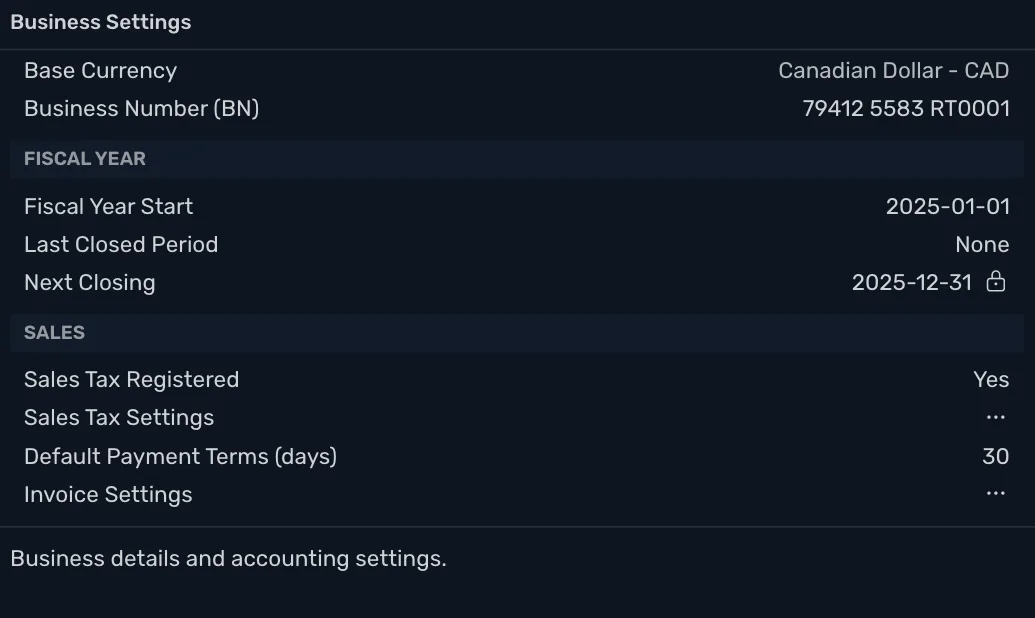
An invoice's due date is its date plus this number, set when you save it. A change applies to invoices you save after it. Overdue invoices are marked in Sales (see See who owes you).
Set the look
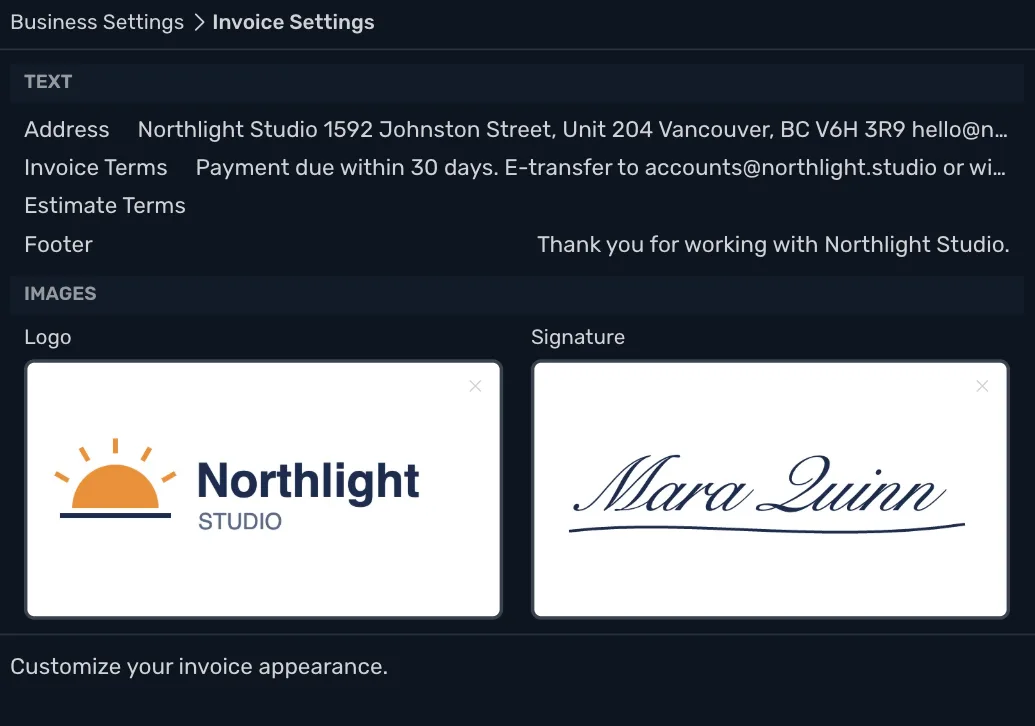
Press Invoice Settings. Each change is saved as you leave the field.
| Field | Where it appears |
|---|---|
| Address | Under From at the top left. It holds the business name, address and email. |
| Invoice Terms | Under Payment Terms. A customer's own Terms replace it. |
| Estimate Terms | Not printed yet. An estimate shows the customer's own Estimate Terms, or the Invoice Terms when there are none. |
| Footer | At the foot of the page. |
| Logo | At the top left, above From. |
| Signature | Under the terms. |
For Logo and Signature, press the box and choose a PNG or JPEG, or drag one onto it. A large image is scaled down to fit. Press the x in the corner of an image to remove it.
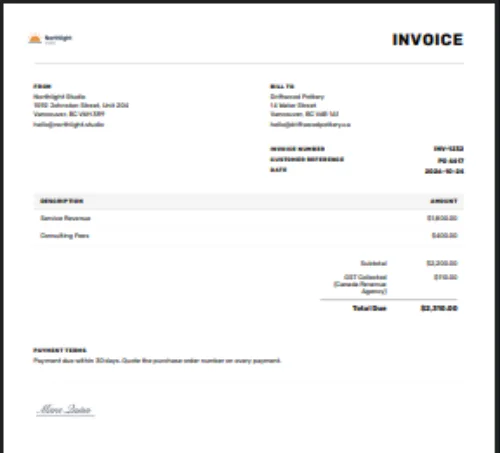
These settings are not saved with each invoice. Change one and every invoice and estimate shows it, old ones included. Close the window when you are done, and see the result in the invoice preview.
For one customer, set Invoice Address, Terms and Estimate Terms on the customer instead (see Add a customer).