Add a customer
Add a customer in the sidebar, then fill in the address, terms and email their invoices use.
In TrueSum a customer is an account, as a bank account is. It keeps a list of what you sold them and what they paid, and its balance is what they owe you. Add one before you invoice them.
Add the customer
- Press the Customers icon on the left. The sidebar lists only your customers, with what each owes.
- Press the + at the top of the sidebar, Add Account.
- Type the customer's name and press Enter.
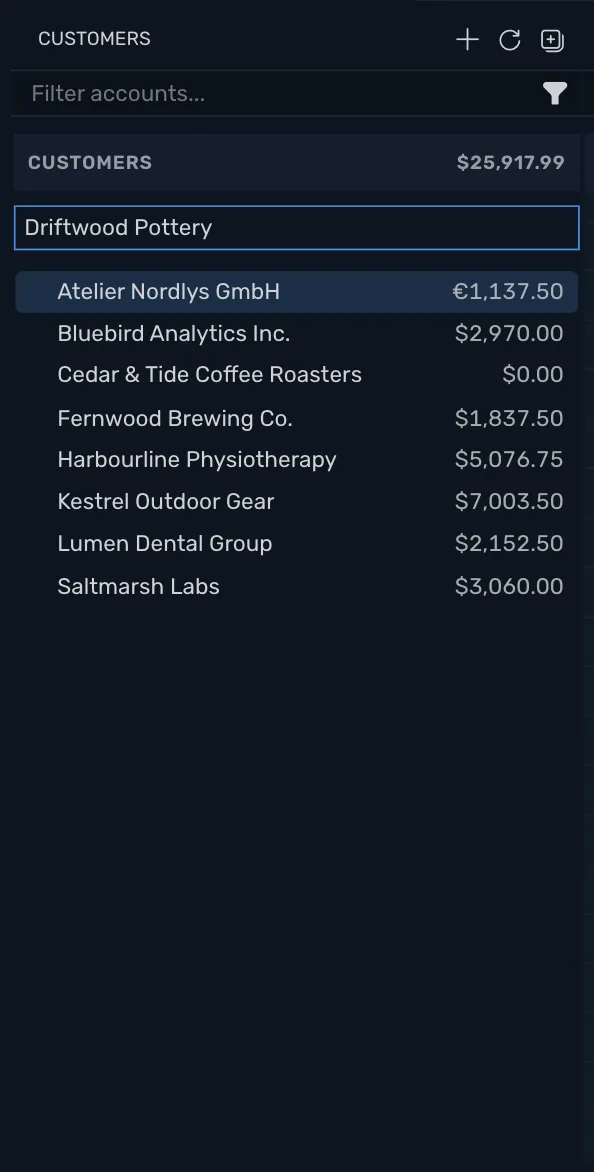
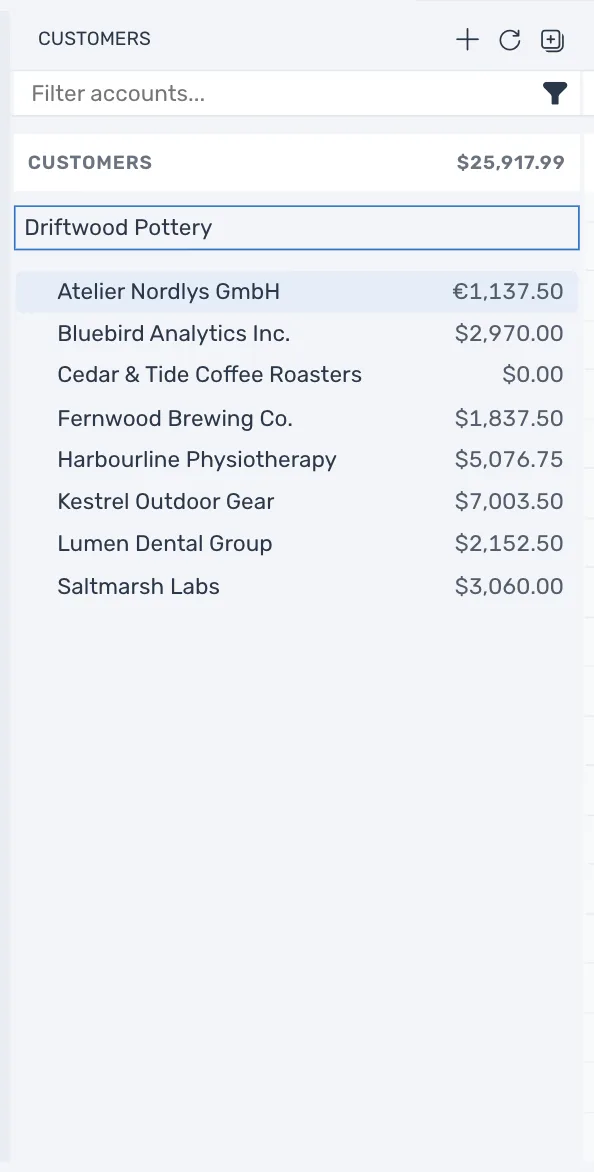
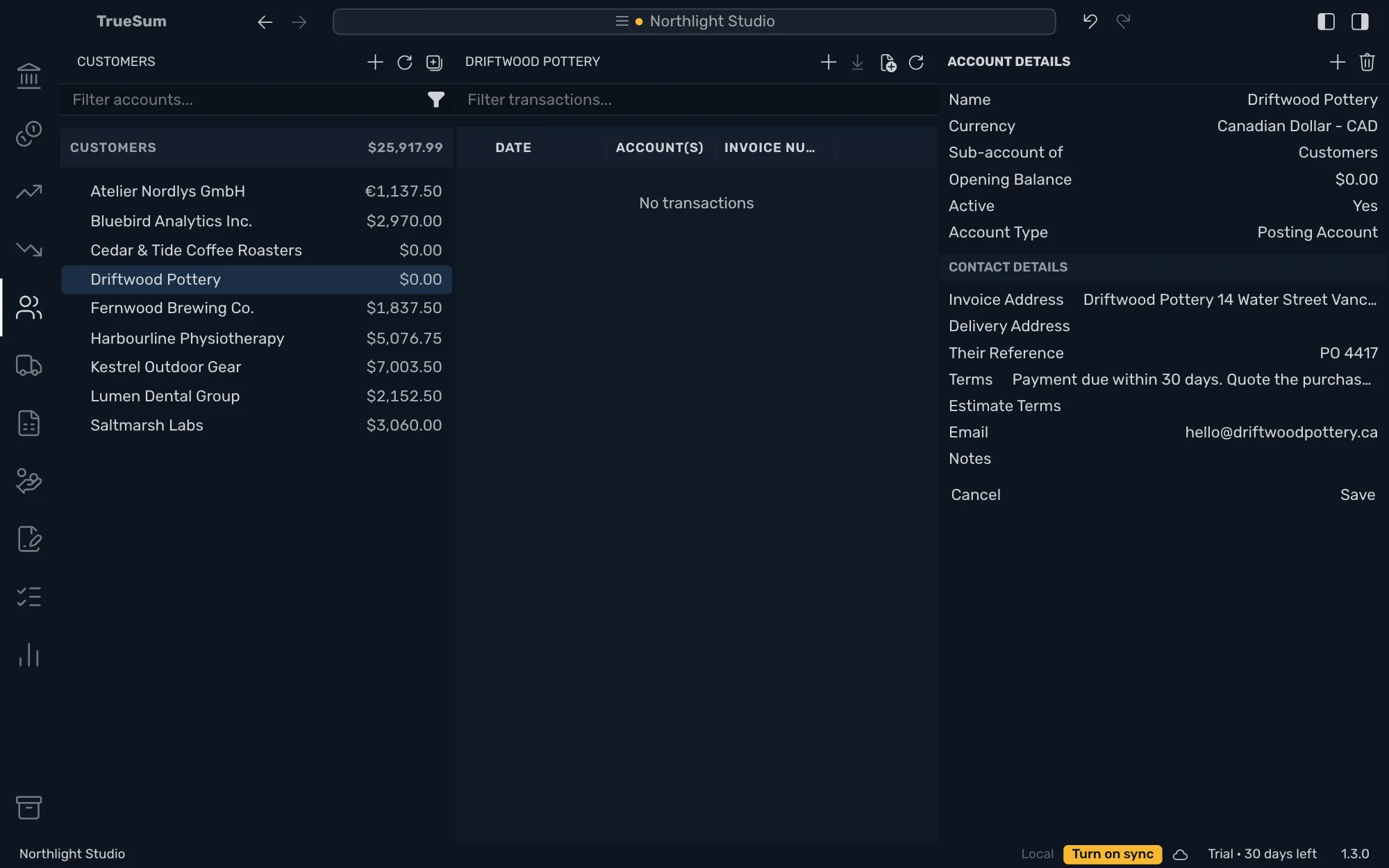
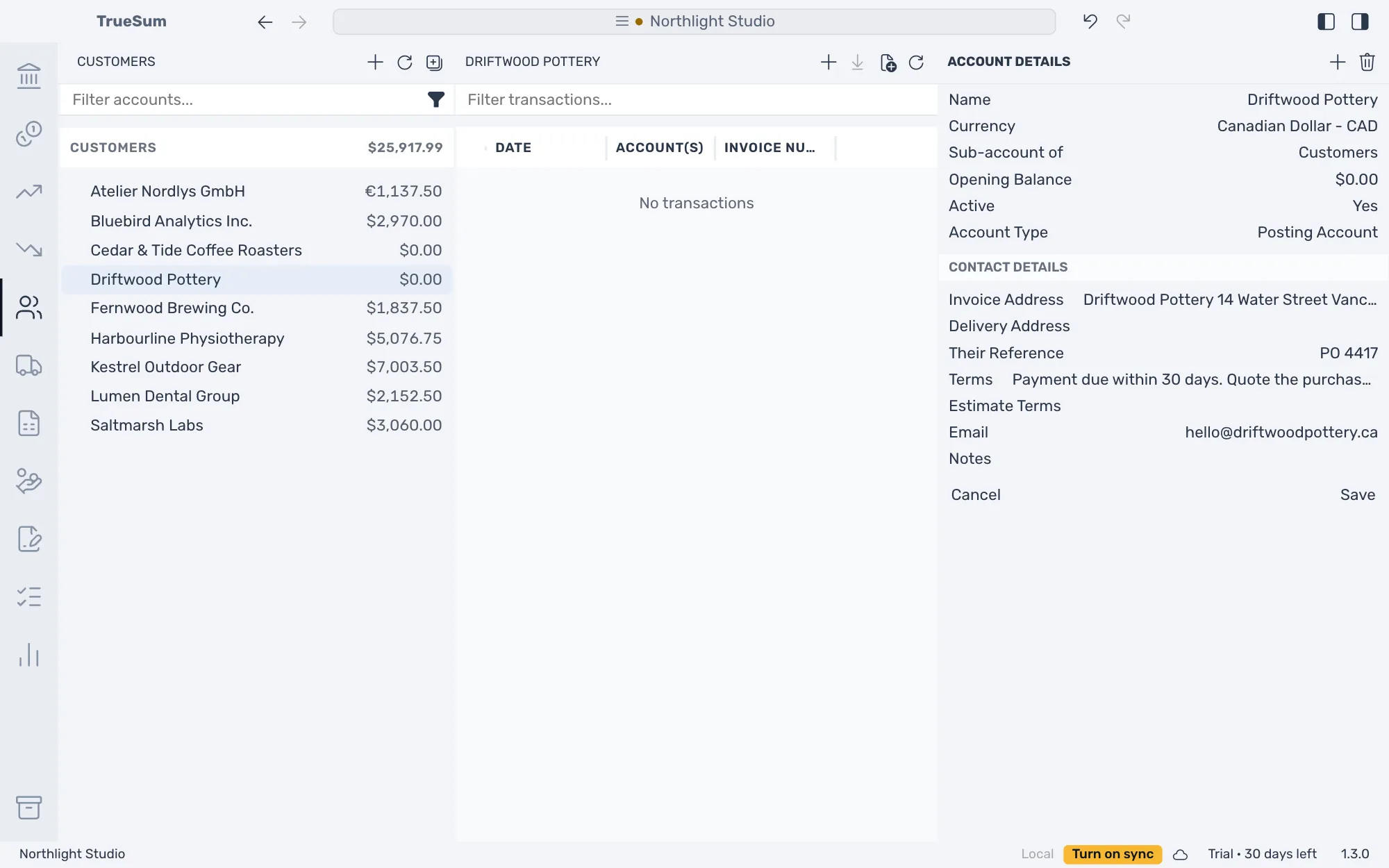
The customer is added to the list. Press its name in the sidebar to open it. Its transactions are in the middle, and Account Details is in the right sidebar.
Fill in the details
A new customer is in the business's currency. Change what you need in Account Details, then press Save.
| Field | What to enter |
|---|---|
| Name | Shown on invoices when there is no Invoice Address. You can change it later. |
| Currency | The currency you bill this customer in. It cannot change once the customer has transactions. |
| Opening Balance | What the customer already owed you when you started with TrueSum. TrueSum records it as an invoice, so a payment can pay it. As of Date appears once there is a balance. |
| Active | Set it to No for a customer you no longer bill. The balance must be zero first. |
Sub-account of and Account Type are the same for every account (see The chart of accounts). The Contact Details below are for customers and vendors:
| Field | What it does |
|---|---|
| Invoice Address | Printed as Bill To on the customer's invoices. With none, the invoice shows the customer's name. |
| Delivery Address | Where you deliver. It is for you and is not printed. |
| Their Reference | Their purchase order or account number. Printed as Customer Reference. |
| Terms | Printed as Payment Terms on this customer's invoices, in place of the business's Invoice Terms. It is text only, so the due date comes from Default Payment Terms (days) (see Customize your invoices). |
| Estimate Terms | Printed on this customer's estimates. |
| Printed under the address. TrueSum does not send email. | |
| Notes | For you. Not printed. |
In a field that takes several lines, press Enter for a new line, and Command and Enter on a Mac (Ctrl and Enter on Windows) when you are done.
Change or delete a customer
Open the customer, change a field and press Save. To delete one, press the trash button at the top of Account Details, Delete Account. For a customer who has transactions, a balance, statements or sub-accounts, the button is dimmed and says why when you point at it. A customer on an estimate cannot be deleted until those estimates are. Undo brings a deleted customer back (see Undo a change).
Next, create an invoice.