Record a payment from a customer
Record that a customer paid an invoice, in full or in part, and see what it did to the invoice.
When a customer pays an invoice, record a payment. A payment is a transaction on the customer's account that Pays the invoice. The invoice reads paid, the customer owes less and the bank account goes up. For money with no invoice behind it, see Record money you received.
Record it from the invoice
- Open the customer and press the invoice.
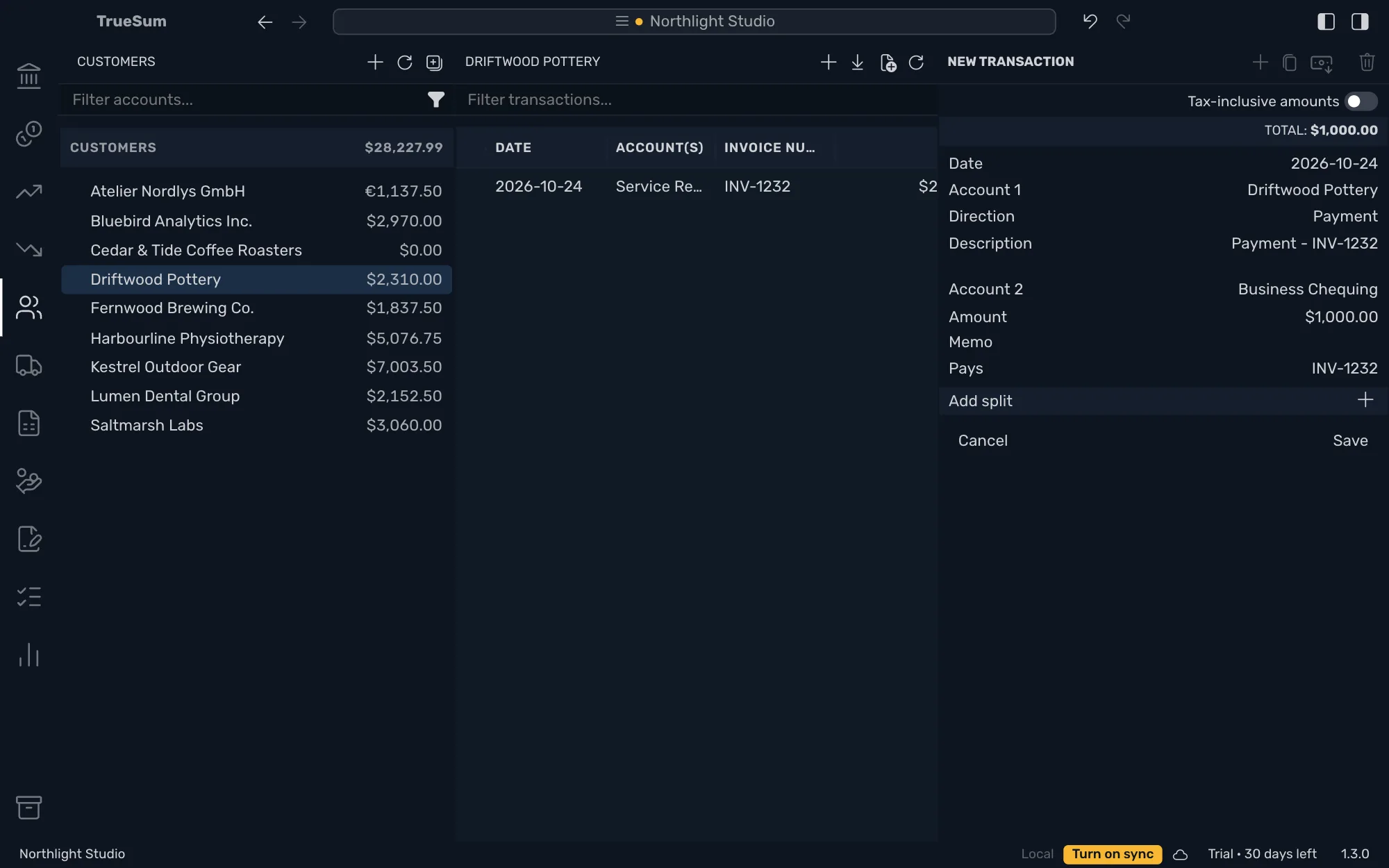
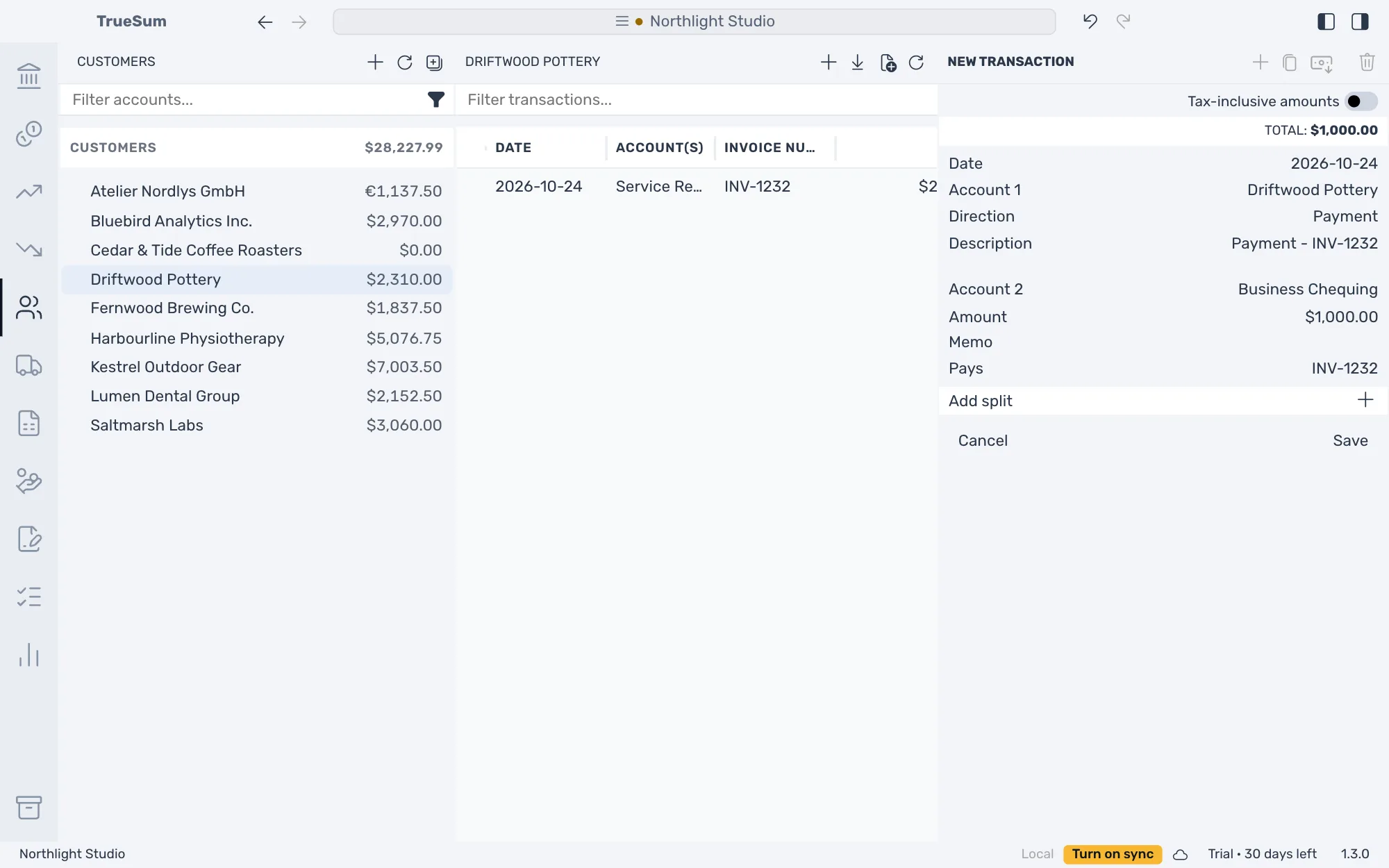
- Press the Record Payment button at the top of the right sidebar. A new payment opens with Direction on Payment, the Description "Payment - INV-1232", the amount still owed as Amount, and the invoice on the Pays line.
- Press Date, then the day the money arrived.
- Press Account 2 and choose the account the money went to, such as Business Chequing.
- For a part payment, change Amount to what the customer paid.
- Press Save.
Record Payment is dimmed when nothing is owed. It is also dimmed for an invoice whose lines are on more than one customer account (a rare set-up), and says so when you point at it.
What it did
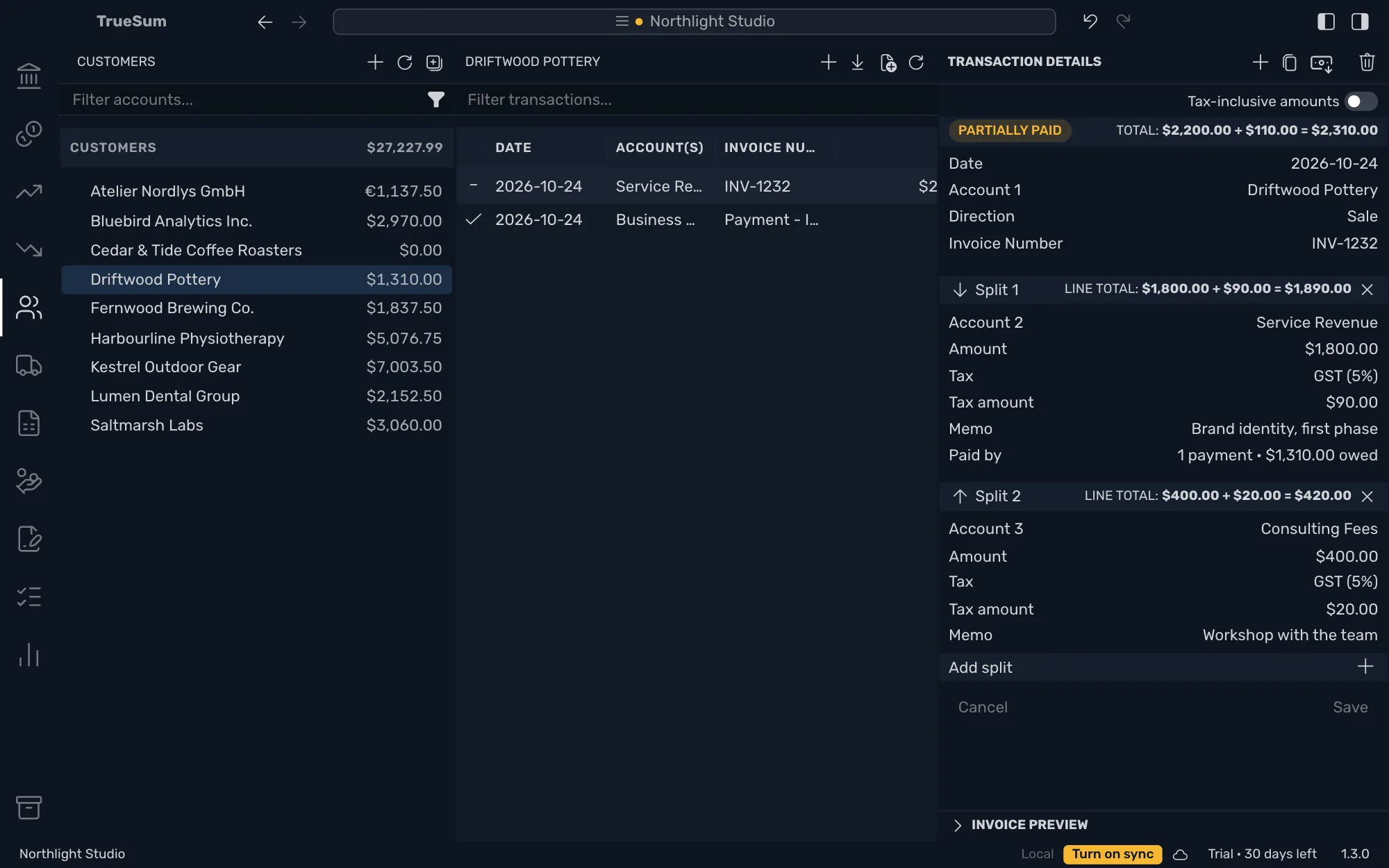
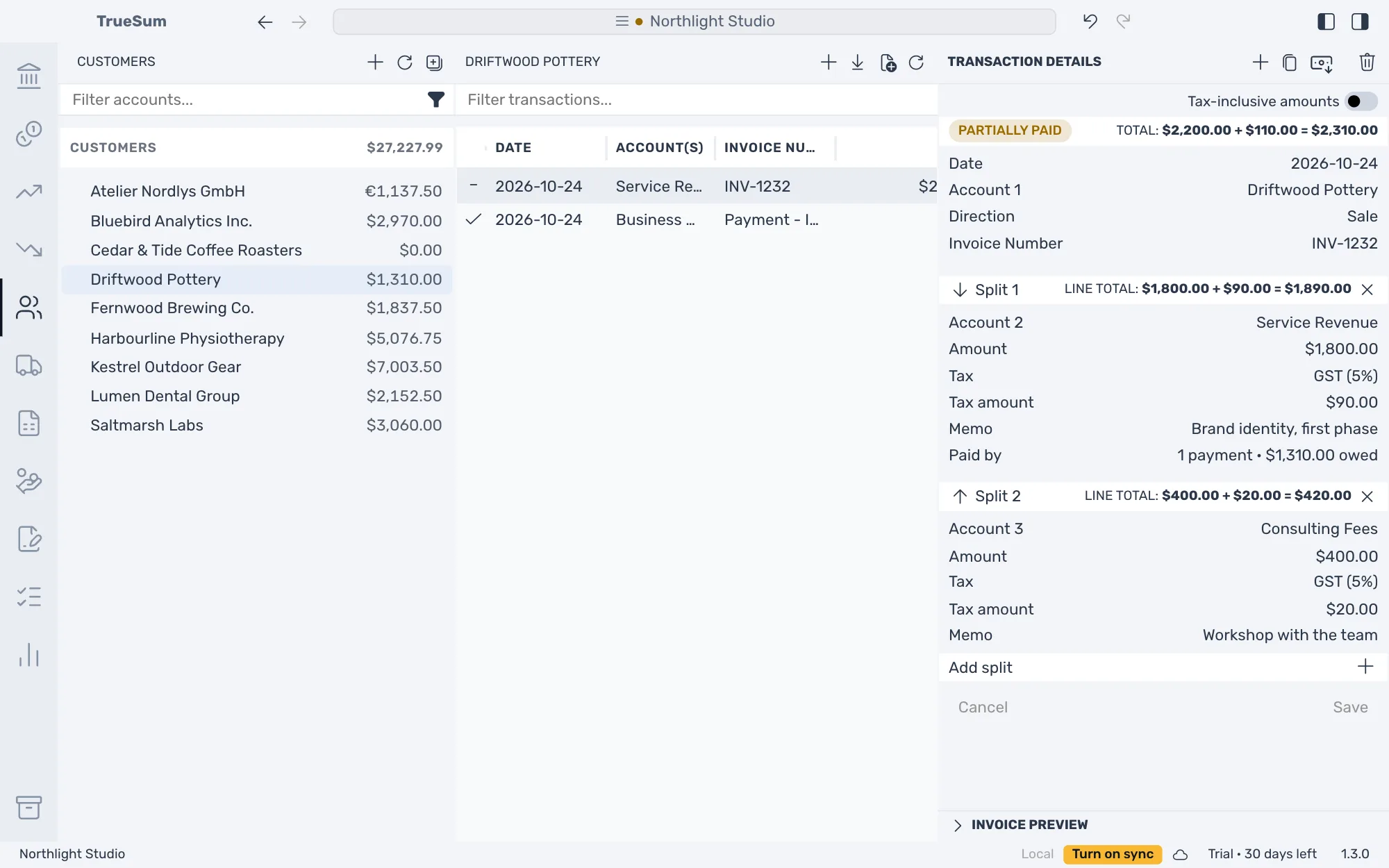
The invoice shows Paid, or Partially paid after a part payment, with a check or a dash in the list. The invoice's Paid by line says how many payments pay it and what is still owed. Press Record Payment again for the rest.
One payment for several invoices
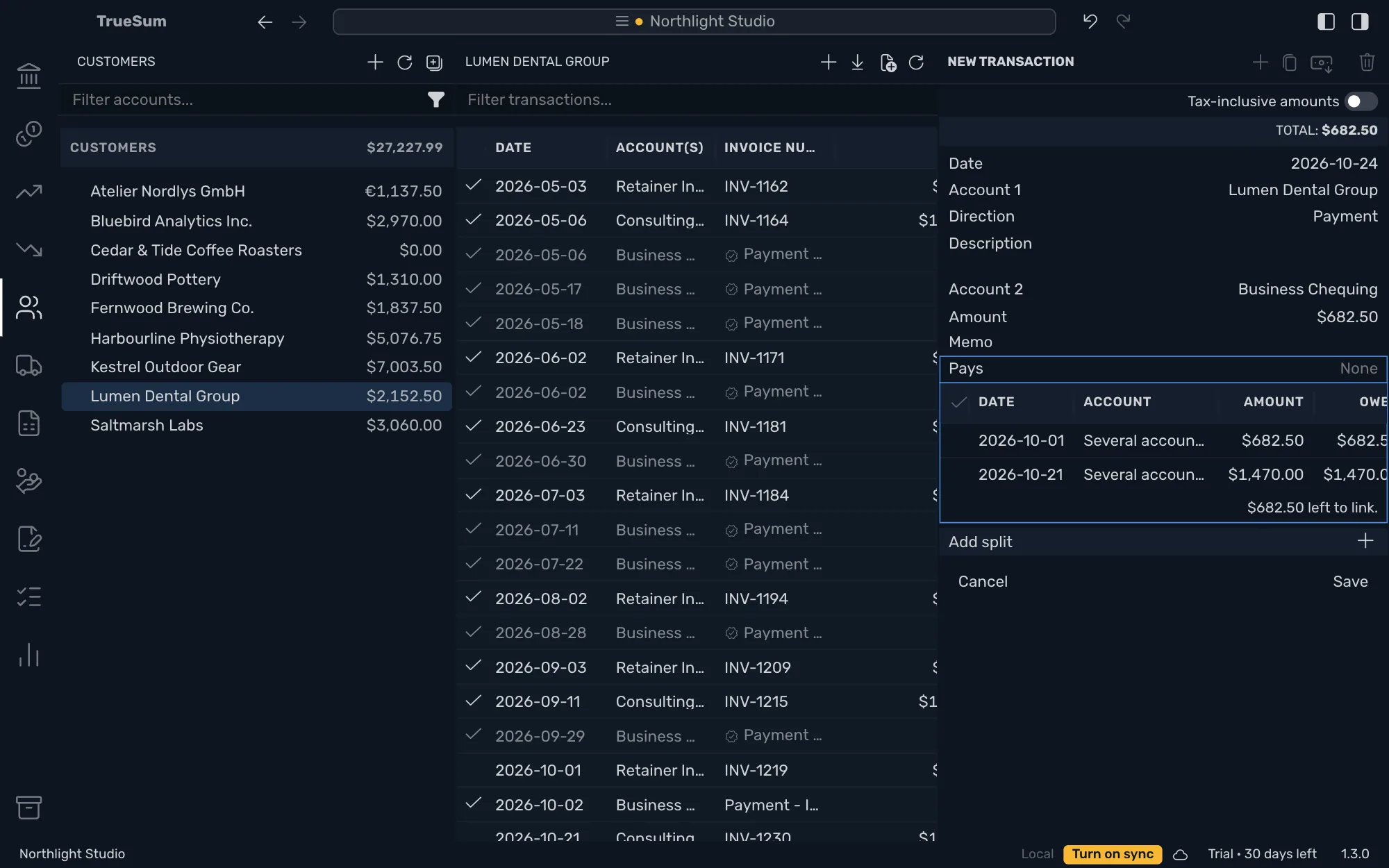
Start from the customer instead. Press + at the top of their list, set Direction to Payment, choose Account 2 and type the Amount. Press Pays to list the invoices the customer owes, and press one to tick it. The first tick closes the list. Press Pays again to tick more. TrueSum applies the amount to the ticked invoices oldest first, up to what each owes, and the line says what is left.
A payment you already saved
A payment from your bank, or one you typed as an ordinary transaction, is not linked to an invoice, so the invoice still reads Unpaid. Open the invoice and press Paid by. It lists the customer's payments that have something left to link. Press one to tick it, then press Save. Or open the payment and tick the invoice on its Pays line.
A payment of more than is owed
TrueSum saves the payment as entered. The invoice is paid, and a warning stays on screen until you dismiss it. The warning names the amount that was not applied. That amount stays on the customer's account as part of the payment, so the customer's balance is lower by the whole payment, so it can read below zero. TrueSum does not list these amounts in one place.
To use the rest on a later invoice, open that invoice and press Paid by. It lists the customer's payments that have something left to link, this one included. Press the payment to tick it, then press Save. Or open the payment and tick the later invoice on its Pays line.
Take a payment back
Open the payment and press Delete Transaction. The invoice reads unpaid again. Undo puts the payment back (see Undo a change).