Preview, print or save an invoice as PDF
See an invoice or an estimate as your customer will, then save it as a PDF or print it.
Every saved invoice has a preview, drawn as the PDF your customer would get. It is also how you save the invoice as a file or print it.
See the preview
Open an invoice. Invoice Preview is under the form in the right sidebar. Press its header to collapse it or open it again.
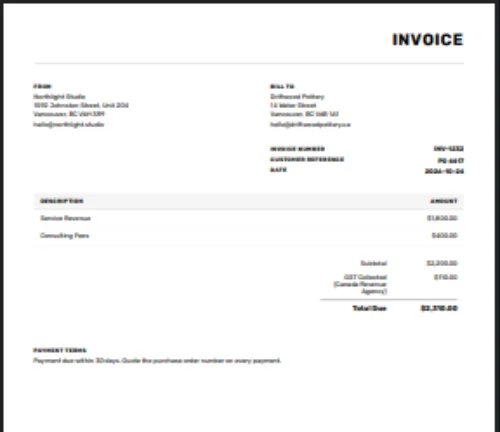
The sheet shows:
- From: the Address in Invoice Settings, with your logo above it.
- Bill To: the customer's Invoice Address and Email, or their name when there is no address.
- Invoice Number, Customer Reference and Date.
- A line for each split, named after its account, then Subtotal, each tax and Total Due.
- Payment Terms: the customer's Terms, or the business's Invoice Terms. Your signature is under them, and the Footer is at the foot of the page.
The preview is drawn from the saved invoice. A new invoice shows a blank sheet with your address until you press Save, and a change shows once you save it. The logo, address, terms and footer are read from Invoice Settings each time, so an old invoice shows today's settings, not the ones it was sent with (see Customize your invoices). Save a PDF when you send an invoice if you want a copy as it was.
Save it as a PDF or print it
Point at the preview and a magnifier appears. Press it to open the invoice at full size in a window of its own. That window is a PDF viewer, so use its download button to save the PDF to your device, or its print button to print it.
TrueSum does not send email. Attach the saved PDF to your own message.
A payment has no preview
Opening a payment shows no preview. A payment is not something you bill.
Estimates
An estimate has the same preview, titled ESTIMATE, under the form of a saved estimate (see Create an estimate). It opens, saves and prints the same way.