Reconcile with a statement
Tick off the transactions on your bank's statement until TrueSum agrees with its closing balance.
Reconciling checks your books against what the bank says. Each month, tick the transactions that are on the statement, type the closing balance the bank gives, and see whether the two agree. When they do, the statement is completed and its transactions are locked.
Start a statement
- Press the Statements icon in the activity bar. If it is not there, turn it on (see Choose the icons on the left).
- Press the account in the sidebar. It lists bank accounts, petty cash, credit cards, customers, vendors and long-term liabilities.
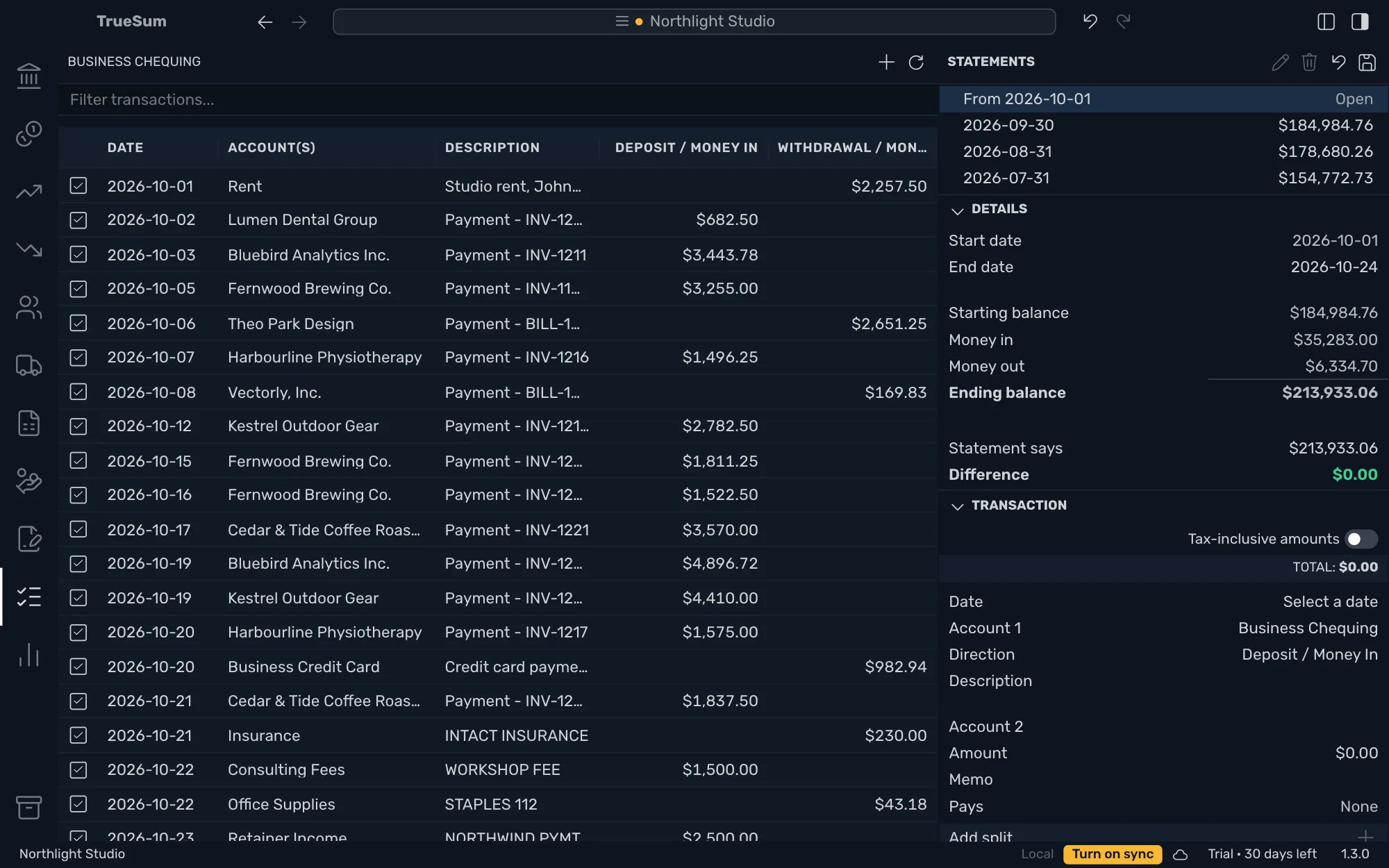
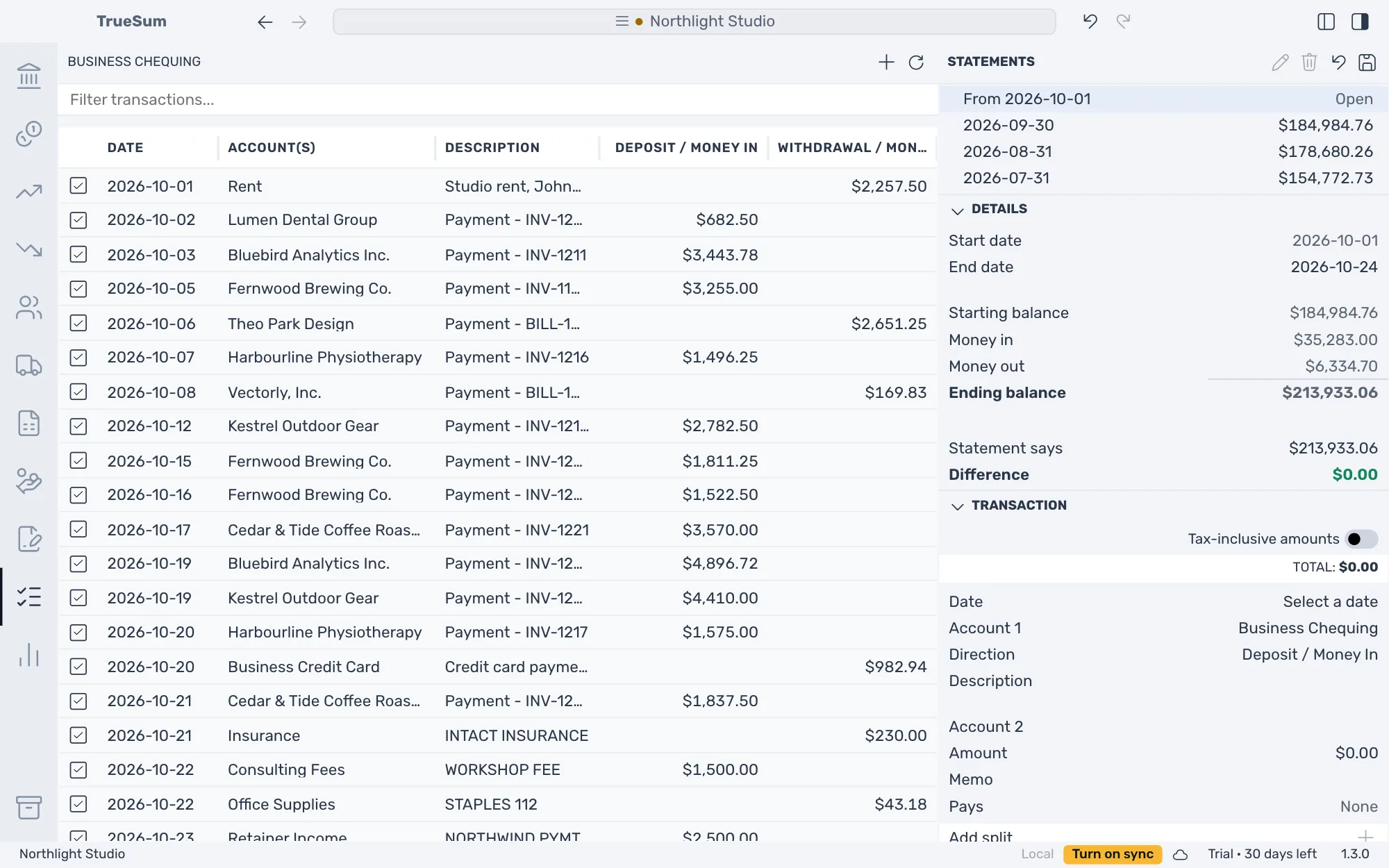
The Statements panel at the top right lists the account's statements, newest first. The open one, with Open beside it, is the one you work on. It starts the day after the last completed statement.
Tick the transactions
- Press End date and choose the last day of the statement. A later transaction is dimmed, with no box.
- Tick the box on each transaction that is on the statement. Press the space bar to tick the selected row.
- Press Statement says and type the closing balance from the statement.
The Details panel works out the rest. It shows the Starting balance, what came in and went out, and the Ending balance of what you ticked. For a bank account the two middle lines are Money in and Money out. For a credit card they are Charge and Payment. Difference is Statement says minus Ending balance.
Complete it
Press Save Statement, the disk at the top of the Statements panel. It completes the statement when End date is set and Difference is exactly $0.00. Until then it only keeps your ticks, so you can leave and come back.
If Difference is not $0.00, a transaction is missing, wrong or not ticked. Often it is a bank fee or interest that you have not entered yet. Press + above the list to add a missing one, and press a row to correct it.
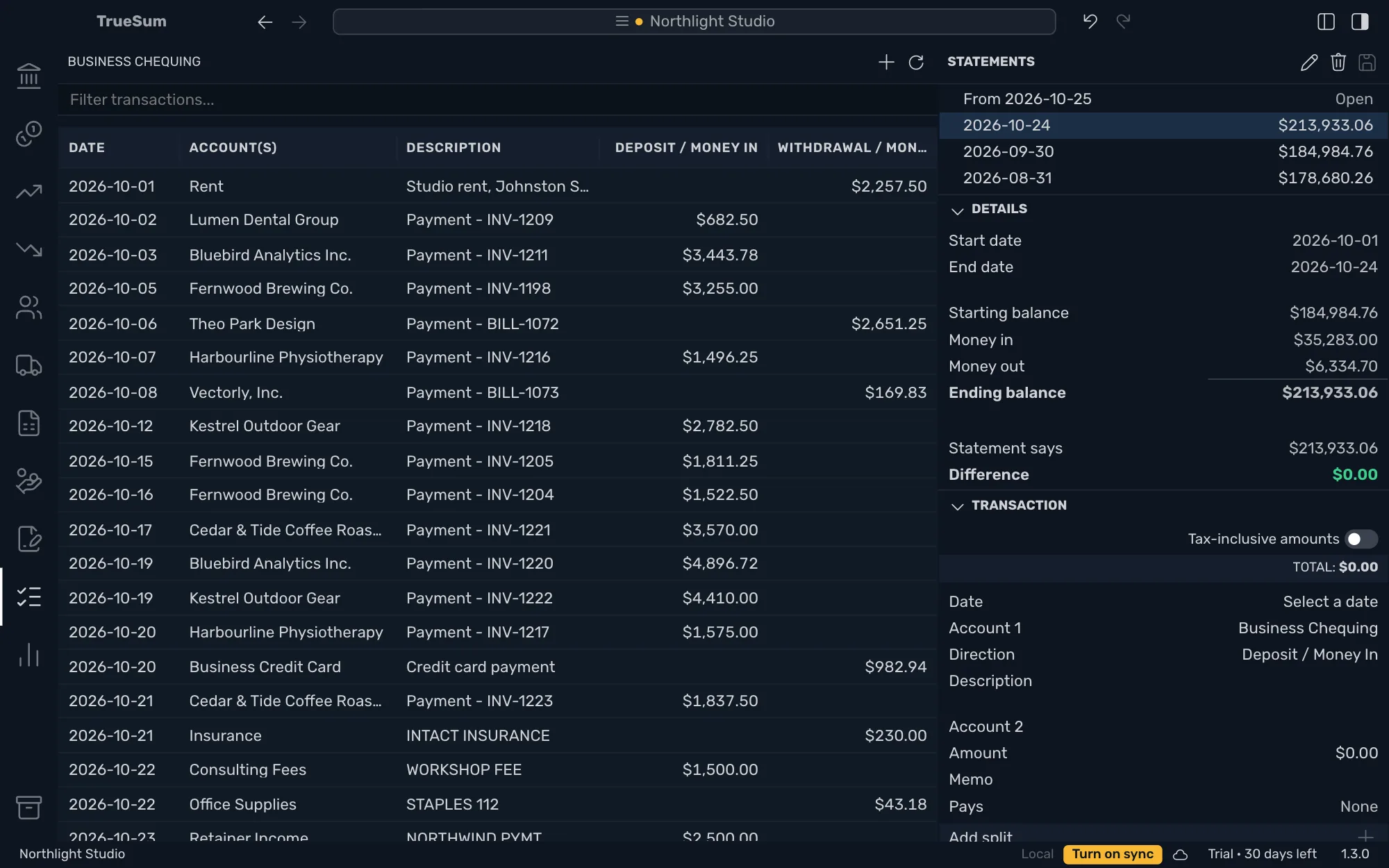
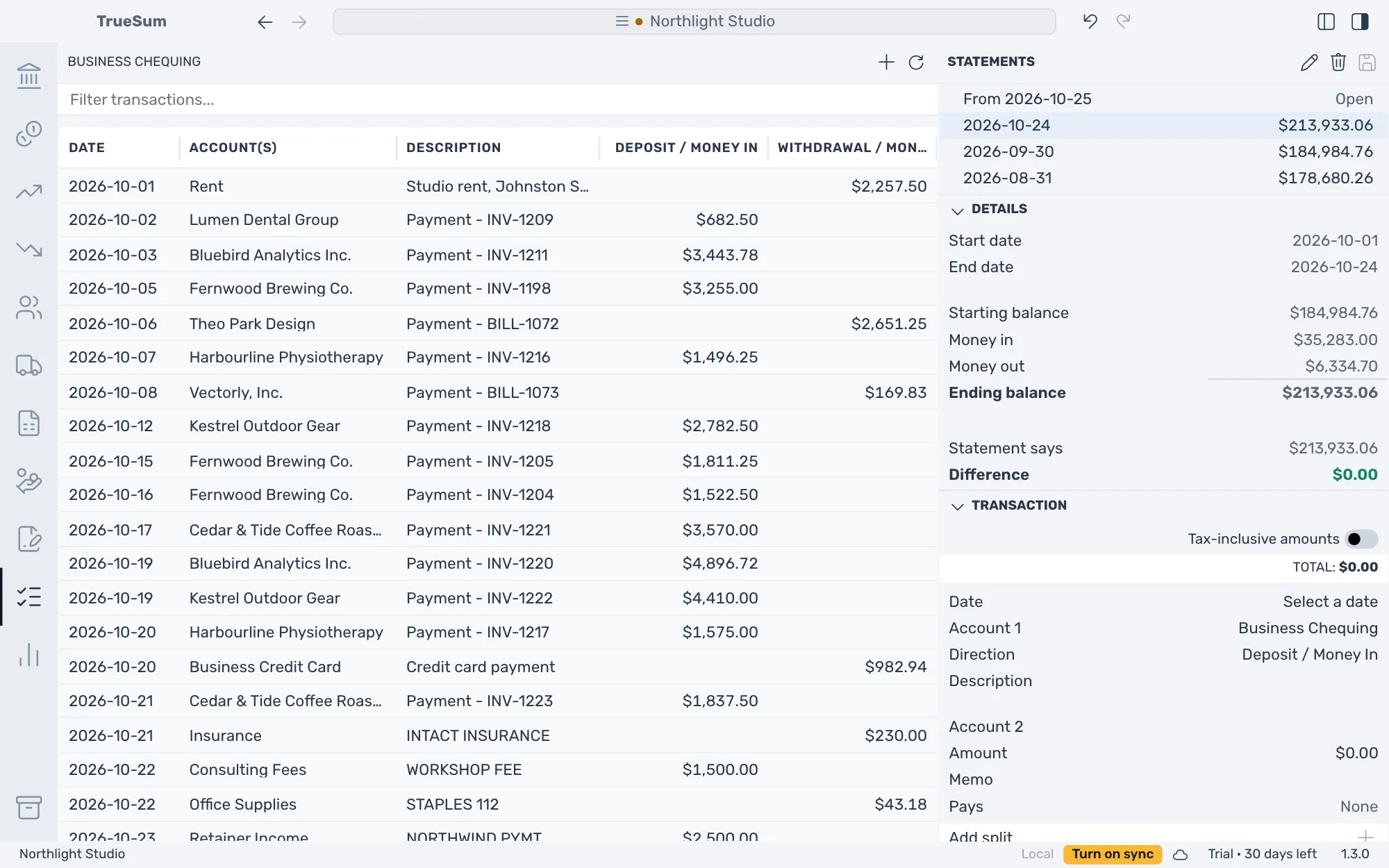
The completed statement is in the list with its closing balance. Its transactions are locked, and a new open statement starts the next day (see Change or delete a transaction).
Change a completed statement
Only the latest completed statement can change. Press it, then the pencil, Edit Statement, change its ticks, end date or closing balance, and save. If Difference is no longer $0.00, saving reopens it as the open statement. To remove it, press the trash button, Delete Statement. Its transactions go back on the list, unticked. Both changes can be undone (see Undo a change).