Repeat a transaction
Make rent, a subscription, a bill or an invoice repeat. Learn every Repeat choice, and how to change, pause or delete it later.
Some transactions come back on the same day every week, month or year, such as rent, a phone plan or a retainer you invoice each month. Make one repeat, and each time its day comes it waits in Due on the Recurring screen, ready for you to post. Nothing goes into your books until you post it (see Post or skip what is due).
Make a transaction repeat
- Fill in an expense, a deposit, a bill or an invoice as you would any other.
- Press Repeat, right under Description (under Bill Number on a bill, and under Invoice Number on an invoice), and choose how often.
- Check the lines that open under it. Each is explained below.
- Press Save.
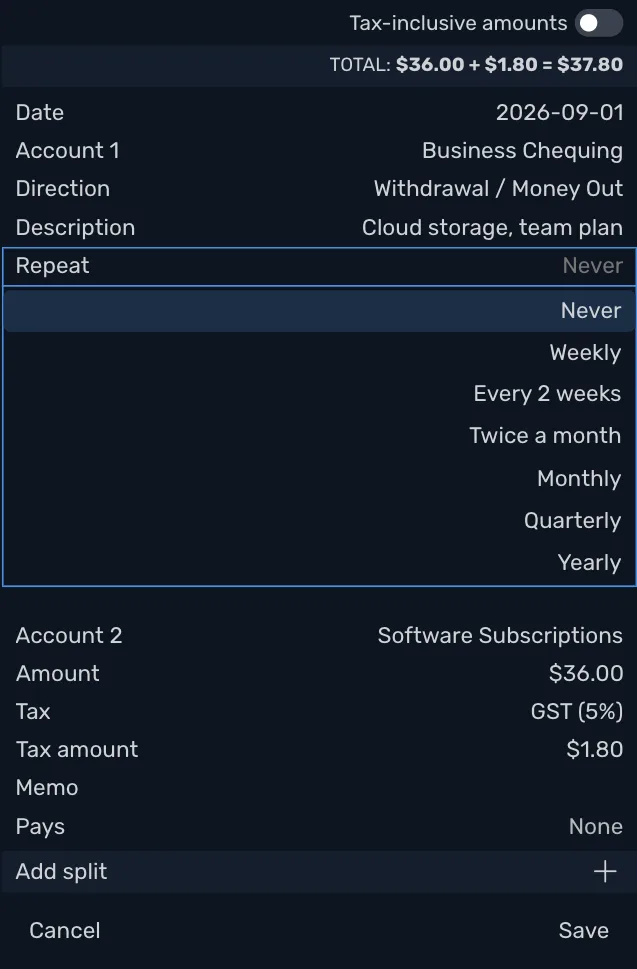
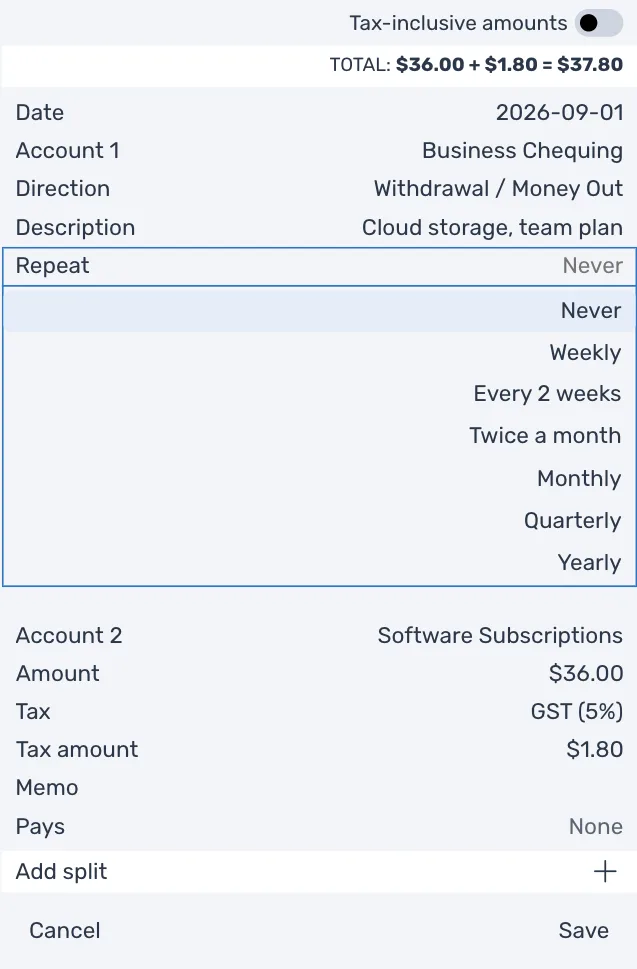
Save saves the transaction and how it repeats together, and Cancel drops both. Changing only the Repeat lines is enough to turn Save on.
You can make a transaction you saved earlier repeat the same way. Open it, choose how often under Repeat, and press Save. That works on a reconciled transaction and on one in a closed year too, because it changes only how the transaction repeats, never the transaction itself. An opening balance cannot repeat.
How often
Never is the choice for a transaction that does not repeat. Every other choice opens Starts and Ends under it, and some open a line or two more.
| Repeat | When it comes |
|---|---|
| Weekly | Every 7 days, on the weekday of Starts. Starting on Monday, March 2, it comes on March 9, March 16 and every Monday after. |
| Every 2 weeks | Every 14 days, counted from Starts. Starting on Friday, January 9, it comes on January 23, February 6 and every second Friday after. |
| Twice a month | On two days of every month, the First Day and the Second Day. On the 1st and the 15th, it comes on January 1, January 15, February 1, February 15 and so on. |
| Monthly | Once a month, on the Day you choose. Monthly from January 31 comes on February 28 (February 29 in a leap year), March 31, April 30 and May 31. |
| Quarterly | Every 3 months, on the Day you choose. Quarterly from January 31 comes on April 30, July 31 and October 31. |
| Yearly | Once a year, on the month and day of Starts. Yearly from March 15 comes every March 15. Yearly from February 29 comes on February 28 in a year with no February 29, and on February 29 in a leap year. |
Every date is counted from Starts, never from the date before it. A monthly payment on the 31st comes back on the 31st after a short month, and never drifts to the 28th.
Starts
Starts is the first day it repeats. To begin with it is the transaction's date, and it follows that date if you change it, until you set Starts yourself. Once you save, it stays where it is, even if you later change the transaction's date.
- Starts on the transaction's date. The transaction you save is the first one. The next one is due on the next date.
- A later Starts. The first one due is on Starts. The transaction you save is not one of the dates, so it never comes due itself.
- A Starts in the past. Every date from Starts to today is due at once, each on its own, for you to post or skip one by one. This is how to catch up on a few months of rent you have not entered yet.
Day
Monthly and Quarterly have a Day line with two choices.
- On the and the day of Starts, such as On the 31st. It comes on that day. In a shorter month it comes on the month's last day instead, and goes back to that day in the next month that has it.
- On the last day. It always comes on the last day of the month, whatever the day of Starts, such as January 31, February 28, March 31 and April 30.
Weekly and Every 2 weeks use the weekday of Starts, and Yearly uses its month and day, so they have no Day line.
First Day and Second Day
Twice a month has a First Day and a Second Day in place of Day. Each is a day from the 1st to the 28th, or On the last day. They start as the 1st and the 15th.
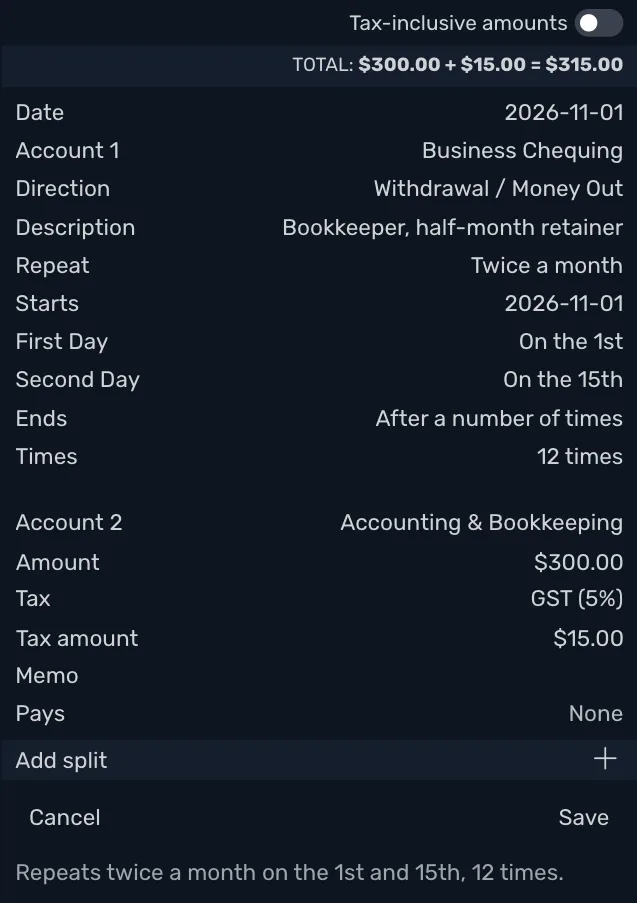
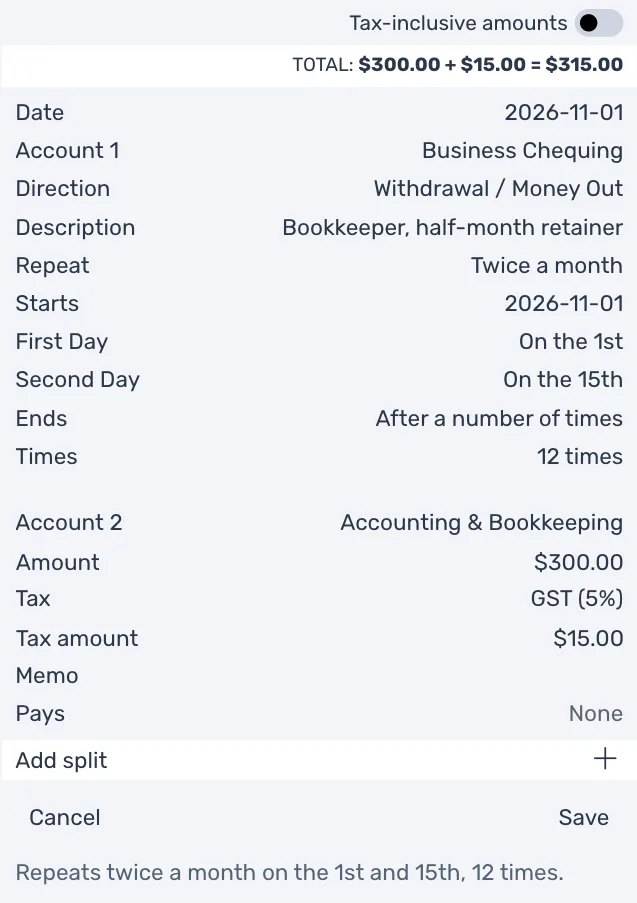
Choose two different days. If the two are the same, Save stays off until you change one. A day before Starts in its first month is left out, so twice a month on the 1st and the 15th starting March 10 begins on March 15. The 28th and the last day fall on the same date in a February with 28 days, and then it comes once that day.
Ends
| Ends | What happens |
|---|---|
| Never | It keeps repeating until you end it, pause it or delete it. This is the choice to begin with. |
| After a number of times | A Times line opens, starting at 12. Every date counts from Starts on, whether you post it, skip it or it passes while paused. When the transaction you save falls on one of the dates, it counts as the first time. |
| On a date | An Ends On line opens, starting a year after Starts. That day itself is the last date it can come on. |
Once it has ended, nothing more comes due. It stays in All Scheduled and in the sidebar with its history, and its Next is left empty. To start it again, choose a later end.
The sentence under the form
At the bottom of the form, a sentence says how the transaction repeats in words, so you can check it before you save. It names how often, the day or days, and when it ends, such as repeating monthly on the 31st from the date it starts, twice a month on the 1st and the 15th for 12 times, or weekly on Mondays until a date. If it does not say what you meant, change the lines above it before you press Save.
What repeats
Everything on the transaction repeats as you saved it, such as its accounts, its amounts, each line's tax and memo, and every line of an invoice or a bill.
- Tax. Each posted transaction uses the tax rate in force on its own date, so a rate that changes is picked up for you. A tax amount you typed yourself is posted as you typed it.
- Invoices and bills. Each posted one gets the next number, and it is due the same number of days after its date as the one you saved.
- The name. It is named after the transaction's description when you save it. With no description it takes the name of the account on the second line, such as Software Subscriptions. An invoice or a bill is named after its customer or vendor, since its description is its number, which is new each time.
To post a different amount for one date, such as a utility bill that changes every month, change it as you post it (see Change it before you post). To change it for every date from now on, see Change what it posts.
Change what it posts
When something about the transaction changes for good, change it the next time it is due, and use the change for every date you haven't posted yet. Say your rent goes from $2,000 to $2,200 in March.
- When March's rent is due, press Recurring in the activity bar, then Due, and select it.
- In the Due Transaction panel, change the amount to 2,200.00. You can also change the tax, the description or a memo.
- Press Post. TrueSum asks whether to use your change for every date not posted yet.
- Press All Unposted Dates.
March is posted at $2,200, and every rent after it will post $2,200 too. The rents you already posted stay $2,000.
- This Date Only posts $2,200 for March alone, and April comes back at $2,000. It is the choice for an amount that changes once, such as a bigger utility bill.
- Earlier dates still in Due. All Unposted Dates changes them too. If February's rent is still waiting when you post March this way, February will post $2,200 as well. To keep February at $2,000, post it first.
- Another account or contact. The accounts and the contact of a transaction that repeats can't be changed. A change to one posts on that date only, and TrueSum doesn't ask. To use another account for every date to come, make a new transaction that repeats, and delete the old one.
- Nothing changed. Post posts it as it is, without asking.
Undo takes back the post and the change together, and Redo does both again.
The Recurring screen
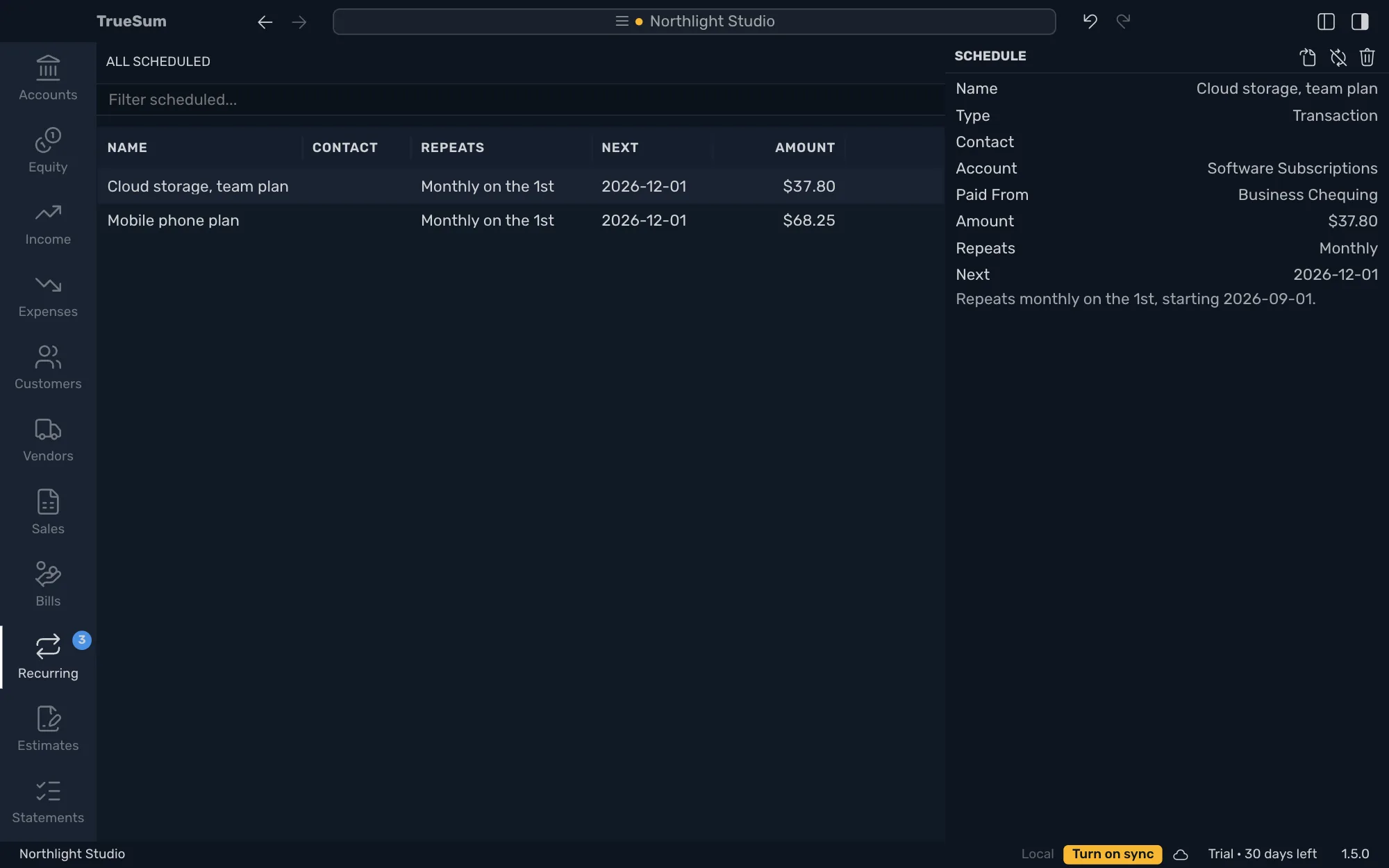
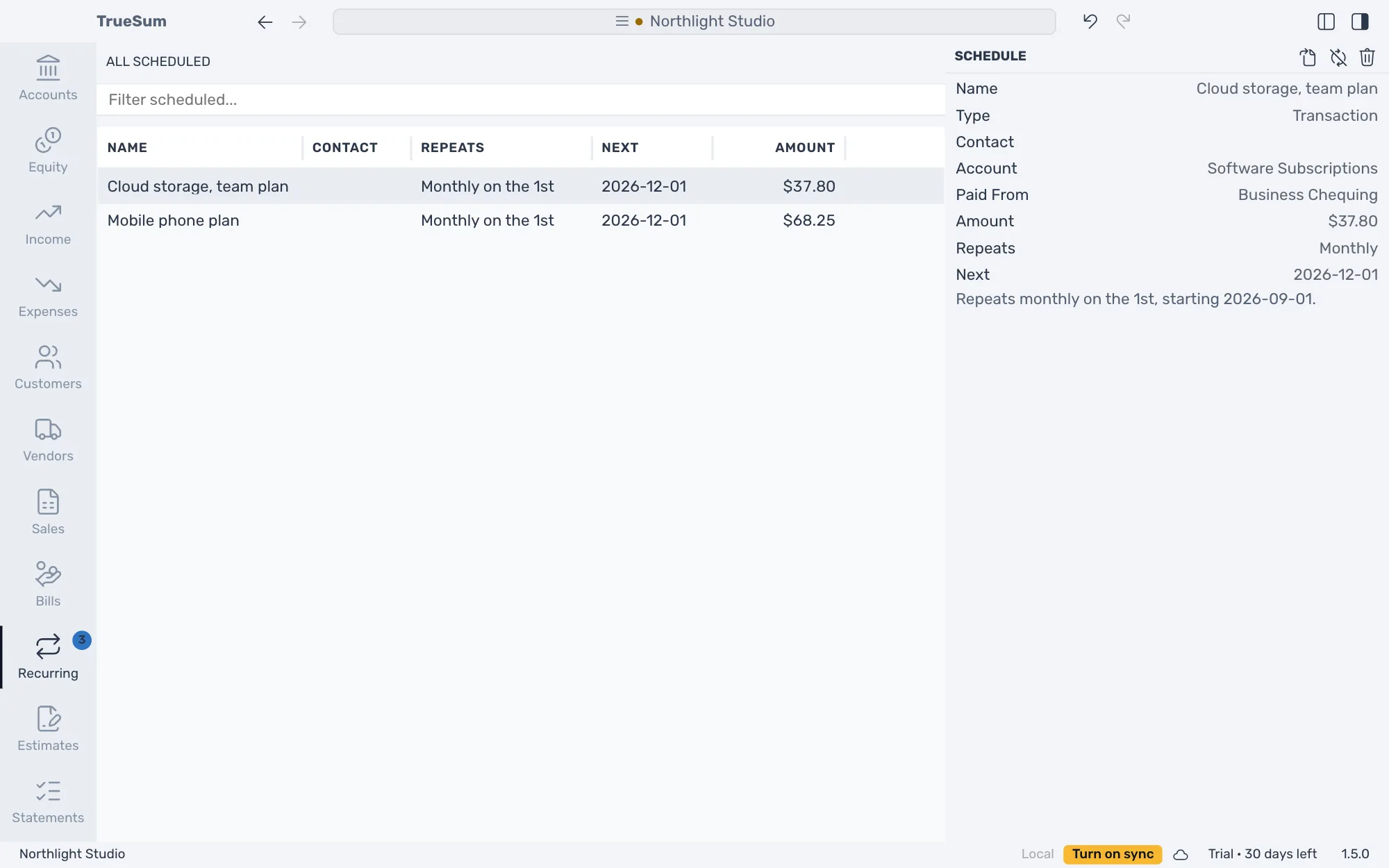
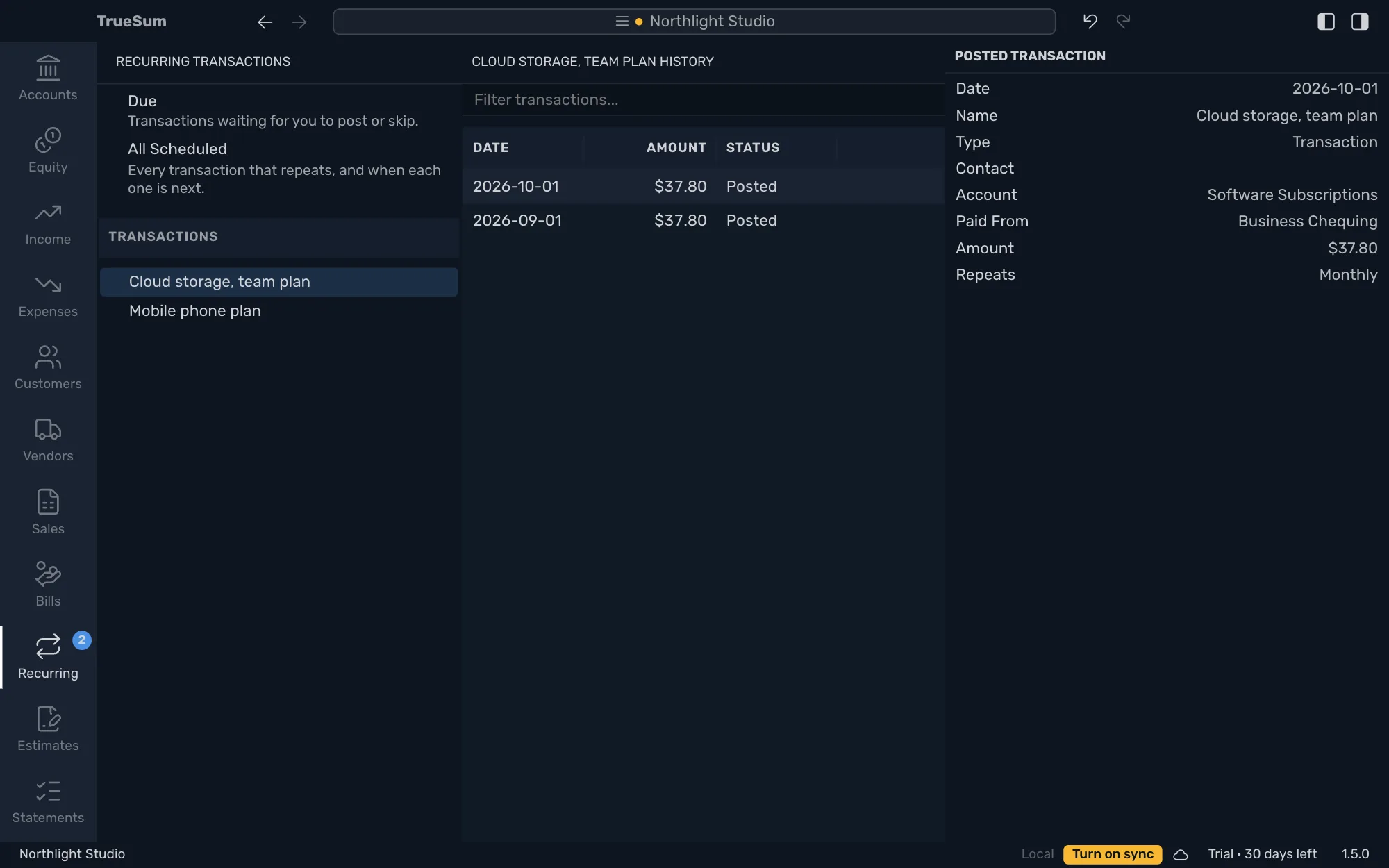
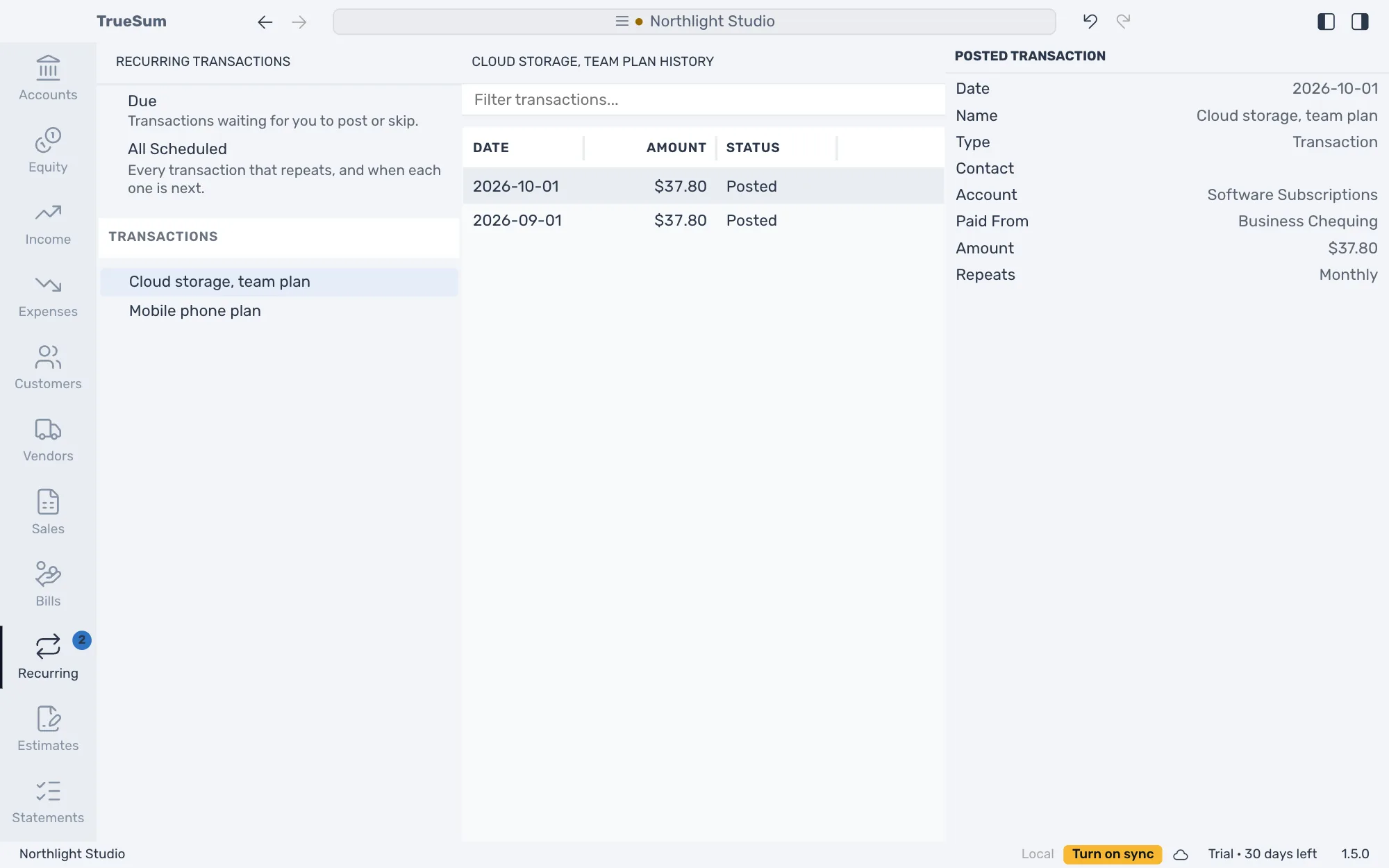
Press Recurring in the activity bar. A number on its icon says how many transactions are due.
- Due lists the transactions whose day has come, waiting for you to post or skip.
- All Scheduled lists everything that repeats, how often, when the next one is due and its amount.
- Under them, each one that repeats is listed by name, under Transactions, Bills and Invoices. Press one to see its history, every date it was posted, skipped or paused. Press a heading to see the history of all of them together.
Change how it repeats
How it repeats is changed on the Repeat line of a transaction it posted.
- Select it in All Scheduled. Its Schedule panel shows its name, accounts, amount, how often it repeats and when it is next.
- Press the button at the top of the panel, a page with an arrow, Open Transaction. The last transaction it posted opens in its register.
- Change its Repeat lines and press Save, or press Cancel to leave it as it was.
- How often, the day or Starts. The change applies from today on. Every date up to today stays as it was, so what is already due stays due, and what you posted or skipped stays posted or skipped.
- Only when it ends. The new end applies to the whole schedule. An end moved earlier than dates already due takes those dates out of Due.
- Never. It stops repeating and is deleted, as Delete Schedule does below. Every transaction it already posted stays in your books, and Undo puts it back.
If every transaction it posted was deleted, Open Transaction isn't there. To change how it repeats then, delete it and make the transaction repeat again.
Pause, resume or delete it
The buttons are at the top of the Schedule panel.
- Open Transaction, a page with an arrow, opens the last transaction it posted, to change how it repeats (see Change how it repeats).
- Pause, the crossed-out circling arrows, stops it for a while, for example while you are away for a few months. Nothing of it is due while it is paused, and it is dimmed in the sidebar and in All Scheduled.
- Resume, the circling arrows, starts it again. The dates that passed while it was paused show as Paused in its history and never come due. Dates that were already due before you paused it are due again.
- Delete Schedule, the trash button, stops it for good. Every transaction it already posted stays in your books, and Undo brings it back.
Undo takes back any of these, and any change to what it posts or how it repeats, and Redo does it again (see Undo a change). If someone you share the business with changed it on another device in the meantime, Undo is refused, and you can change it again yourself.