Post or skip what is due
Put a transaction that repeats into your books when its day comes, change it first, skip it, or post everything due at once, and what to do when one cannot be posted.
When the day of a transaction that repeats comes, it waits in Due on the Recurring screen. Nothing goes into your books until you post it, so you check each one first and decide. This page covers every way to post, skipping, Undo, and what to do when a date cannot be posted. How to make a transaction repeat is on Repeat a transaction.
What is due
Due lists every date that has come and is not yet posted or skipped, oldest first. Each date is its own row, so rent that repeats monthly and was not posted for three months shows three rows, one for each month.
The number on the Recurring icon in the activity bar is how many rows Due has, for the open business. With nothing due, the icon has no number. If you hide the icon (see Choose the icons on the left), the dates still wait in Due for when you open it.
Due goes by your computer's date. When the date changes, new dates come due by themselves, even if you left the app open overnight or the computer was asleep.
If the app was closed for a while, every date it missed is listed on its own the next time you open the business. Post or skip each one. A paused one has nothing in Due while it is paused (see Pause, resume or delete it).
Post one
- Press Recurring in the activity bar, then Due.
- Select the date. The Due Transaction panel shows it filled in, with its name, date, accounts and amount.
- Press Post.
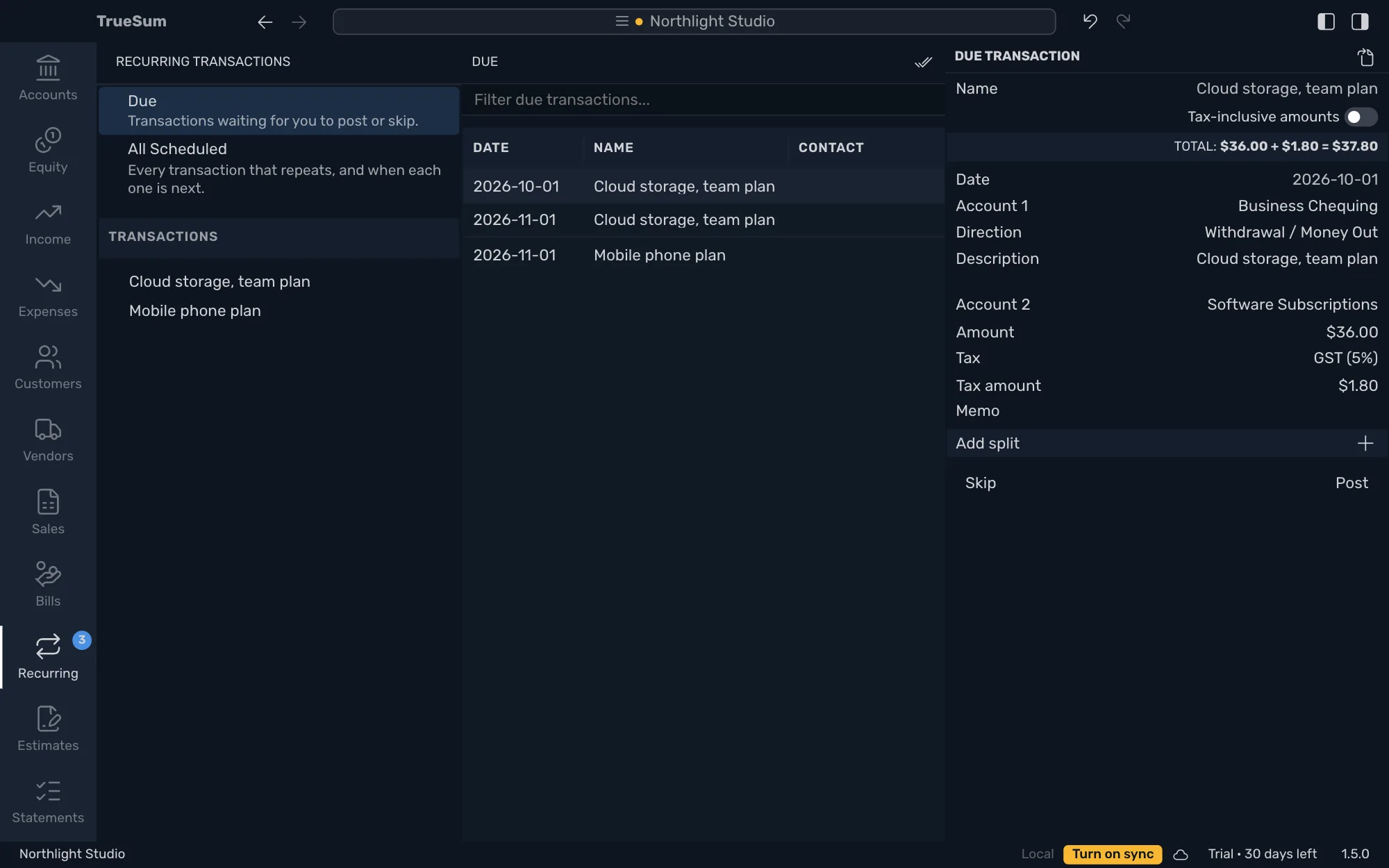
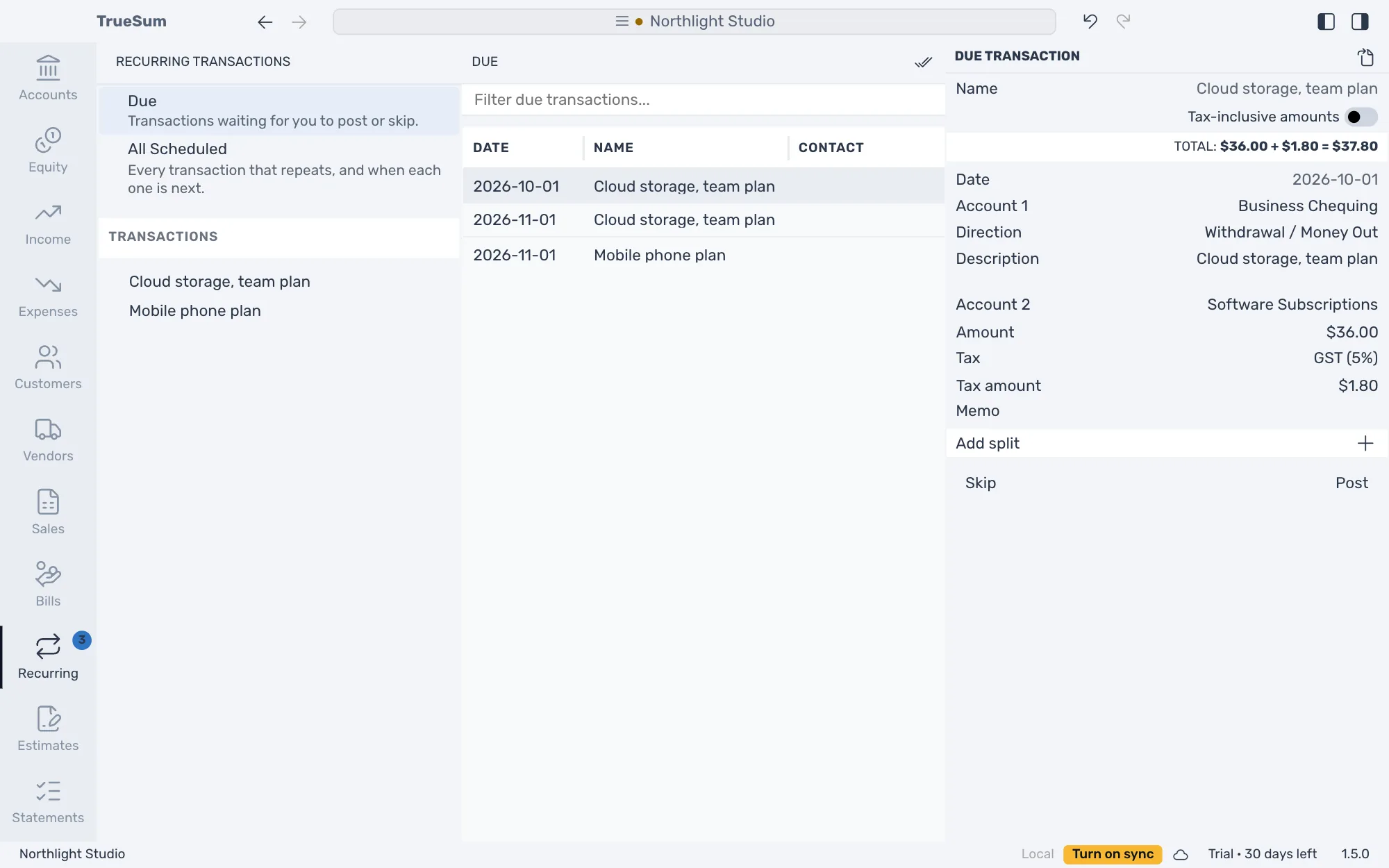
The row leaves Due, the number on the icon goes down by one, and the date shows as Posted in its history.
What a posted transaction is
A posted transaction is an ordinary transaction, dated the day it was due. It shows in its accounts and in your reports like any you save, and you can open it, change it or delete it like any other (see Change or delete a transaction).
- Tax is worked out at the rate in force on its date. A tax amount typed on the transaction you first saved is posted as it was typed.
- Another currency. It is converted at the exchange rate of its date, looked up for you (see Accounts in another currency).
- An invoice or a bill gets the next number, and it is due the same number of days after its date as the one you first saved.
- Deleting it later leaves the date posted. It does not come due again.
Change it before you post
For an amount that changes each time, such as a utility bill, change it right in the Due Transaction panel. Change the amount, the accounts, the tax, the description or anything else. Once you change something, Skip turns into Cancel, which puts it back as it was.
The date stays the day it was due and can't be changed there, and the panel has no Repeat line.
Press Post. If you changed the amount, the tax, the description or a memo, TrueSum asks whether to use your change for every date not posted yet.
- This Date Only posts it as you changed it. The next date comes with the usual amount again.
- All Unposted Dates posts it, and every date you haven't posted yet will use your change too, earlier ones still in Due included (see Change what it posts).
A change of account posts on this date only, without asking, because the accounts of a transaction that repeats can't be changed.
A line whose account or tax rate was deleted on another device, or whose tax rate doesn't apply on that date, opens empty for you to choose another.
Open what repeats
To see the transaction that repeats, press the button at the top of the Due Transaction panel, a page with an arrow, Open Schedule. It opens in All Scheduled with its row selected, ready to pause, delete, or open its transaction to change how it repeats (see Repeat a transaction).
Skip one
Press Skip to leave a date out, such as a month you were not charged. Nothing goes into your books, the row leaves Due, and the date shows as Skipped in its history. A skipped date counts as one of the times when it ends after a number of times.
Post everything that is due
Press the double check mark at the top of the Due list, Post All. Every transaction that is due is posted as it is, and Undo takes them all back in one step.
They are posted together. If one of them cannot be posted, none are, and you are told why. Fix that one, or skip it, then press Post All again.
Undo and Redo
Undo takes back the last post, skip or Post All, and Redo does it again (see Undo a change).
- A post. The transaction is taken out of your books, and the date is due again. If you chose All Unposted Dates, the change to the dates not posted yet is taken back too.
- A skip. The date is due again.
- Post All. Every transaction it posted is taken back in one step, and every date is due again. Redo posts them all again.
Undo of a post is refused if the posted transaction was changed on another device since you posted it. To take it out of your books then, delete it. The date stays posted. Undo is also refused if the same date was posted or skipped on another device in the meantime.
When a date cannot be posted
| What you see | What to do |
|---|---|
| The date is in a closed year | Reopen that year to post it, or skip it (see Close a fiscal year). |
| An account it uses is deleted | Select the date in Due, choose another account on the empty line, and post it. Every later date needs the same. To stop that, make a new transaction that repeats with the other account, and delete the old one. |
| A tax rate it uses is deleted | Select the date in Due, choose another rate on the empty line, and post it. Press All Unposted Dates to use the new rate for every date not posted yet. |
| A tax rate it uses doesn't apply on that date | Choose another rate in the Due Transaction panel and post it. Press This Date Only for this date, or All Unposted Dates for every date not posted yet. |
| No exchange rate for its date | Connect to the internet and post it again. Or enter the amount in both currencies in the Due Transaction panel, then post it. The rate is worked out from them. |
| It was saved by a newer version | Update TrueSum on this device, then post it. |
| Your trial has ended | Posting saves a transaction, so it needs a license, as any save does (see Start your trial or enter a license key). You can still skip. |
On two devices
A date is posted only once, on every device. If you, or someone you share the business with, post the same date on two devices before they sync, the post that syncs first is kept. The other device's post is taken out of its books when it syncs, and it gets a warning that its post was not kept. If one device skips a date and the other posts it, whichever syncs first is kept. The Overwritten Changes window shows what was posted on each (see When two devices change the same thing).