What Happened
The list of what TrueSum did, newest first, with filters, which support reads when something goes wrong.
What Happened lists what TrueSum did, newest first. That includes what you did, what changed in your books, what sync did and what went wrong. Use it to see why something happened, or to see what support will read.
Open it
In the Help menu, choose What Happened…. On a Mac the menu is at the top of the screen. On Windows, press the Application Menu button at the left of the title bar. It updates as things happen.
Read it
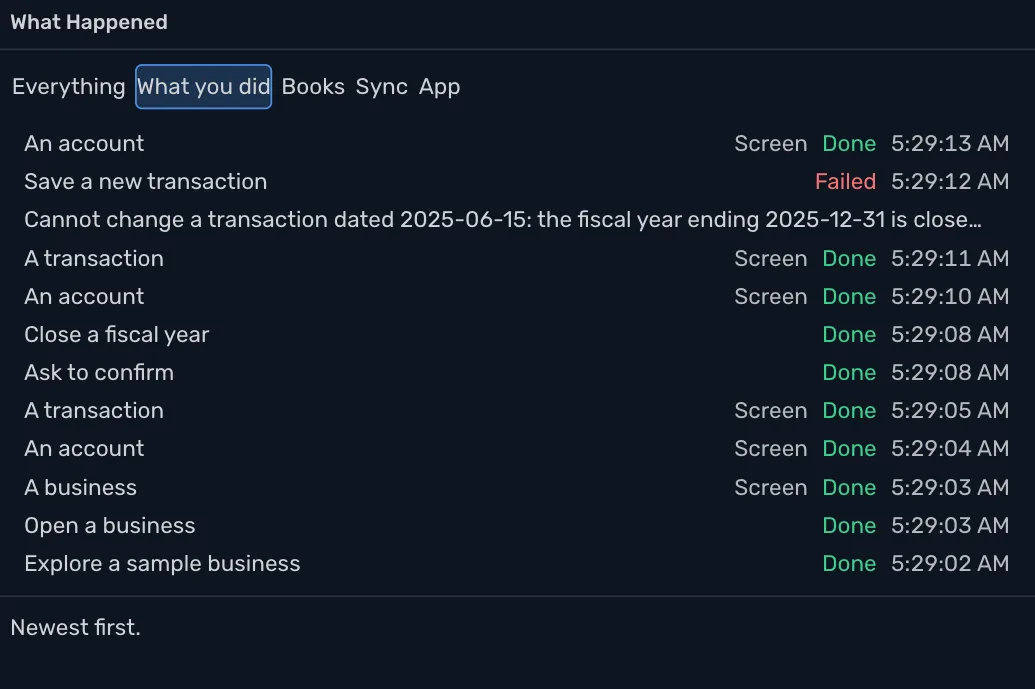
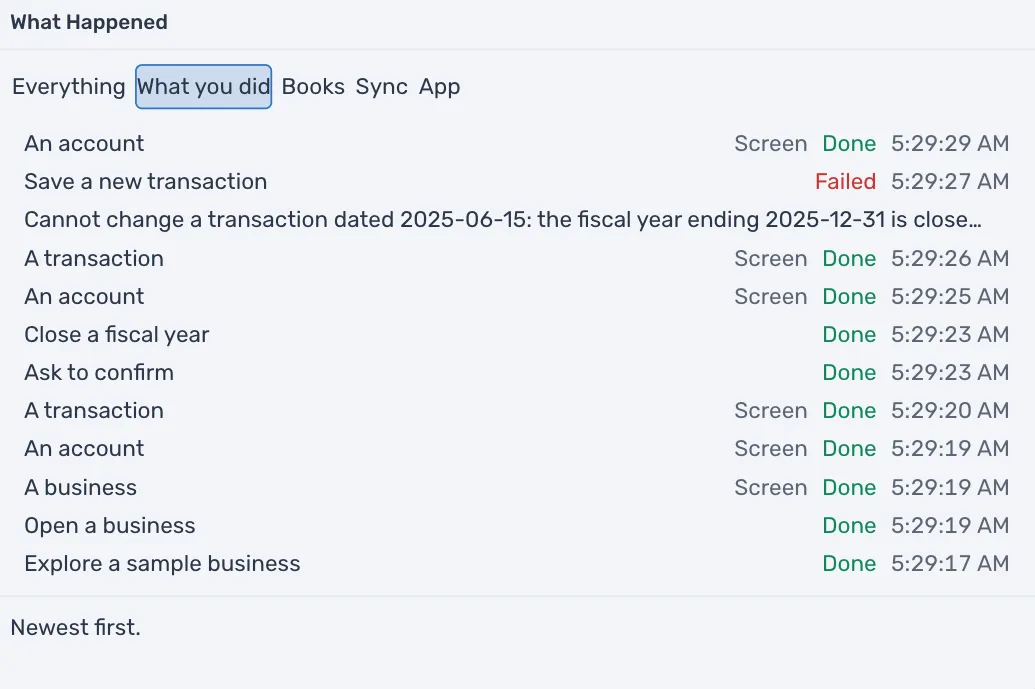
Each row has what was done, a word for what kind of thing it was (Screen, Books, Sync or Told), how it ended, and the time. Screen is a screen you opened, Books a change to your accounts and transactions, Sync what sync did and Told a message TrueSum showed you. Changes to your books are listed under what caused them.
| Ended | Means |
|---|---|
| Done | It worked. |
| Refused | TrueSum declined and said why. |
| Failed | It could not be done. |
| Warning | TrueSum noted a problem and carried on. |
Press a row to see its details. They are the date and time, how long it took in milliseconds, and the words TrueSum used.
Filter it
The buttons above the list show one kind at a time.
| Button | Shows |
|---|---|
| Everything | Every row. |
| What you did | What you pressed, the screens you opened and the messages TrueSum showed you. |
| Books | Changes to accounts and transactions. |
| Sync | What sync did, and the steps of turning it on or stopping it. |
| App | Starting and quitting, backups, restores and errors TrueSum hit. |
The window shows the newest rows. When there are none, it says "Nothing has happened yet."
Send it to support
What Happened stays on your device. Nothing is sent. Contact Support attaches its recent rows to the file you email (see Get help). It leaves out license keys and sign-in codes, but its rows can include names and amounts from your books.