Remind customers to pay
Send a payment reminder of an overdue invoice yourself, or have reminders go on their own on the days after the due date you choose.
A payment reminder is an email to your customer saying an invoice is past due. It says when the invoice was due and how much is still owed, with the invoice attached as a PDF. Send one yourself when you notice a late payment, or have TrueSum remind late payers automatically.
Reminders are sent the way invoices are, so you need what sending needs, a license or a subscription, to be signed in, and an internet connection (see Send an invoice or estimate by email). The customer needs an email too.
Send a reminder yourself
- Open an invoice that is past its due date and not paid in full. In the Sales list, these have a red clock (see See who owes you).
- Press Send by Email at the top of the right sidebar.
- Turn on Payment reminder.
- Type a Note if you want one, then press Send.
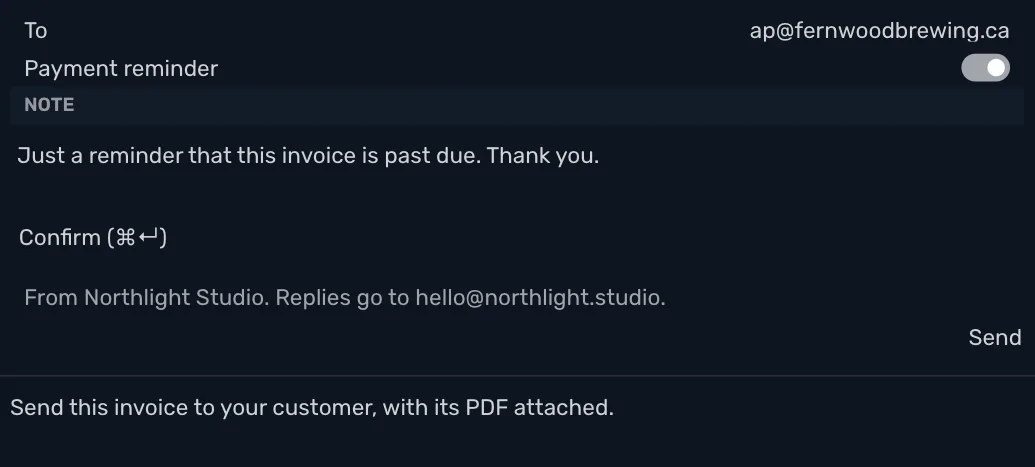
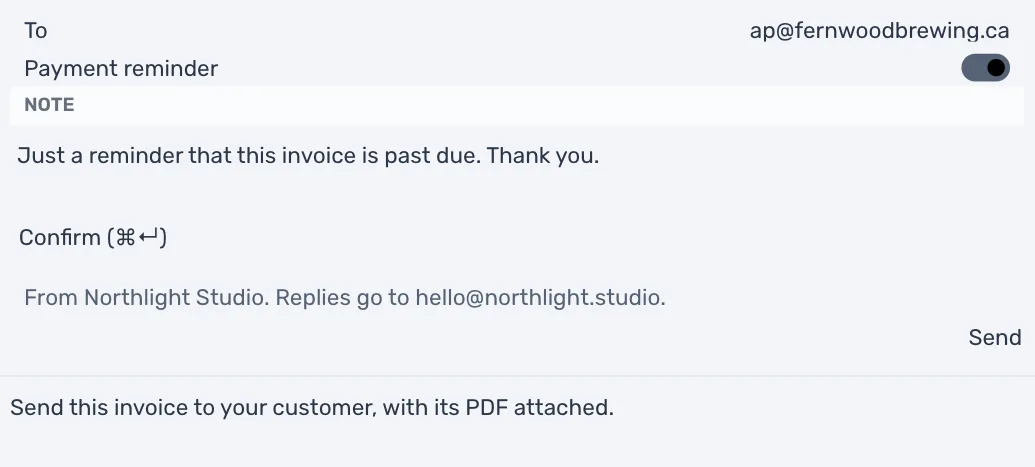
Payment reminder shows only on an invoice that is past its due date with something still owed. Your customer gets a reminder that names the invoice, its due date and what is still owed, rather than the whole total.
Remind late payers automatically
- Open Invoice Settings (see Customize your invoices) and scroll to Payment Reminders.
- In Send a reminder, keep 3, 10 and 30 days late, or type your own days.
- Turn on Remind late payers automatically.
- If some invoices are already late enough for a reminder, TrueSum asks first and says how many go right away. Press Turn On to send them, or Cancel to leave reminders off.
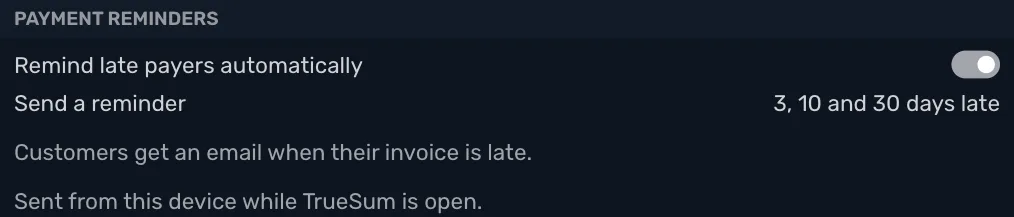
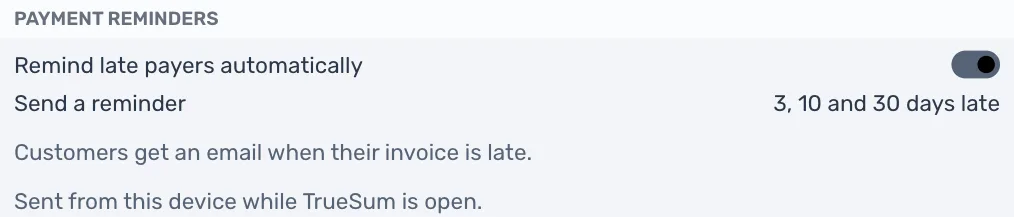
The days
Each number is how many days late an invoice is when a reminder goes, counted from its due date. Separate them with commas. You can have up to five, each from 1 to 365.
Say an invoice is due on March 1 and the days are 3, 10 and 30. A reminder goes on March 4, another on March 11, and the last on March 31, as long as the invoice is still not paid in full.
- Only the latest one goes. If TrueSum was not open for a while and two of the days have passed, your customer gets one reminder, not two.
- An email you sent counts. If you sent the invoice or a reminder yourself on or after one of the days, that day's reminder does not go. Say you sent a reminder by hand on March 12. The March 11 reminder is skipped, and the next one goes on March 31.
- Once it is paid, they stop. An invoice paid in full gets no more reminders.
- No due date, no reminder. An invoice with no due date is never late, so it gets no reminder. An invoice's due date comes from Default Payment Terms (days) in Business Settings (see Customize your invoices).
To change the days, type them and press Enter, or leave the field. If the new days send some reminders right away, TrueSum asks first and says how many. Press Save to go ahead.
A reminder that goes on its own has no note. To add one, send the reminder yourself.
Where and when they go
Reminders go from one device, the one you turned them on from, while the business is open in TrueSum there. TrueSum sends what is due when you open the business, and again from time to time while it stays open. While TrueSum is closed on that device, or another business is open there, nothing goes. What is due then goes the next time you open the business.
While reminders are on, Payment Reminders says which device sends them. To send them from the device you are on, press Send Reminders from This Device. Someone you share the business with, who can make changes, can do this too, and reminders then go from their device and their account. Set the Email in Invoice Settings so that replies always come to you.
Reminders count toward the 50 emails a day you can send. If more than 50 are due at once, TrueSum says so when it asks. Up to 50 go that day, and the rest after that.
When reminders can't go
Reminders don't go while you are offline or have Privacy Mode on. They also don't go while you are signed out, or once the license or subscription that lets you send has ended. TrueSum then tells you once how many were not sent and why. They go again once that is fixed. They never go from the sample business, or while a backup is open.
You can't turn reminders on, or change their days, while you can't send email. If you press Remind late payers automatically then, it turns back off and TrueSum says why. You can always turn them off.
Turn them off
Turn off Remind late payers automatically. No more reminders go, and Send a reminder goes back to 3, 10 and 30 days late.
Undo does not turn reminders on or off, or change their days. An email can't be taken back, so these settings stay as you set them.
What the invoice shows
Each reminder adds a line under the invoice's form with the day it was sent and the email it went to, beside the line for the invoice itself if you sent it (see The invoice shows when it was sent).