Send an invoice or estimate by email
Email an invoice or an estimate to your customer from TrueSum, with its PDF attached and a note of your own.
Send an invoice or an estimate straight to your customer, without saving the PDF and attaching it yourself. Your customer gets an email from your business with the PDF attached, and their replies come to you. The invoice then shows when you sent it.
What you need
- A license or a sync subscription. Sending isn't part of the trial (see Why the trial can't send).
- To be signed in to TrueSum. Press the business's name in the title bar, choose Account, then Sign in or create account. TrueSum opens your browser. Sign in there, and TrueSum finishes by itself.
- An internet connection, with Privacy Mode off (see Privacy Mode).
- An email on the customer. Type it in the customer's Email (see Add a customer). The invoice goes to that one address.
Send an invoice
- Open the invoice. It has to be saved first.
- Press Send by Email, the envelope at the top of the right sidebar.
- To shows the customer's email. To send to another address, change the customer's Email first.
- Type a short Note if you want one, such as a thank you or how to pay. It is optional.
- Press Send.
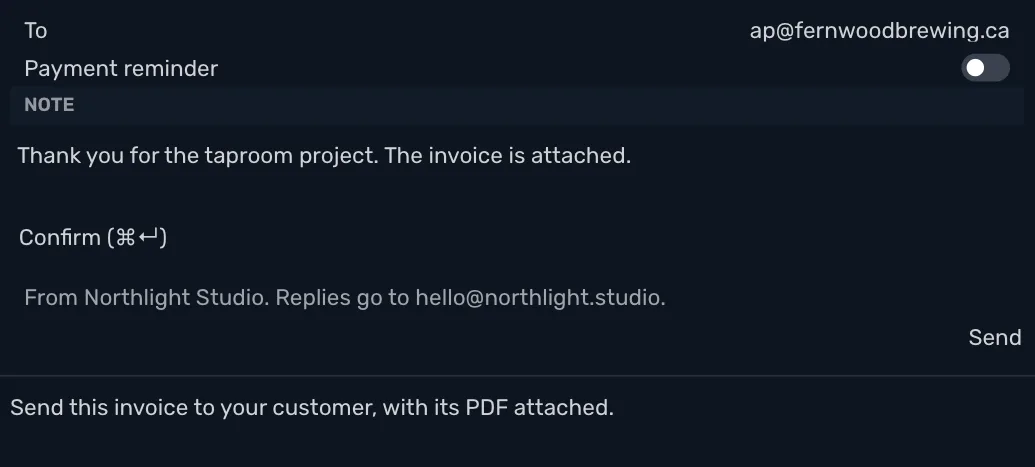
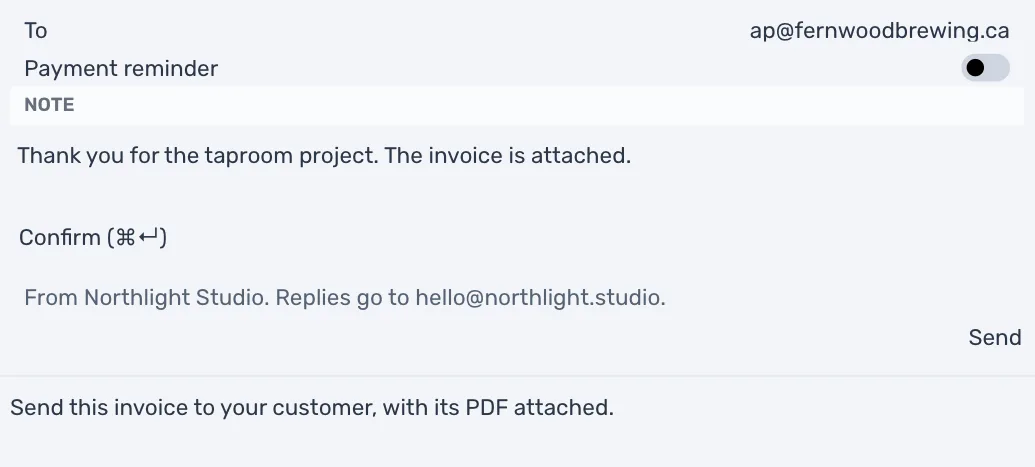
The window closes once the email is on its way. If it could not be sent, the window stays open with your note and says why, so you can press Send again. If you press it again without changing anything, the email is sent only once. If TrueSum can't tell whether the email went, it says so. Check with your customer before you send it again. If it didn't arrive, close the window and press Send by Email again.
An email can't be taken back once it is sent, so Undo does not apply to it.
On an invoice that is past its due date and not paid in full, the window also has a Payment reminder switch. Turn it on to send a reminder instead of the invoice (see Remind customers to pay).
Send an estimate
Open a saved estimate and press Send by Email at the top of the right sidebar. The window works the same way, and your customer gets the estimate's PDF.
What your customer gets
- Who it is from. The email shows your business's name as the sender. It is sent from TrueSum's own email address, so you don't need to set up any email account.
- What it says. It names the invoice and your business, and says the total and the due date. An estimate's email says its total. Your note follows, as you typed it.
- The PDF. The invoice or estimate is attached as a PDF, the same one you see in the preview.
When your customer presses Reply, their email goes to the Email in Invoice Settings (see Customize your invoices). If that is empty, it goes to the email you sign in to TrueSum with. The window says where replies will go before you send.
The invoice shows when it was sent
Once it is sent, a line under the invoice's form says the day you sent it and the email it went to. Every email you send of it adds a line, newest first, reminders included. Estimates show the same lines.
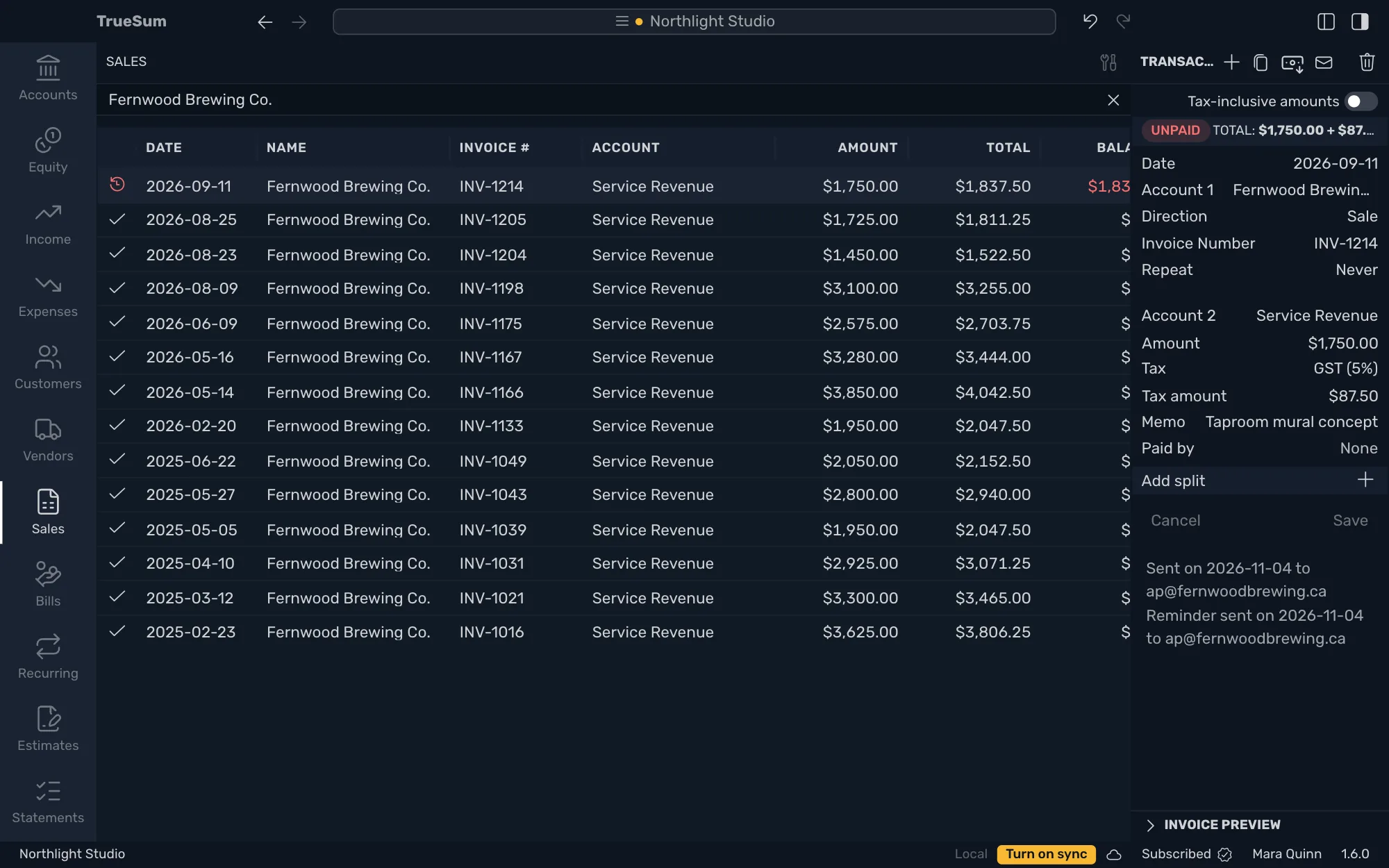
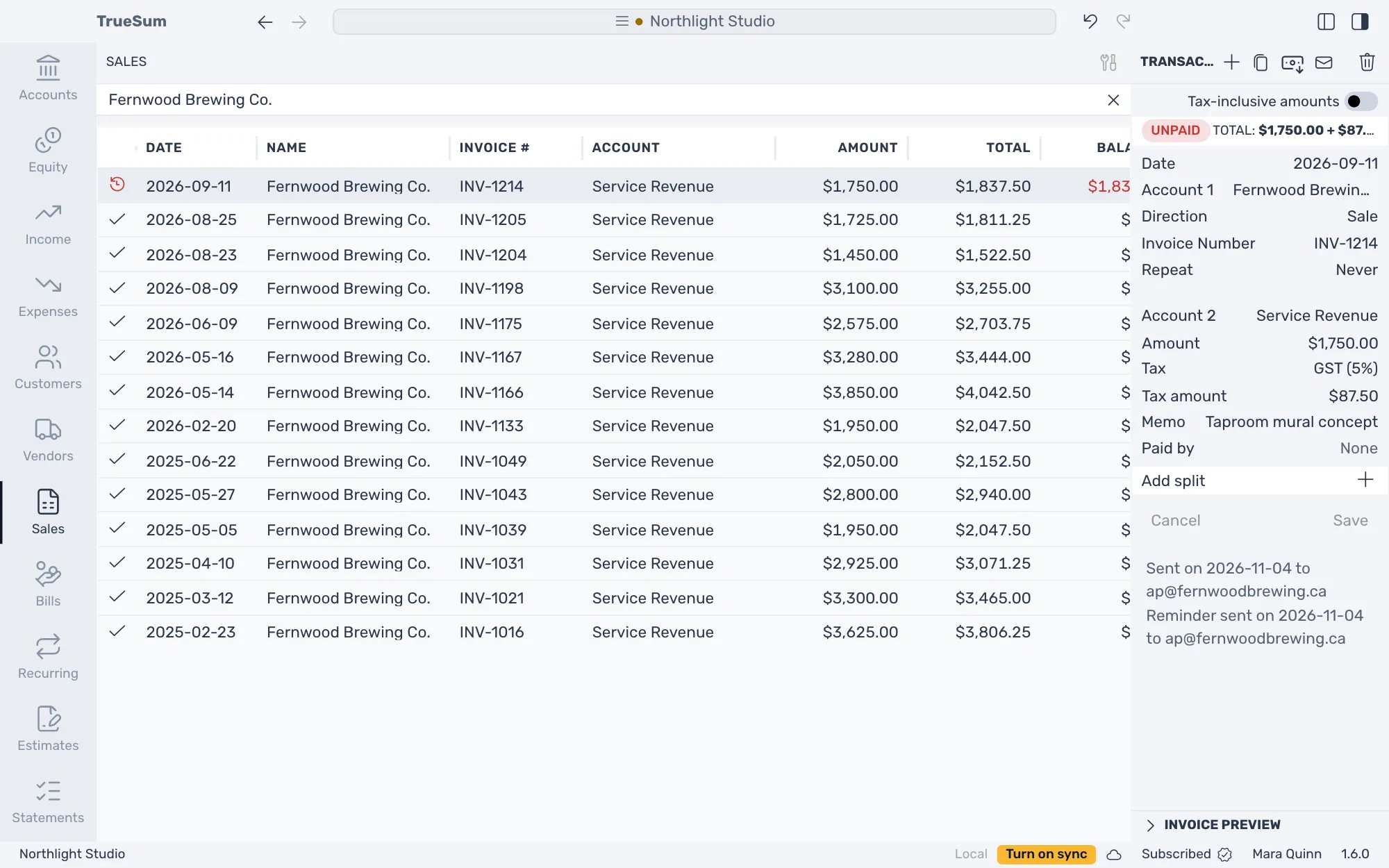
The lines stay with the invoice. They show on your other devices once the business syncs, and with Privacy Mode on too.
When you can't send
TrueSum tells you why when you point at Send by Email.
| When | What to do |
|---|---|
| You are on the trial | Buy a license or subscribe. |
| Your license is on another device | Use it on this device (see Start your trial or enter a license key). |
| Your license was refunded | Buy a license or subscribe. |
| You are not signed in | Sign in from the Account window. |
| You are offline | Connect to the internet. |
| Privacy Mode is on | Turn it off in App Settings. |
| The invoice or estimate is not saved | Save it. |
| The customer has no email | Add one to the customer. |
| The sample business is open | Create your own business. |
| A backup is open | Close the backup. |
| The business is shared with you to view | Ask its owner to let you make changes. If you can make changes but have no subscription of your own, subscribe. |
A few things can only be checked once you press Send:
- Your license is on another account. Sending uses the license on the account you sign in with. If you bought it with another email, sign in with that email, or add the license to this account on your account page.
- The daily limit. You can send up to 50 emails a day, counting invoices, estimates and reminders together. After that, try again the next day.
- The PDF is too large. A very large logo makes a large PDF. Use a smaller logo in Invoice Settings.
Why the trial can't send
Sending email needs a license or a sync subscription, even during the trial. Every email then comes from an account someone paid for, which helps keep TrueSum's email from being used to send spam.
Your customer's details
To deliver the email, your customer's email, your note and the PDF pass through TrueSum's server and the service it sends email with. That service keeps a copy of each email, and a record of its delivery with your customer's email, for a time its own policy sets. TrueSum's server keeps only a count of the emails you send, and nothing about the invoice. The Privacy Policy has the details.