See who changed what
Each transaction's History, and the Audit Log of every change to your transactions, deleted ones included.
TrueSum keeps a record of every change you save to a transaction. For each one you can see when it was made, who made it, and exactly what changed. When you share your business, everyone sees the same record. You can also find a transaction you deleted, and see what it held.
There are two places to look. The History under a transaction shows the changes to that one transaction. The Audit Log shows every change to your transactions, in one list.
A transaction's History
Open a transaction. Its History is in the right sidebar, under Transaction Details. Each row is one save, the newest at the top, with:
- Date and Time, when it was saved, in your own date and time format.
- Who saved it. When nobody's name is known for any of the rows, this column is left out.
- Action, what the save did. Added is when the transaction was first saved, Changed is a later save, Deleted is when it was deleted, and Put back is a delete you undid.
Press a row to open it under itself, and press it again to close it. You can also move to a row with the arrow keys and press Return or Enter.
- A change lists only the fields it changed, each with what it was before and what it is after. A split that was added shows as empty before.
- An added, deleted or put back transaction lists what it held: its date, its description, each account with its amount and tax, and the total. Empty fields are left out.
- An amount in another currency shows in that currency, with your business's own currency under it.
Each split is listed under a heading that names it and its account, so you can tell which amount belongs where. If a change saved the transaction again without changing anything you can see, it says so.
To fold the History away, press its heading. It stays folded until you open it again.
The Audit Log
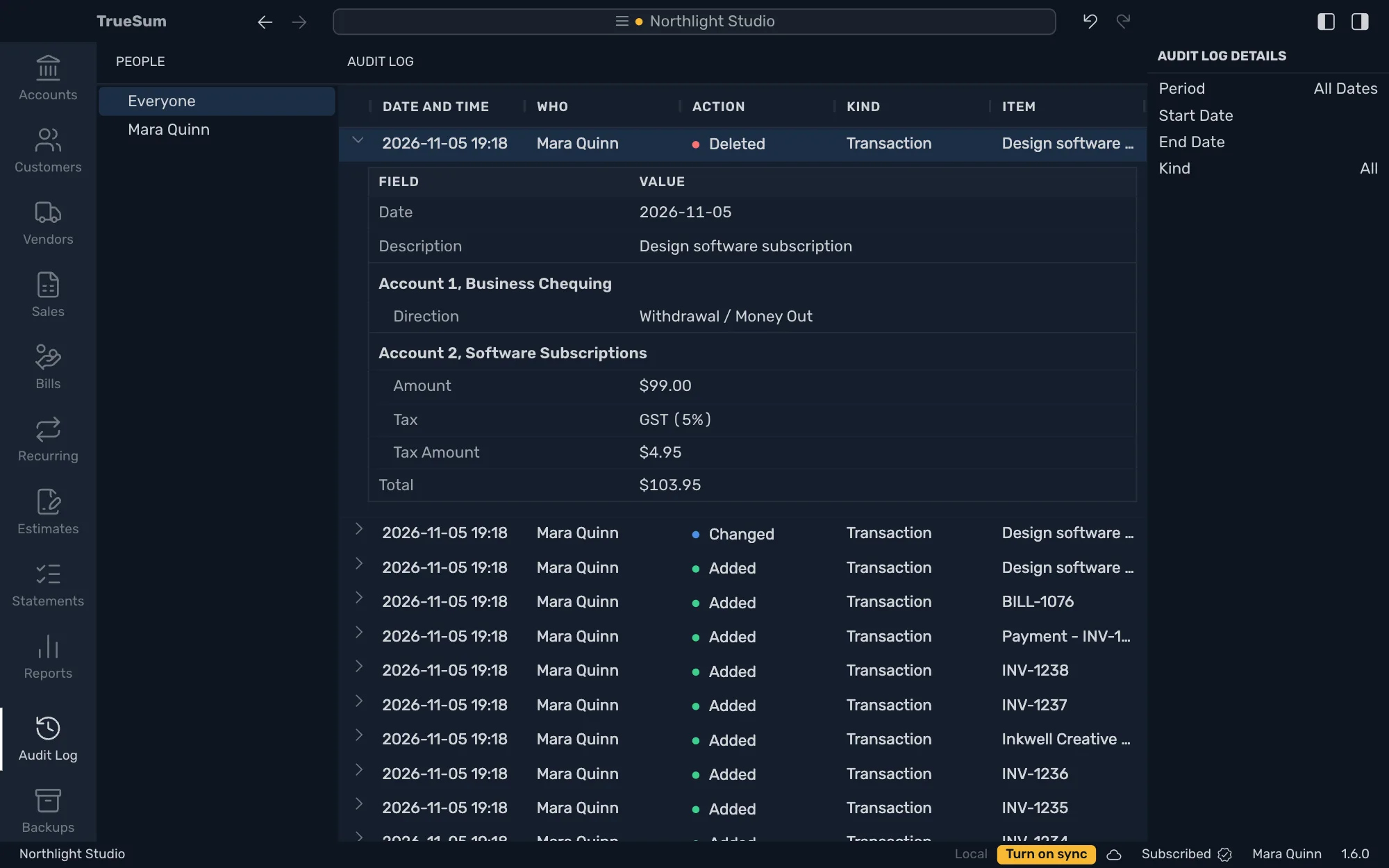
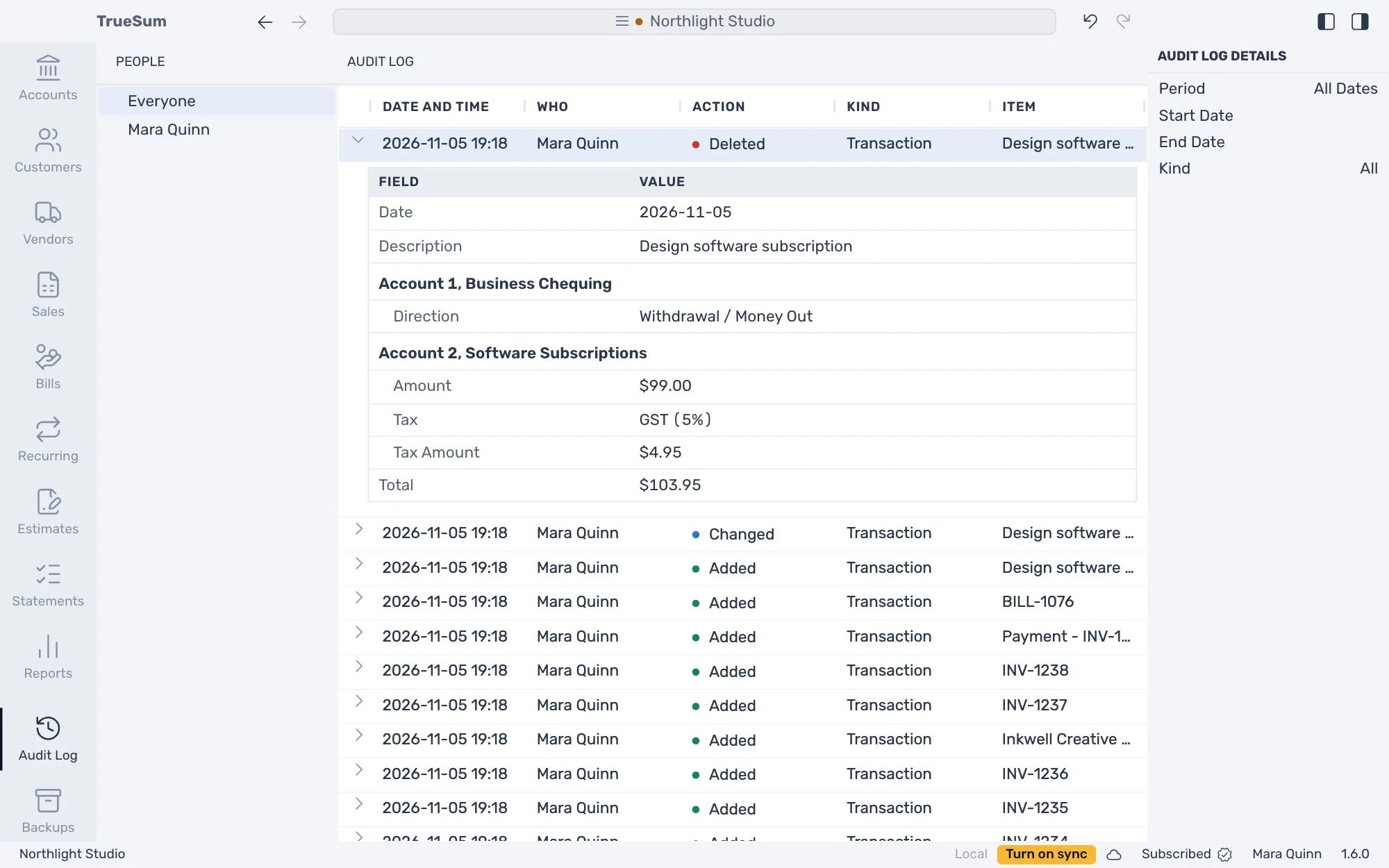
Press Audit Log on the activity bar, just above Backups. It lists every change to your transactions, the newest at the top. Each row has the same Date and Time, Who and Action as a History, and two more columns:
- Kind, the kind of thing that was changed, such as a transaction.
- Item, which one it was. A transaction is named by its description, or by its date when it has none.
A deleted transaction is still listed here, even though it is gone from your accounts. Press its Deleted row to see everything it held when it was deleted. If you deleted it just now, Undo brings it back (see Undo a change).
Pick a person
The People sidebar on the left lists the people who use your business.
- Everyone shows every change. The Audit Log opens on it.
- Each person by name shows only that person's changes. The Who column is left out, since every row would say the same name.
- Unknown shows the changes made by someone whose name the business doesn't have. It is listed only when there are some.
Pick the dates and the kind
The Audit Log Details sidebar on the right narrows the list, the way a report's details do.
- Period picks which days to show. All Dates shows every change, and is where the Audit Log starts. This Month and This Year follow the calendar. This Fiscal Year follows the fiscal year in your business settings (see Business Settings). Custom is any days you choose.
- Start Date and End Date are the first and the last day shown. Changing either one makes the period Custom.
- The arrows at the top of the sidebar move to the period before or after, such as last year from this year. They show once the period has a start and an end. Moving with them makes the period Custom.
- Kind shows one kind of thing, or All. Transactions includes invoices, bills and payments, since each one is a transaction.
A day is the day on your computer, so a change you saved late in the evening is on that evening's day.
When there are a great many changes, the Audit Log shows the newest ones and tells you there are more under the list. Pick a shorter period to see older ones.
Who is named
The name is the one the person uses for their TrueSum account, or their email when they gave no name. Each person's name is kept in the business when they open it signed in, so it is still shown when you are offline, and after you stop sharing with them (see Share a business).
A change made by someone whose name the business doesn't have shows with an empty Who, and under Unknown in People.
Good to know
- The record is part of your books. Everyone you share the business with sees the same History and the same Audit Log, and a backup holds them as they were when it was made.
- Changes saved before TrueSum had the Audit Log are not listed. The first change to an older transaction shows only what it holds after the change.
- The History and the Audit Log record changes to transactions, including invoices, bills and payments.
- If your change and another person's change to the same transaction meet when you sync, only the change that was kept is listed (see When two devices change the same thing).